
Mass fees can be assigned to a list of selected students or to a Customer Group(s).
Mass Fees
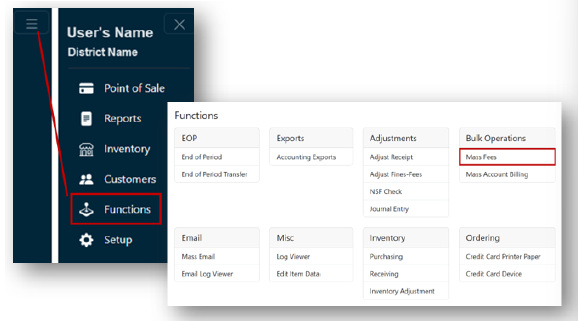
- From the Menu select Functions.
- Click Mass Fees under the Bulk Operations header.
- Select the Customers being assessed a fee:
- Option 1- Manually select customers.
- Select your customer(s) from the left side of the screen. You may filter the lists of customers to choose from by selecting their site, status, and type.
- Click Add.
Note: Once an individual customer is added, they are moved from the left side to the right side of the screen, creating a list of customers to fee.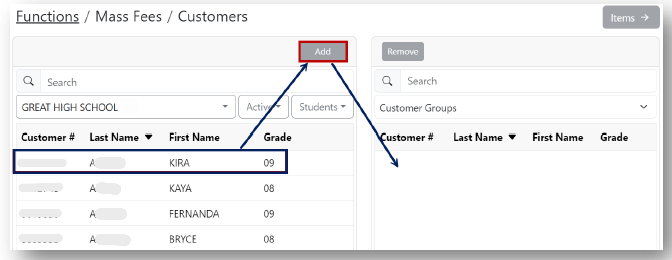
- Option 2- Assign a Fee to a Customer Group.
- Select the desired Customer Group from the dropdown on the right side of the screen, populating your list of customers to fee.
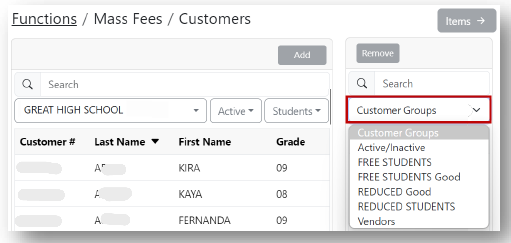
- Select the desired Customer Group from the dropdown on the right side of the screen, populating your list of customers to fee.
- Option 1- Manually select customers.
- Once you have your list of customers to be assessed a fee, click Items to select the Item(s) to fee.
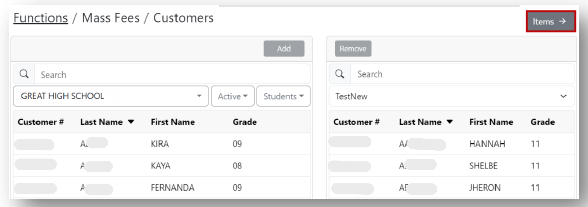
- Select the desired Item and click Add.
Note: Once an item is selected to fee, it is moved to the right side of the screen.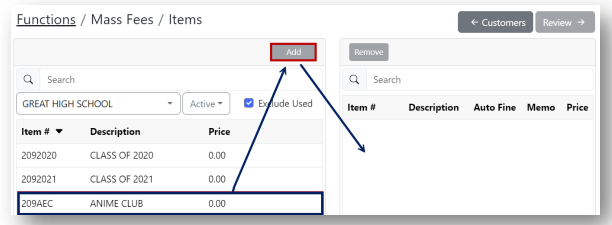
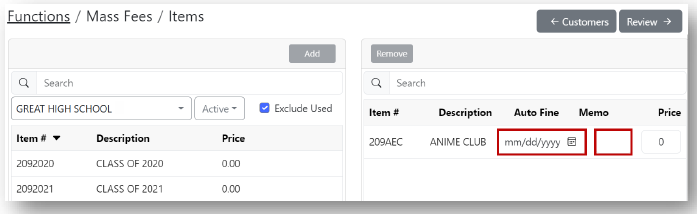
- Optional: Select a date for the fee to automatically become a fine and/or add a memo.
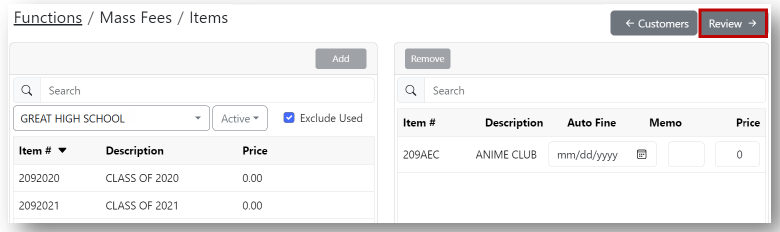
- Click Review
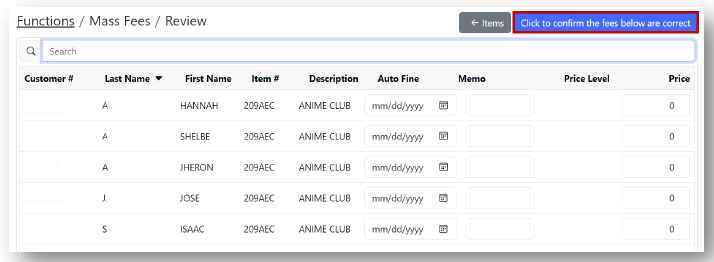
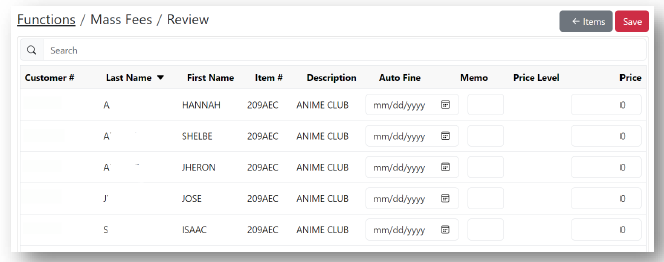
- Review the Mass Fee Review Screen, which displays the following:
- All Students the fee will be assigned to
- Item #
- Item Description
- Auto Fine date (if selected)
- Memo (if entered)
- Price the students will be charged
Note: If price levels are assigned to students, the price level assigned will display, along with the price the student will be assigned as a fee.
- Click the Click to confirm the fees below are correct button to confirm the fee details displayed are correct.
- Click Save to execute assessing the fee.
Note: Saved confirmation message indicates fees have successfully been assigned to students.
