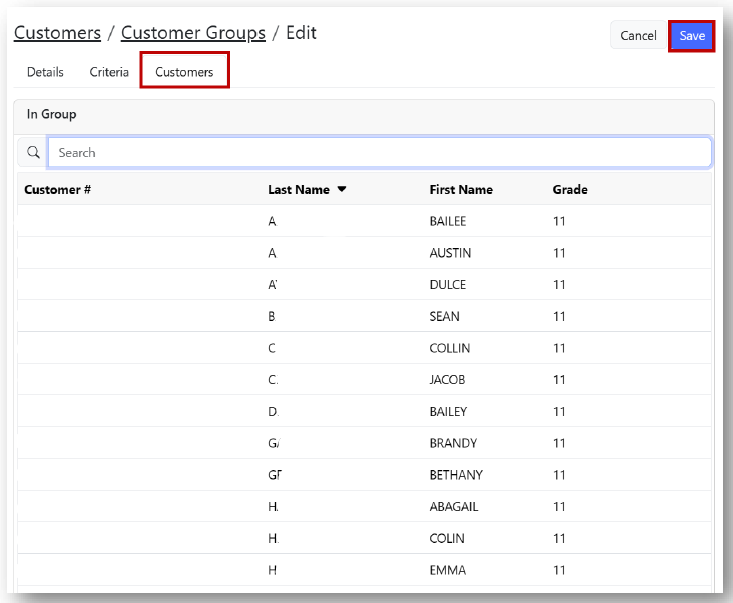
Customer Groups are a defined list of students that can be recalled in other InTouch tools such as assessing fines/fees, price shifting, filtering reports, and blocking/allowing purchases on the Customer Portal.
Note: There are two types of Customer Groups: Customer Group and Dynamic Customer Group.

Customer Group: Can be created by the user or is an automated file transfer that builds a Customer Group.

Dynamic Customer Group: Groups are built automatically based on user-defined parameters.
TABLE OF CONTENTS
Creating a Customer Group
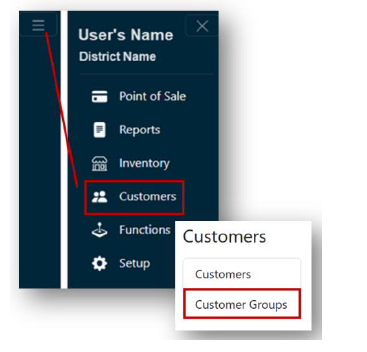
- From the Main Menu, select Customers.
- Click Customer Groups.
- If you have access to multiple sites, select the Site for the new Customer Group from the dropdown.
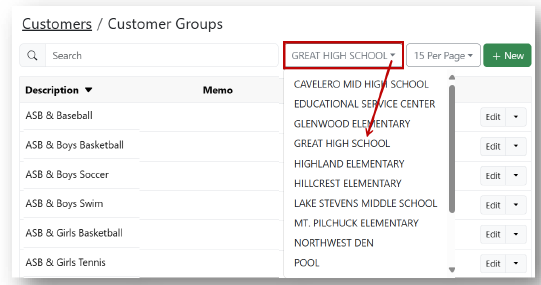
- Click +New
- Under the Details tab, enter a name for your Customer Group.
Note: You may also enter a Memo under the Details tab. - If you have access to multiple sites: Under the Customers tab, select the Site from which you wish to choose your customers from the dropdown
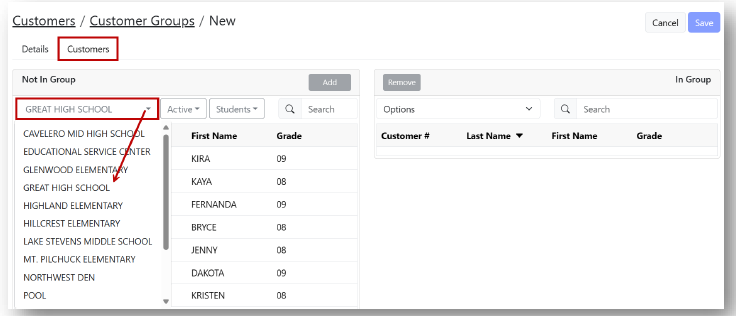
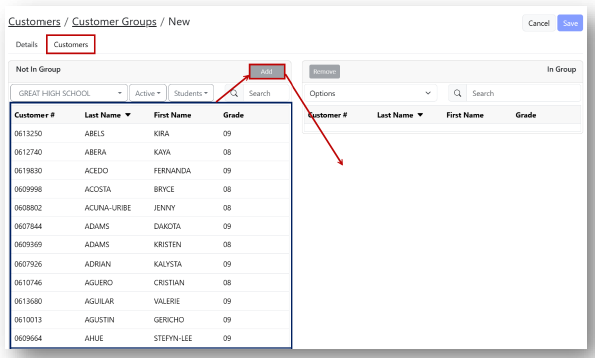
- Choose your Customers to add to the Customer Group.
Note: You can select Customers individually or select multiple at a time. - When you have made your selection(s), click Add and they will appear on the right side of the screen.
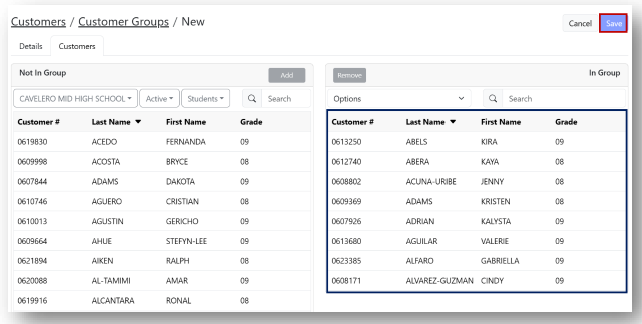
- Click Save.
Creating a Dynamic Customer Group
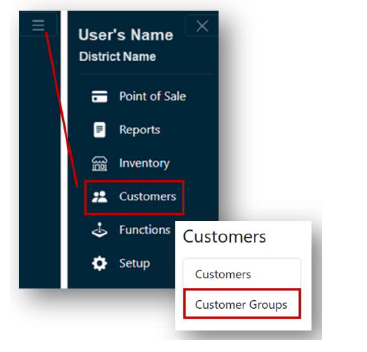
- From the Main Menu, select Customers.
- Click Customer Groups.
- If you have access to multiple sites, select the Site for the new Customer Group from the dropdown.
- Click +New
- Under the Details tab, enter a name for your Customer Group.
Note: You may also enter a Memo under the Details tab. - After naming your new Customer Group, check the Dynamic box.
Note: Upon checking this box, a new tab will appear titled Criteria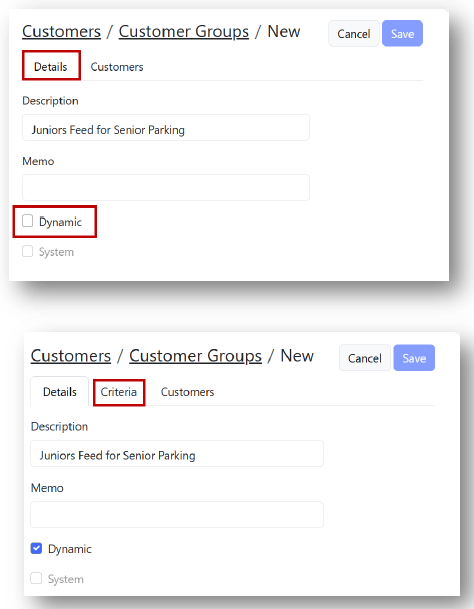
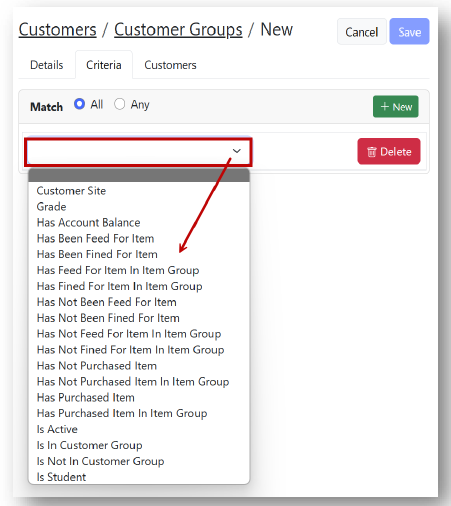
- Under the Criteria tab, click + New.

- Begin selecting the criteria by which you wish to build your Customer Group.
- Click Save.
Note: You must save your Dynamic Customer Group at this point so that the system has time to refresh and add the customers that meet the selected criteria. - Search for the Dynamic Customer Group you just created and click Edit to check the customers added to the group.
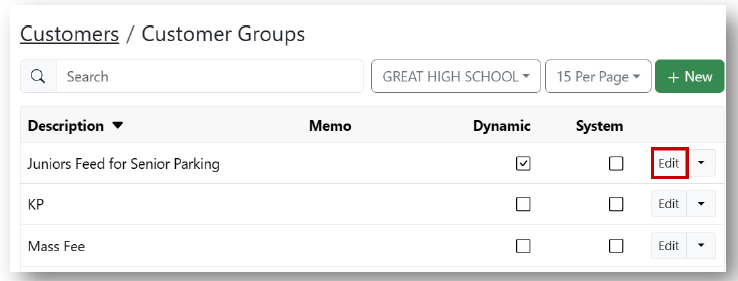
- Ensure the customers that were added to your Dynamic Customer Group are correct.