
Introduction
This article outlines the basic Point of Sale (POS) functions available in InTouch Pay, including searching for customers, processing sales, and completing transactions using various tender types.
TABLE OF CONTENTS
- Lookup Student / Non-Student / Customer
- Making a Sale
- Completing a Sale with Cash
- Completing a Sale with a Credit Card
- Completing a Sale with a Check
Lookup Student / Non-Student / Customer
- From the Main Menu, select Point of Sale.
- Click the Search bar or No Customer to begin your search.
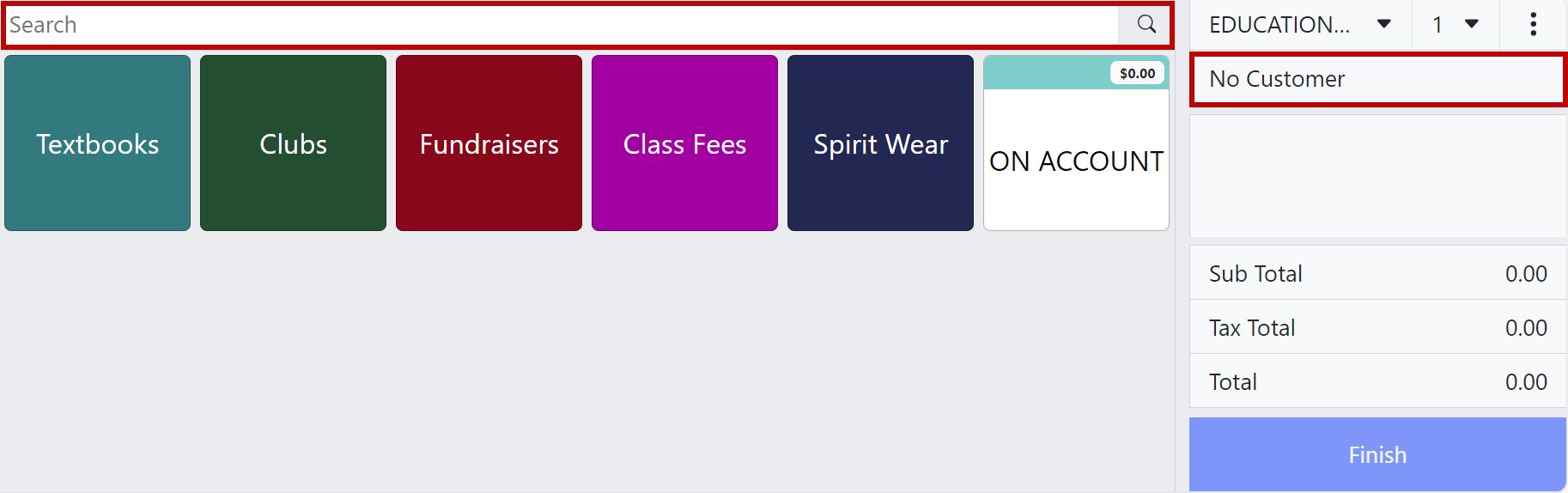
- Click on a header under the Search bar to toggle between options:

- Customers header:
- Students
- Non-Students
- All Customers
- Items header
- Status header:
- Active
- Inactive
- Sites header:
- Individual Site
- All Sites
- Customers header:
- Make your selection by typing the name in the Search bar or scrolling the list of Customers.
Note: You may sort the columns by clicking the secondary column headers (marked in blue).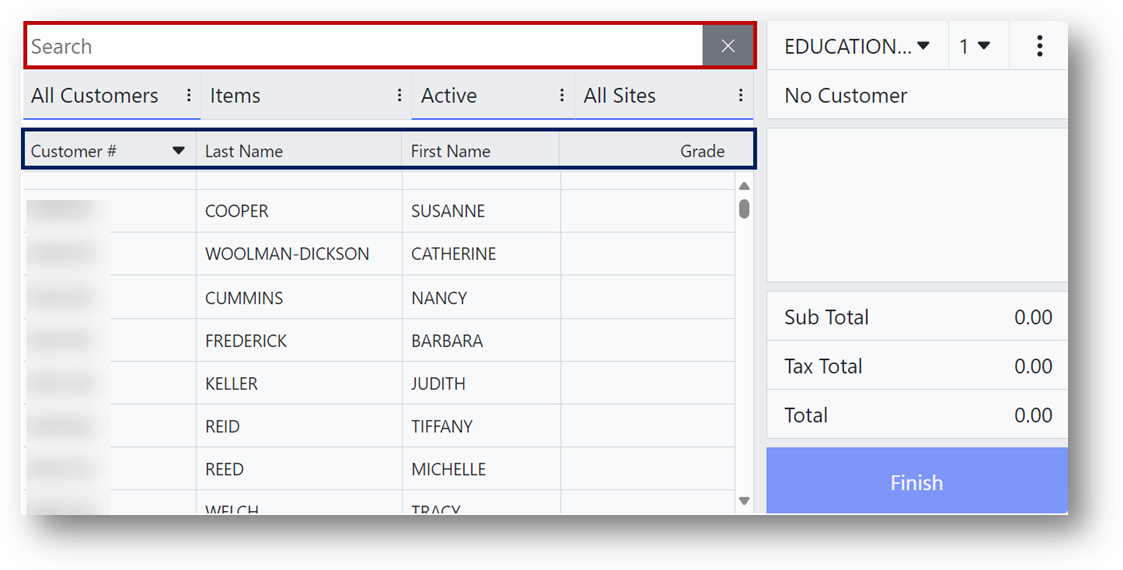
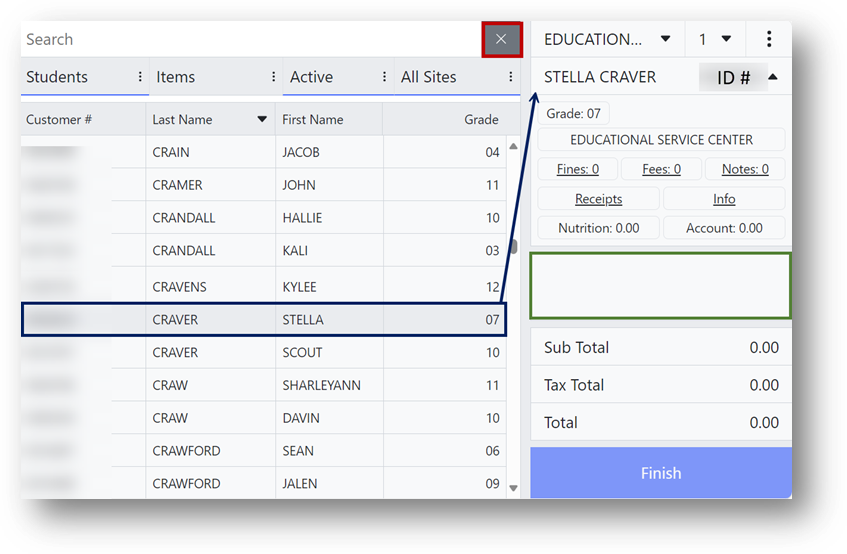
- Confirm the selection and begin the transaction by clicking the preview window (marked in green) or the X beside the Search bar (marked in red).
Making a Sale
This section covers the sale process from the Point of Sale — selecting items via buttons, scanning an item, and tendering with cash, check, on account, or credit card.
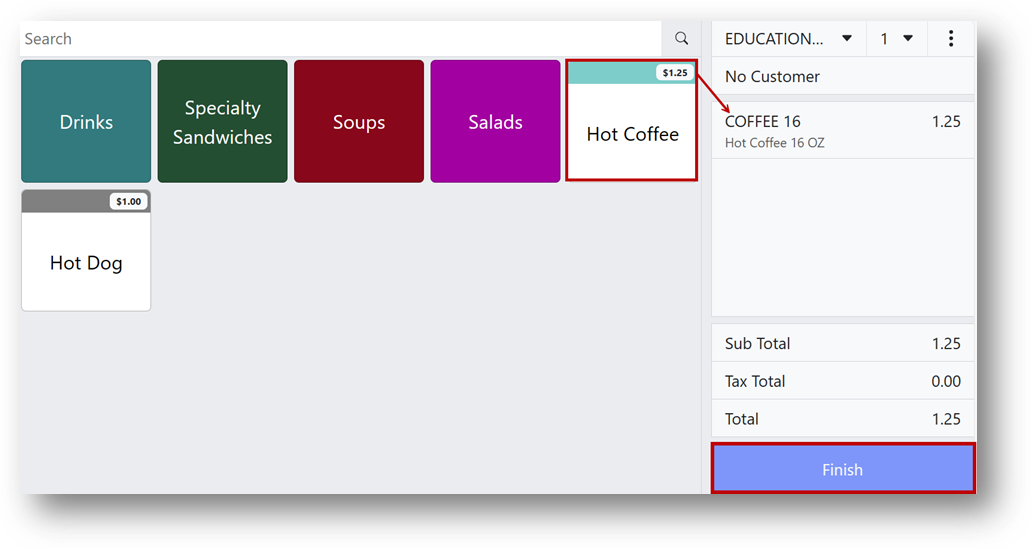
- Click the button for the item being sold (e.g., Hot Coffee).
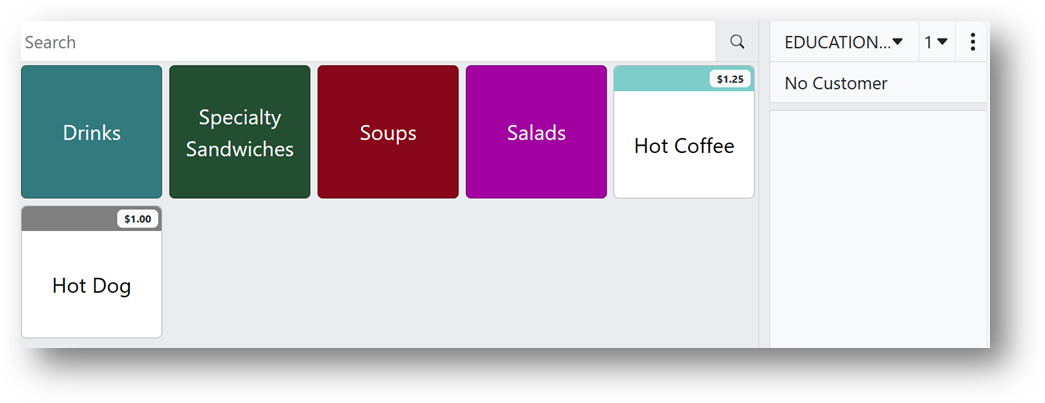
- The selected item appears in the transaction preview window on the right, along with its price. The total displays at the bottom of the screen.
- If this is all the customer wishes to purchase, click Finish at the bottom of the transaction preview window.
Completing a Sale with Cash
- Enter the amount of cash given by one of the following options:
- Select $1, $2, $5, $10, $20, or $50 using one of the Quick Cash denomination buttons.
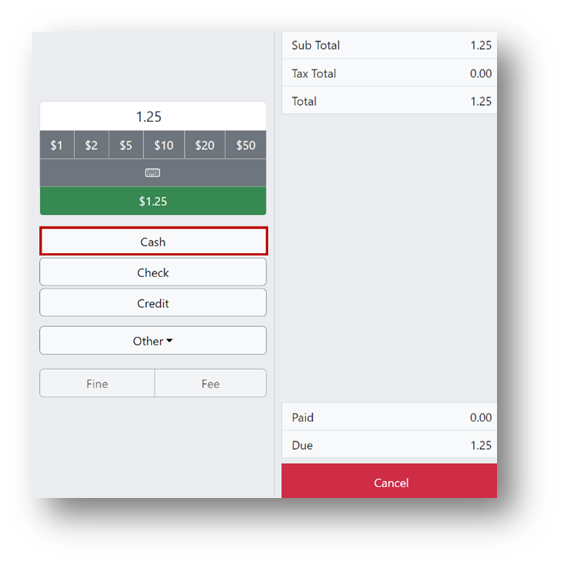
- Click the on-screen keyboard button, enter the exact amount given by the customer, and click Enter.
- Skip entering a monetary amount, click the Cash button, and determine the change manually.
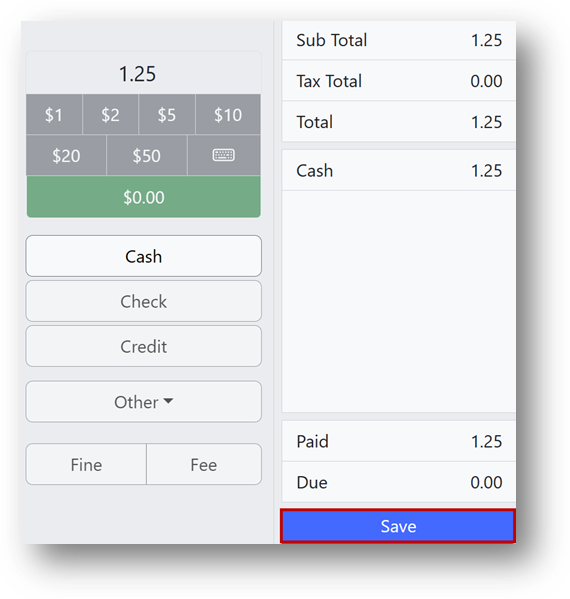
Note: Regardless of the method, the Cash button must be clicked after entering the amount, which changes the red Cancel button to a blue Save button.
- Select $1, $2, $5, $10, $20, or $50 using one of the Quick Cash denomination buttons.
- Click Save.
Completing a Sale with a Credit Card
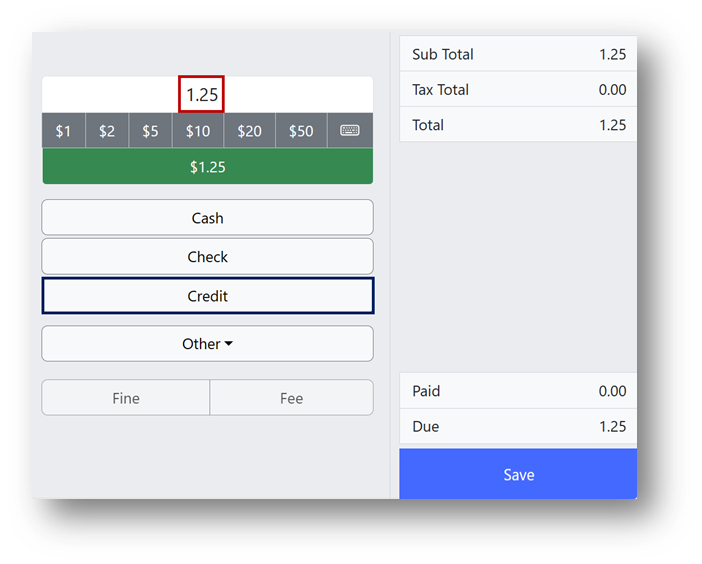
- Enter the amount to be paid.
Note: A credit/debit card can only be processed for the exact amount of the total. - Click Credit (marked in blue).
- Your card device prompts the customer to approve the amount and follow the instructions, which vary by device.
- Once the card is approved, the device displays "approved," and the Amount Due field shows $0.00.
- Click Save.
Completing a Sale with a Check
- Enter the amount of the check.
- Click Check (marked in blue).
- Enter the check number in the Check # box on the right side of the screen (marked in green).
- Repeat as necessary if multiple checks are given.
- Click Save.