Introduction
Each user must be added individually and assigned a User Role, a Site, and Terminal(s).
Note
Required: Your user role must have the All or Edit authority under Users, as well as Sites enabled under the Edit User Fields section.
Steps for Adding Users
- Sign in to InTouch.
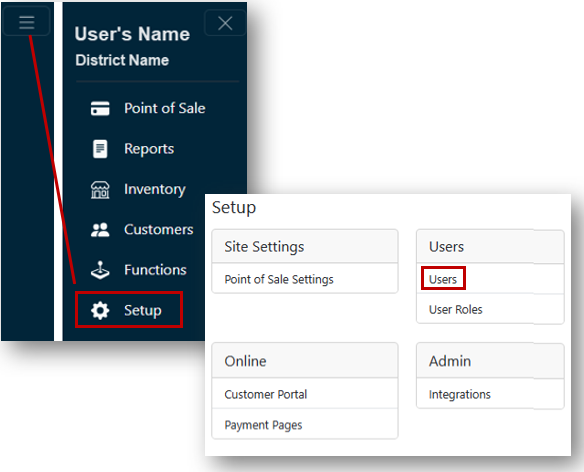
- Click the Menu/Hamburger button.
- From the Main Menu, select Setup.
- Click Users under the Users header.
- Click the + New button.
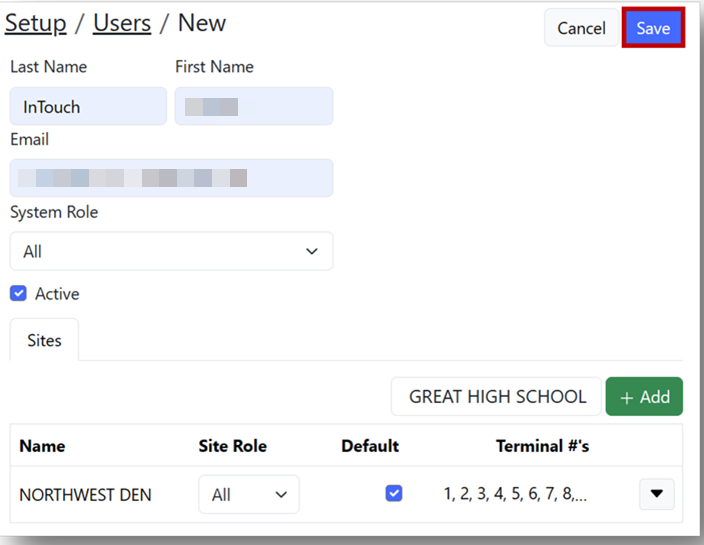
- Enter the user’s Last Name, First Name, and district Email Address.
- From the System Role dropdown, select the new user’s system role.
Note: The system role is this user’s main role within the district and dictates their access within the main menu. - Select the Site that you want this user to access and click the + Add button.
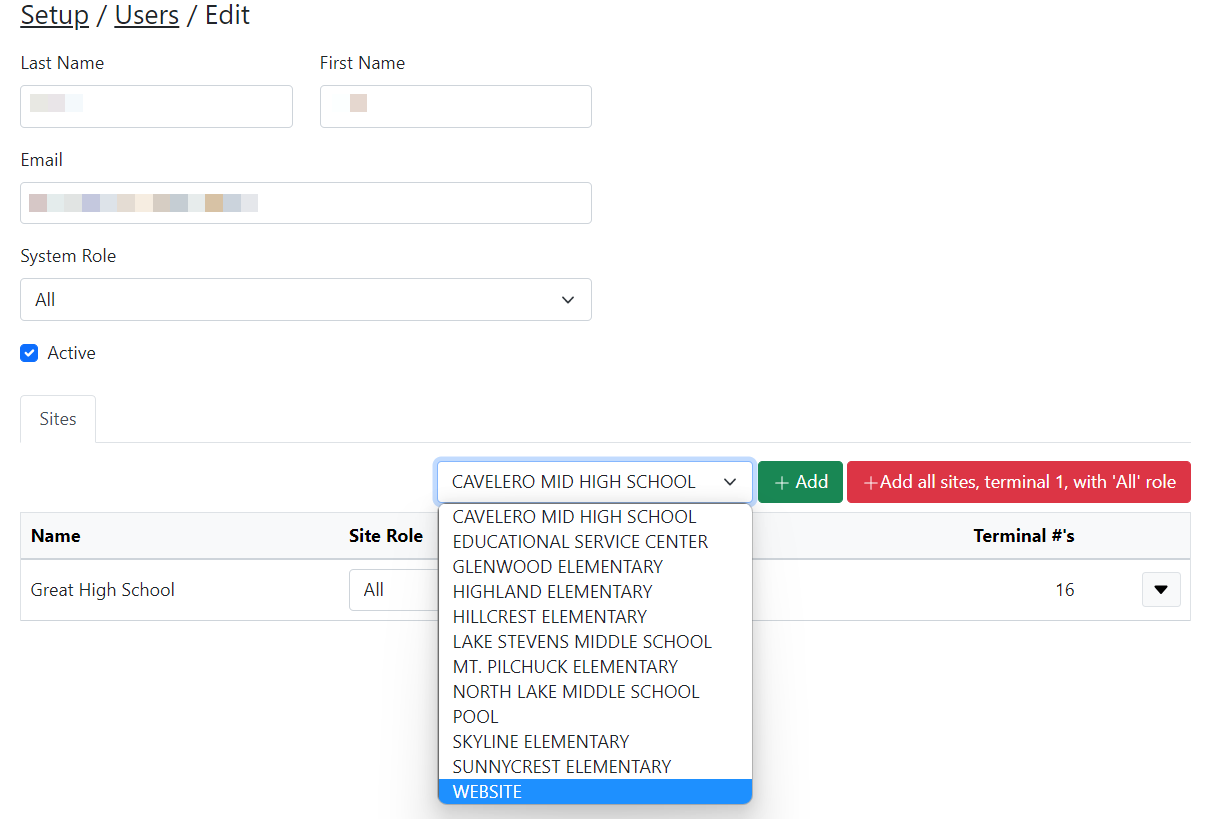
- From the Site Role dropdown, assign a site role for this user.
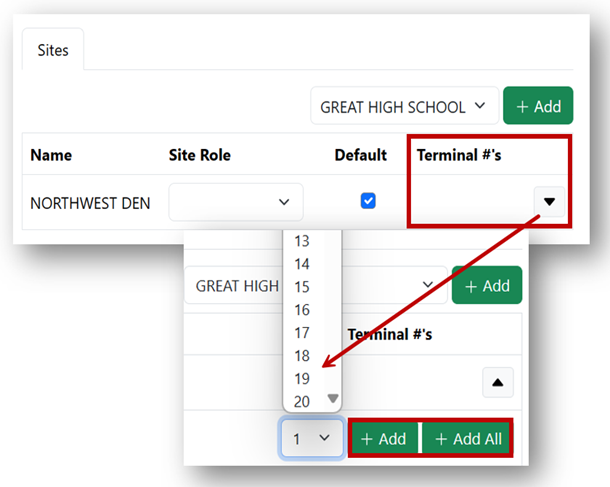
Note: The site role is this user’s main role within their assigned site and dictates their access within the Point of Sale. - From the Terminal # dropdown, select a terminal number for this user and click the + Add button. You may also select the + Add All button to add them as a user for all terminals.
- Click Save.
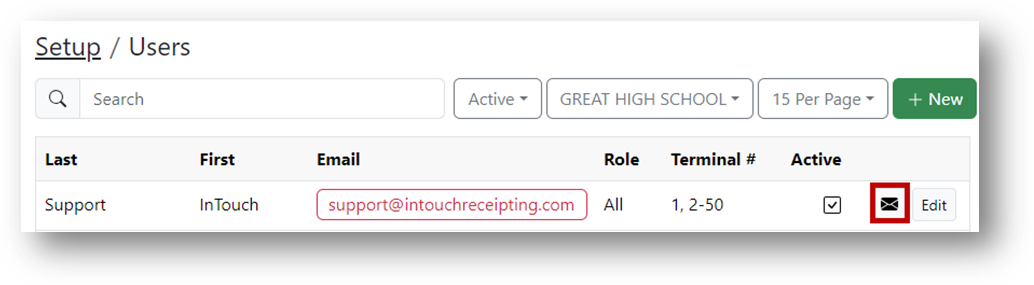
- Send an invite to the new user by clicking the envelope button beside their name on the Users List.