
Introduction
Resolve disputes much faster with complete visibility of chargebacks and receipts directly within the InTouch platform.
What is a Chargeback?
Chargebacks are credit card transactions disputed by the cardholder. A cardholder requests a chargeback through their credit card issuer, shifting the financial liability for the transaction from the cardholder to the merchant (district). The merchant becomes responsible for resolving the dispute.
Chargebacks Overview
The Chargebacks feature helps districts using the new payment processor efficiently manage disputes. Once notified about a chargeback, districts can accept or dispute it by submitting relevant documentation. Funds are automatically debited from the merchant’s bank account, saving time and ensuring transparency in the process.
Who Can Access the Chargebacks Feature?
Access to the Chargebacks feature can be granted based on user roles. Navigate to Setup > User Roles to configure access.
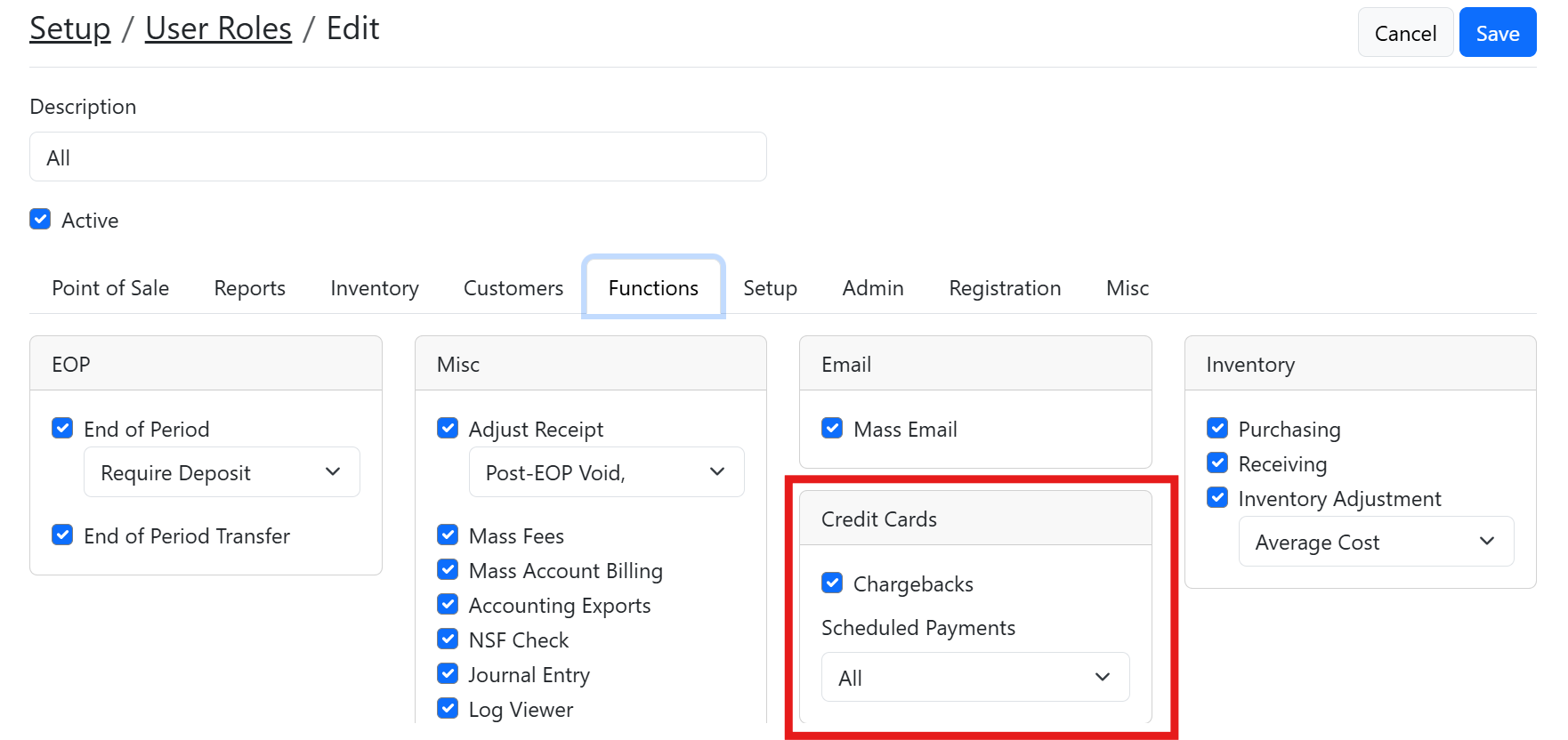
Chargeback Notifications
Enable daily dispute notifications within InTouch to ensure timely updates about chargebacks. Subscribing to these emails is recommended to avoid missing critical information.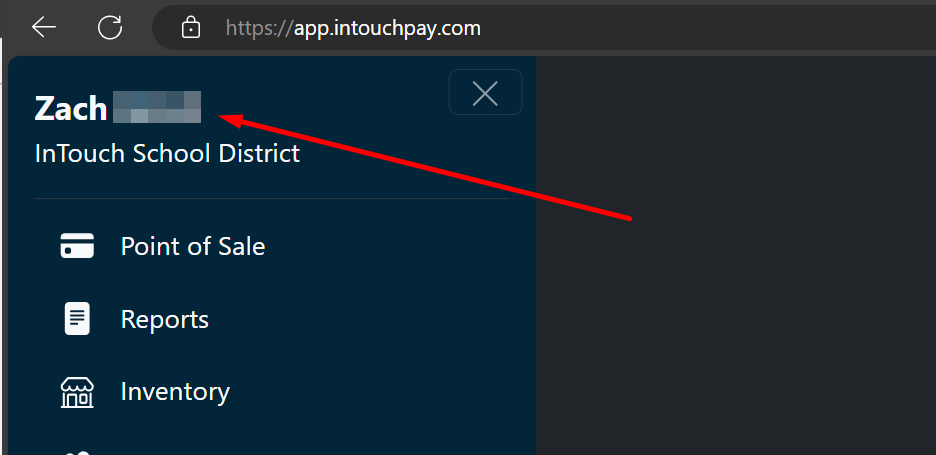
Sample Notification Email
| InTouch Chargeback Notification | ||||||||||
| ITR School District | ||||||||||
| A new chargeback needs your attention. You have 10 days to submit supporting documents to dispute the chargeback. | ||||||||||
| ||||||||||
| To view additional details and submit supporting documents, go to InTouch, select the Functions menu, and then Chargebacks. |
Chargeback Process
The chargeback is debited from the merchant’s account as soon as a chargeback request is issued. The district has 10 calendar days to respond with supporting documents. Failure to respond within this timeframe results in an automatic loss of the dispute.
How to Access Chargeback Details
Step 1: Navigate to Functions > Credit Cards > Chargebacks.
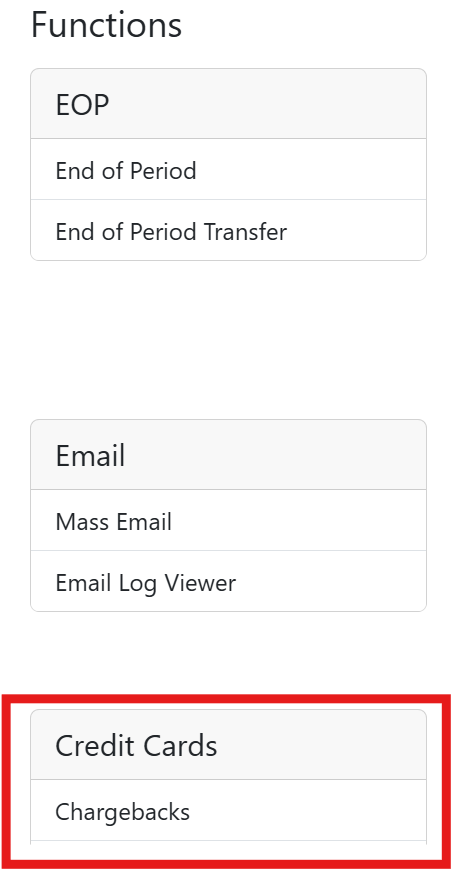
Step 2: The Chargebacks page provides visibility into disputes, helping identify transactions and submit supporting documents.
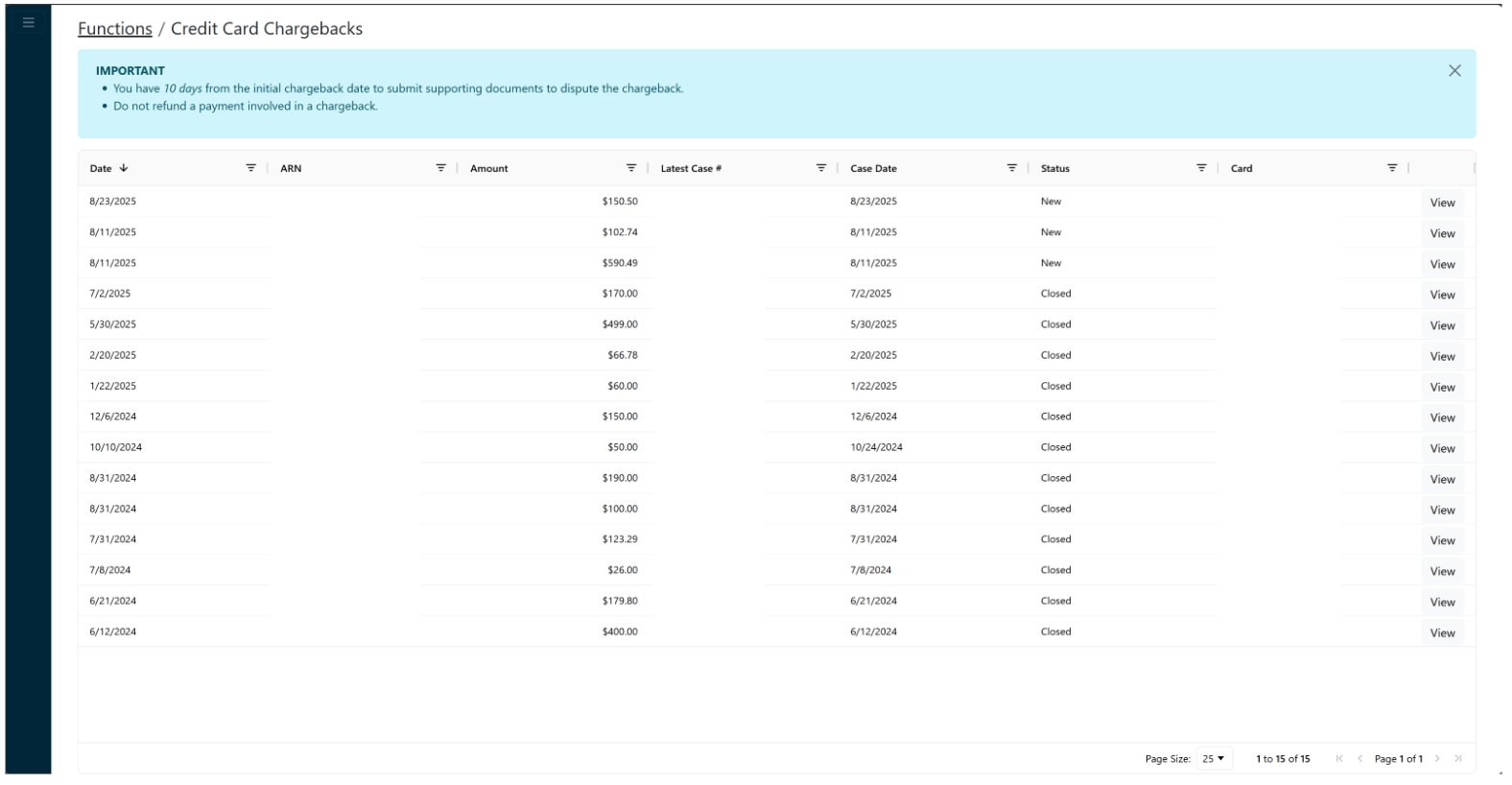
- 'ARN' Column: A new column for the Acquirer Reference Number (ARN) has been added. Every chargeback is assigned an ARN when it is created. This ARN remains constant throughout the chargeback lifecycle, allowing you to easily track the chargeback even if the case number changes with each status update.
- 'Case Date' Column: We've introduced a Case Date column to show the most recent update or status change for a chargeback. This helps merchants quickly identify the latest activity on a chargeback. You can also click the "View" button to see the complete history of status changes.
- Merchant-Friendly Statuses: Chargeback statuses are now presented in a clearer, more merchant-friendly format, making it easier to understand the current stage of a chargeback.
- Closed Status: A new "Closed" status has been introduced (not available in the Merchant Dashboard). A chargeback will automatically be marked as "Closed" if no status changes occur within 45 days, helping merchants easily identify when no further action is required.
Step 3: Click View to see details of the chargeback.
Step 4: Select Submit Documents to upload evidence through Merlink.
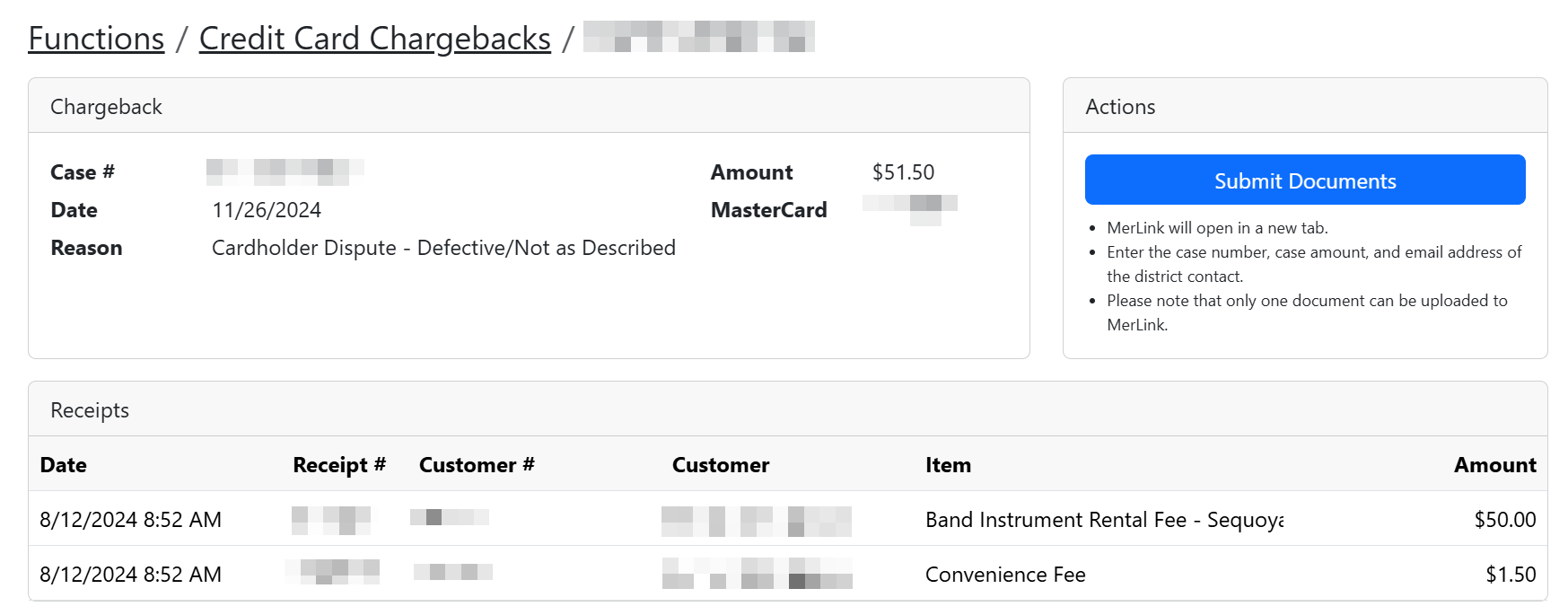
Follow the instructions in Merlink to complete the process.
New: Chargeback Notifications via Merlink
In addition to in-dashboard support, merchants will now receive chargeback notifications directly from Merlink- the third-party tool used to upload chargeback documents.
These notifications will be sent every time there is a status change in a chargeback. Each notification will include all the relevant information needed to take action, helping merchants stay informed and respond more efficiently.