
Introduction
This guide outlines the steps to perform a refund in the InTouch POS system and how to view refund details across various reports and functions. The refund process ensures accurate tracking and reconciliation of transactions.
Performing a Refund
To perform a refund, follow these steps:
- Go to Functions and select Adjust Receipt.
- Search for the appropriate receipt.
- Select Refund as the adjustment type.
Viewing Refunds
Refunds can be viewed in the following locations:
- Reports > Receipt Adjustments: Select Refund and refund type Refund to Credit Card.
- Reports > Receipt Adjustment Info: Select Refund and refund type Refund to Credit Card.
- Reports > Revenue Detail by Batch: Select a batch that contains a refund. The refund will be listed as a line item with a negative value.
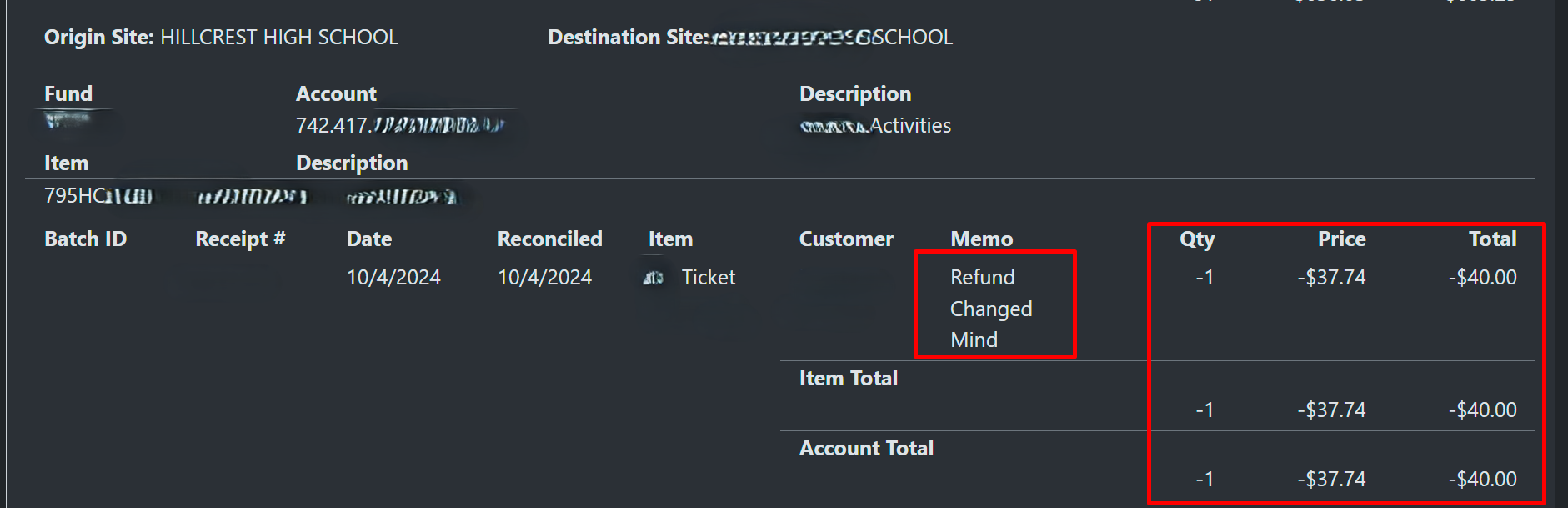
- Reports > Revenue Summary by Batch: Select a batch that contains a refund. The batch total will reflect the refund amount as a deduction.
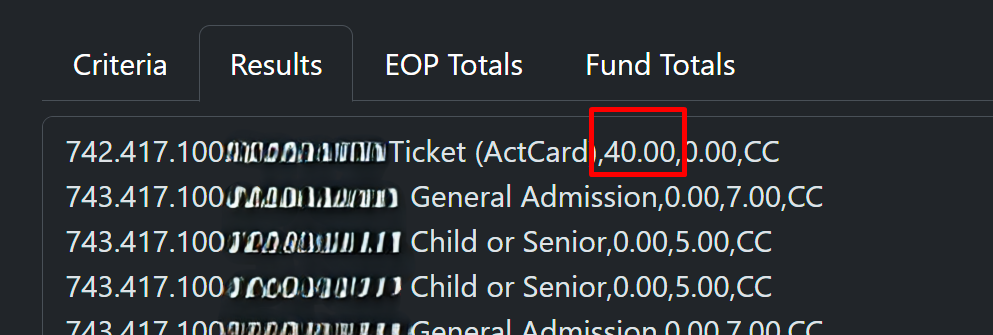
- Functions > Accounting Exports: Select a batch that contains a refund. Depending on the export configuration, it may include a line detailing the refund.
Export Summary Reports
The export summary report will also reflect the refund details, providing a comprehensive view of the adjustments made.
