
Introduction
A new enhancement to the Scheduled Payments feature provides more visibility into payment history and includes tools for viewing and managing receipts. These updates help users track successful payments, identify issues, and access receipts directly from the Scheduled Payments list.
New Features in Scheduled Payments
Last Successful Payment Column
The Scheduled Payments list now includes a Last Successful Payment column, displaying the date of the most recent successful payment. This feature makes it easier to track payment history and identify any potential issues.
How to Use the Last Successful Payment Column
- Analyzing Payment Timing: Compare the displayed date with the expected payment schedule. If the date is not as anticipated, it may indicate a missed payment or processing error. Refer to Troubleshooting Tips for further steps, or contact customer support for assistance.
- Identifying Blank Entries: A blank Last Successful Payment field occurs when the first scheduled payment has not been processed yet. This is expected behavior for new payment schedules.

View and Email Receipts
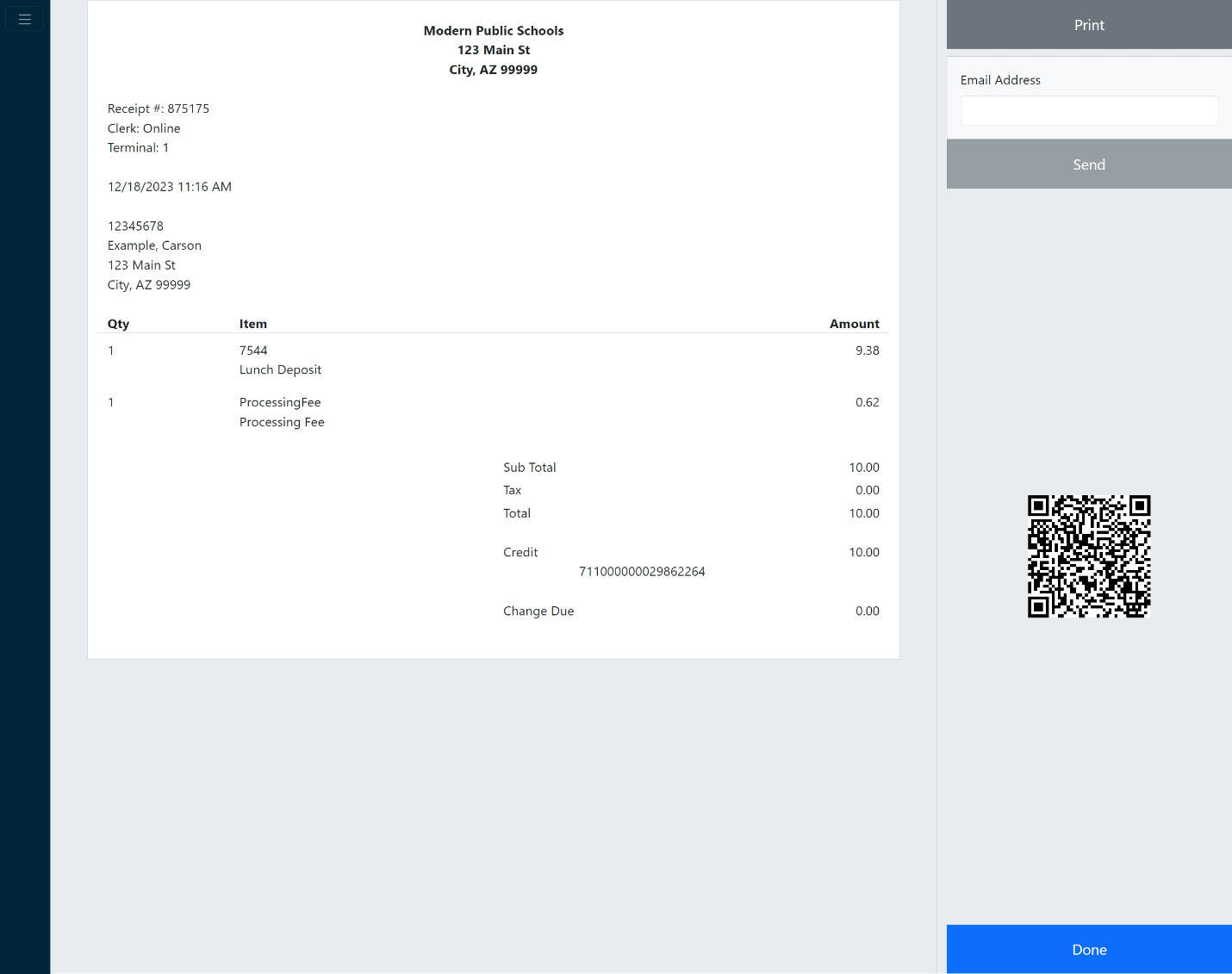
You can now view and email receipts for recurring payment profiles directly from the Scheduled Payments list. Each payment generates a separate receipt, ensuring you have a detailed record of your payment history.
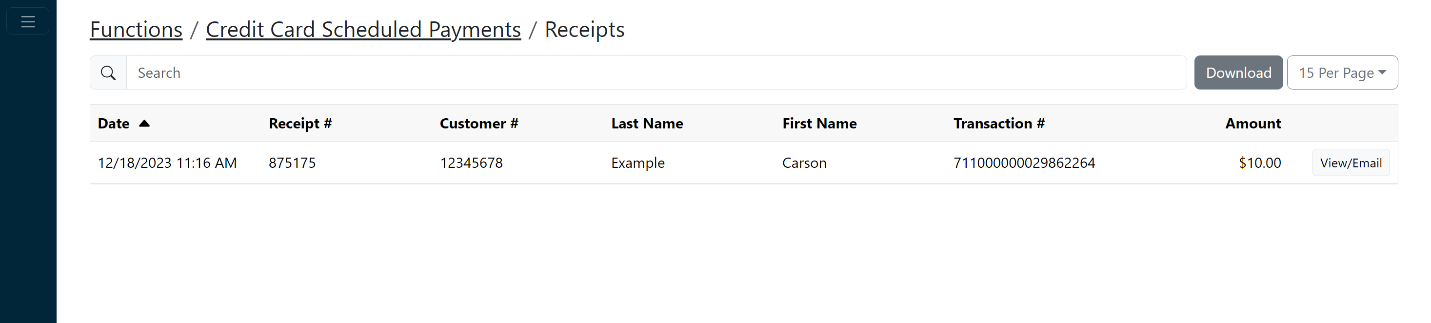
Accessing Receipts
Each row in the Scheduled Payments list includes an option to View/Email your receipt. Clicking this option opens the receipt in the existing interface, allowing you to view, print, or email the receipt for your records.
Troubleshooting Tips
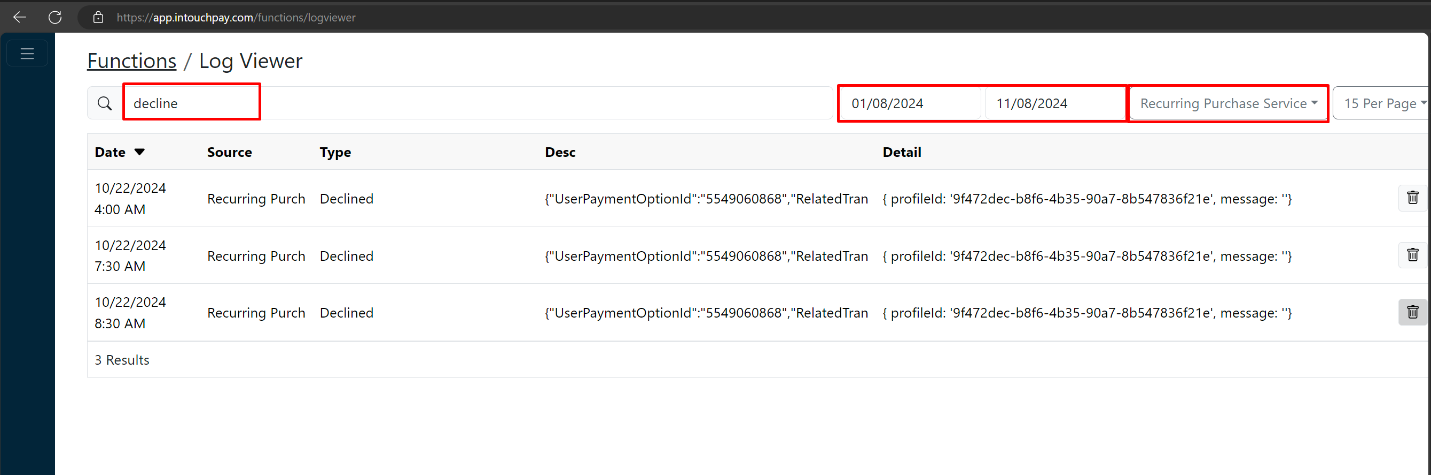
- No Receipt for Failed Payments: Receipts are only generated for successful payments. Failed payments will not appear in the receipt list.
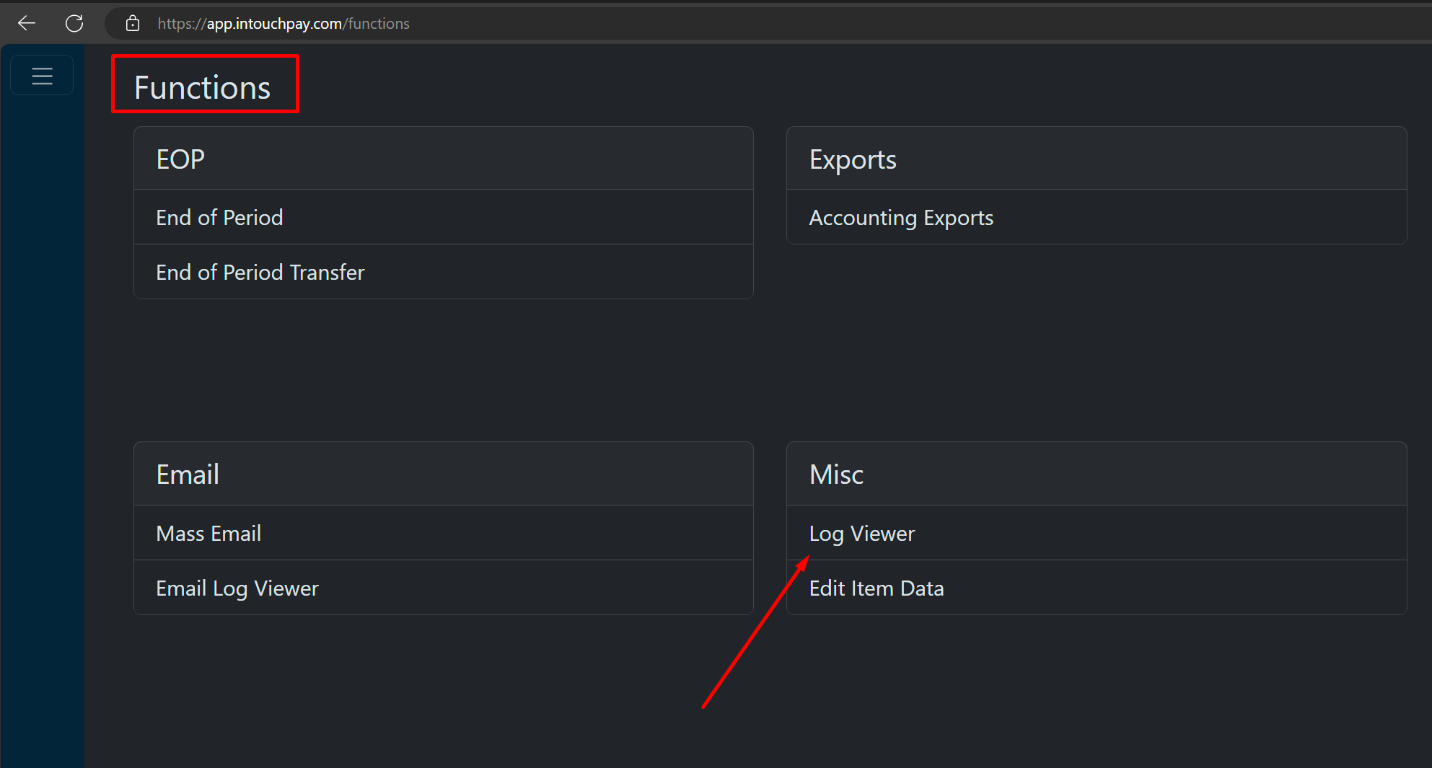
- Check for Failed Payments: Navigate to Functions > Log Viewer and search for the term Decline to identify failed payments.
Best Practices
- Use the Last Successful Payment column to quickly identify potential issues with payment timing.
- Review receipts regularly to ensure all payments are recorded accurately.
- Utilize the Log Viewer to identify any failed payments that require further action.