Introduction
If you experience issues with POS devices not closing batches in a timely manner, which delays funding to bank accounts, follow the steps below to manually close the batch from InTouch Pay.
Note
To ensure these steps work correctly, make sure the device is powered on, plugged into a power source, and connected to the Internet.
Closing a Batch with Unsettled Transactions
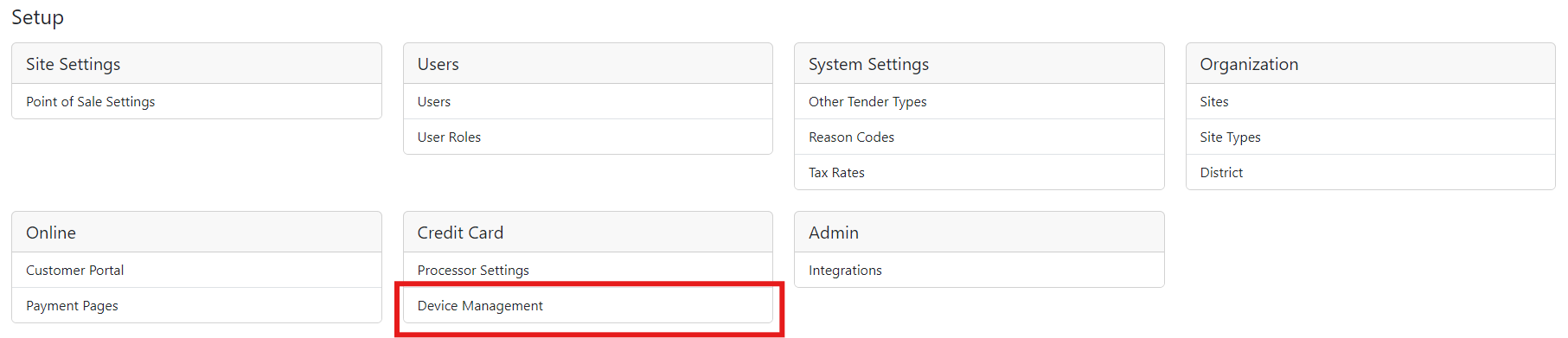
- Go to Setup > Device Management.
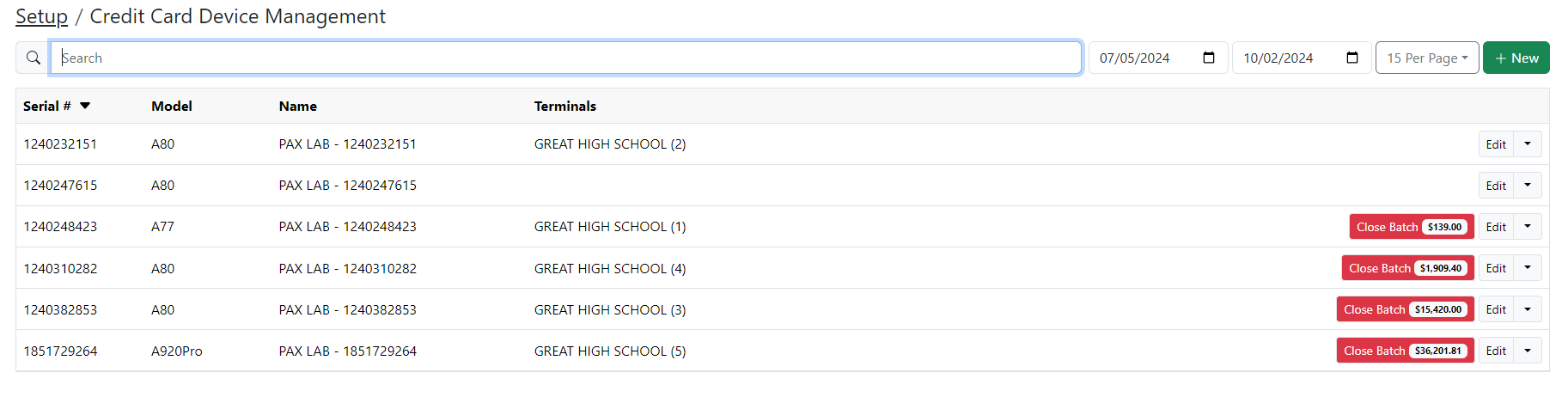
- In the Credit Card Device Management Screen, manually close any open batch from yesterday up to the past 30 days.
- If these conditions are satisfied, you see a button labeled "Close Batch". This button also displays the total value of all transactions in that batch. Click it to initiate the manual closure.
- When you click the "Close Batch" button, it manually closes the batch for that specific device.
- If the action is successful, a dialog box appears in the center of the screen confirming the closure. This box displays "Success", along with the Date and Total Value of the batch.

- If the closure fails, an error dialog appears instead. See Troubleshooting steps.

- Once the batch is successfully closed, it can take a day for the "Close Batch" button to disappear. If the closure is unsuccessful, the button remains visible and clickable for another attempt.
From POS Functions UI
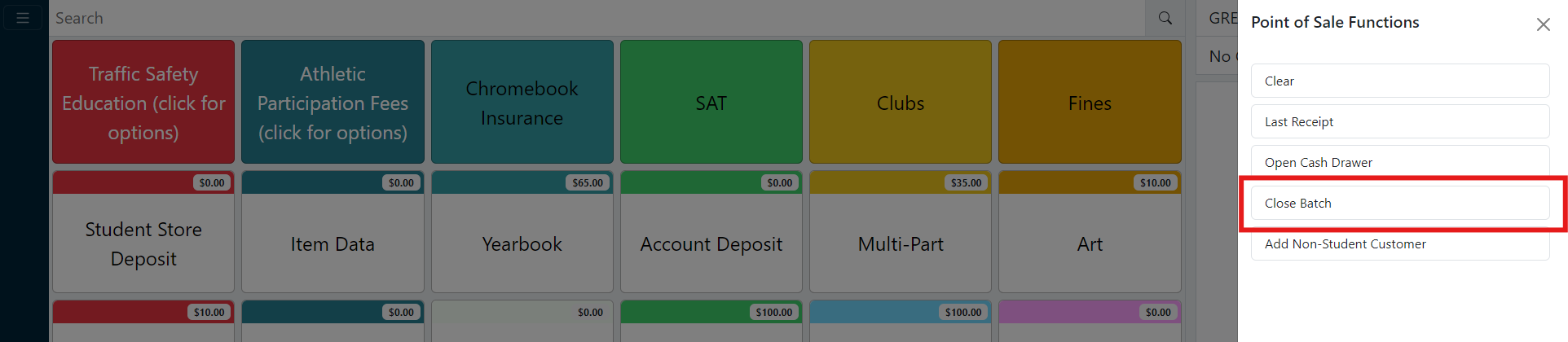
If your school’s register is paired with a PAX device, you see a "Close Batch" button in the Point-of-Sale Functions of the register.
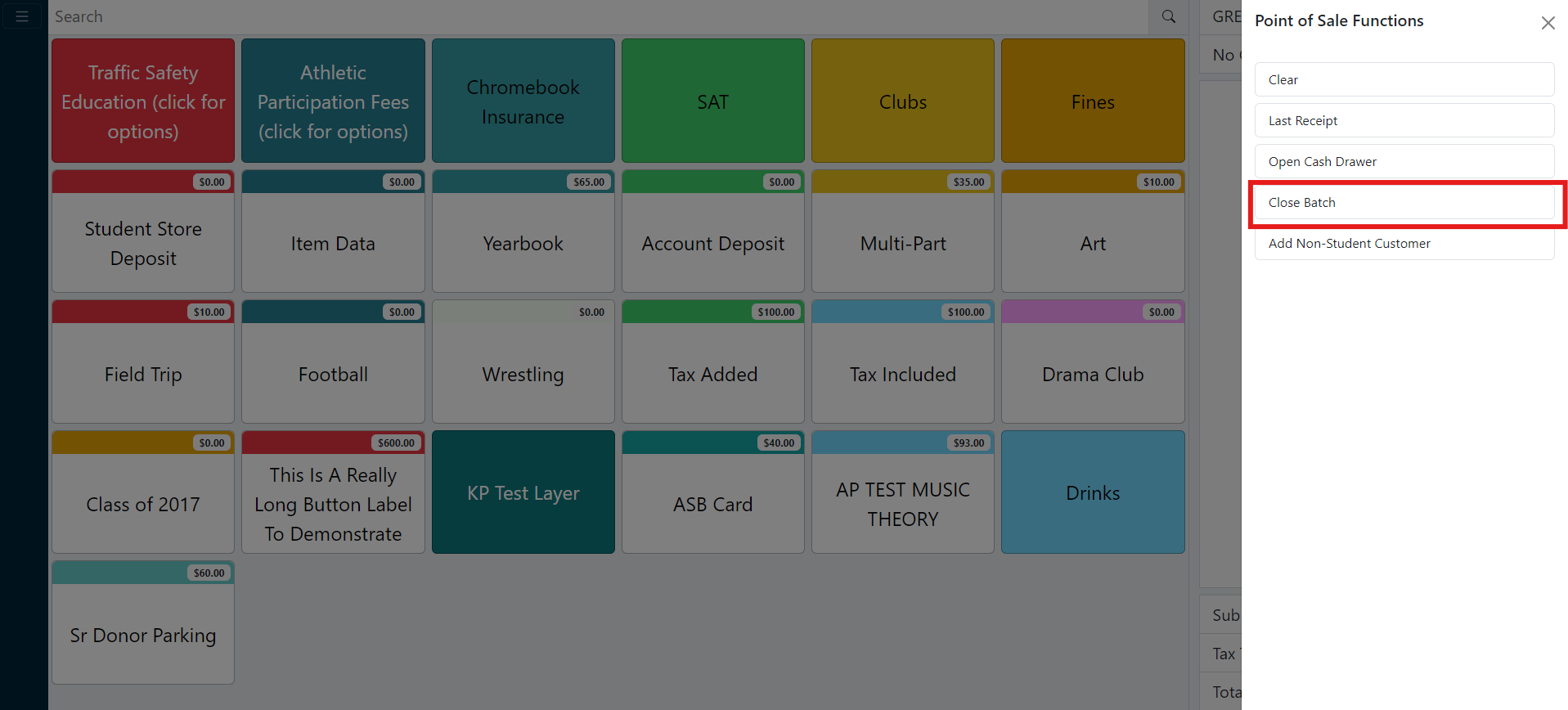
- Clicking this button closes the currently open batch on the device.
- After clicking, a dialog box appears, indicating success or an error.
How Can Other Users Access This Feature?
A district user can grant permissions to allow designated users, such as cashiers or teachers, to access this feature:
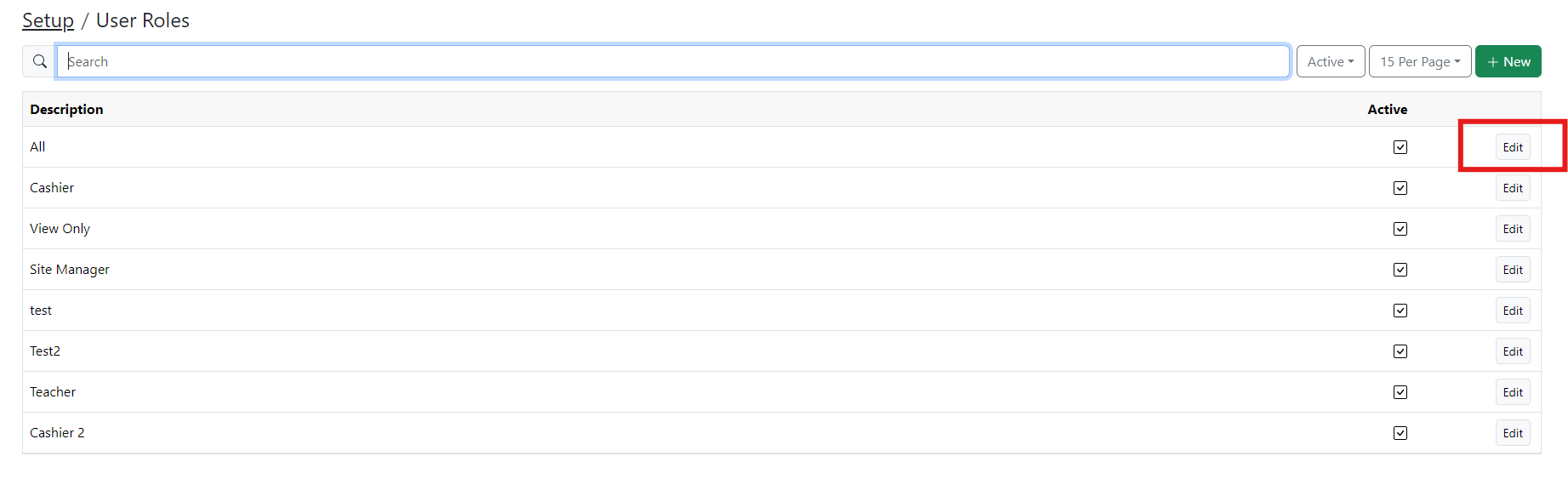
- Go to Setup > User Roles
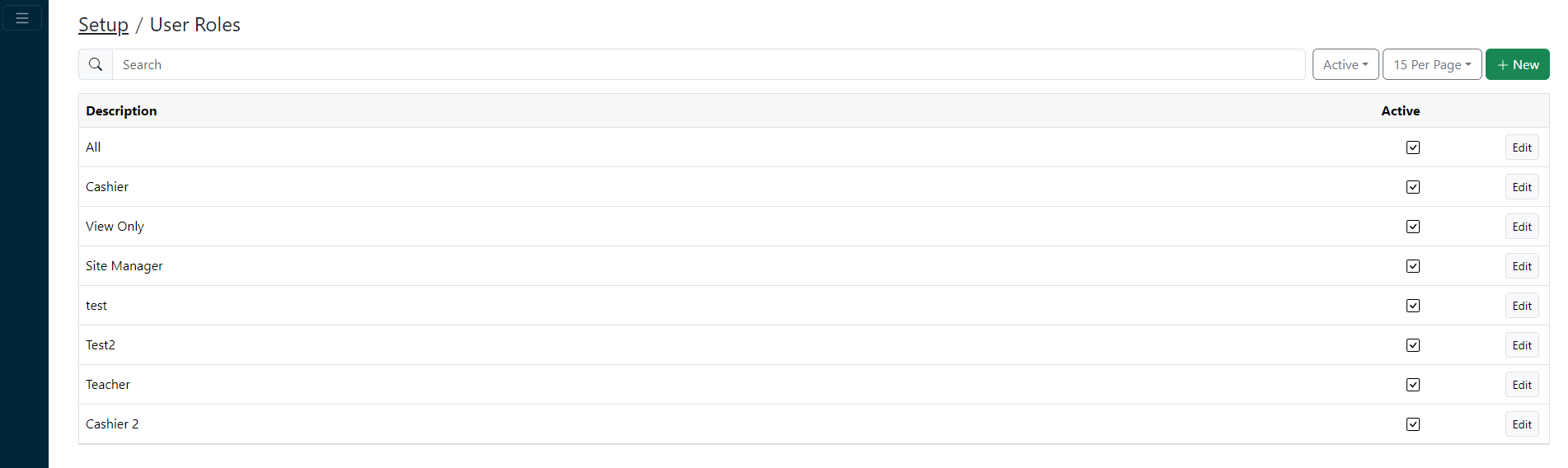
- Locate the user and click Edit.
- Go to Batch Close and toggle it to Enabled. Click Save to apply the changes.
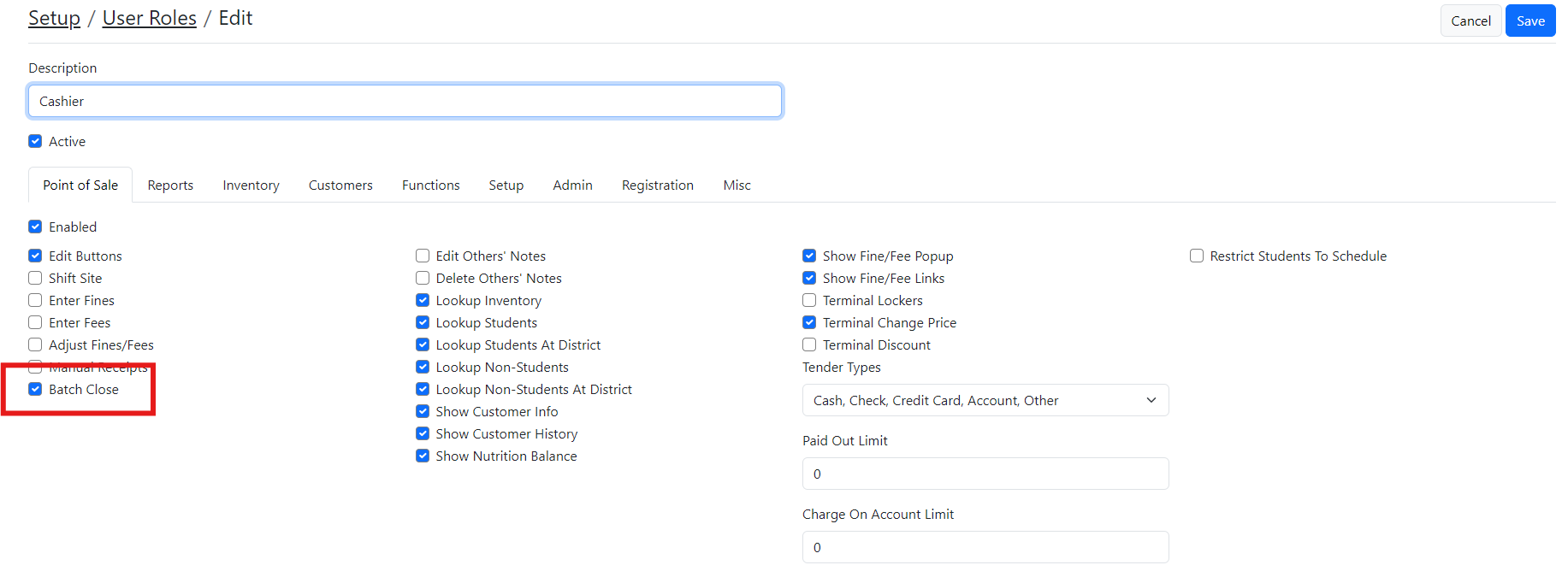
- User now sees the "Close Batch" button under Point of Sale Settings and can initiate the batch closing process.
Troubleshooting
If the device is connected to power and online, try using the auto batch close button from POS functions first. If that does not work, follow the manual steps below:
Ask school staff to complete a manual batch closure on the device:
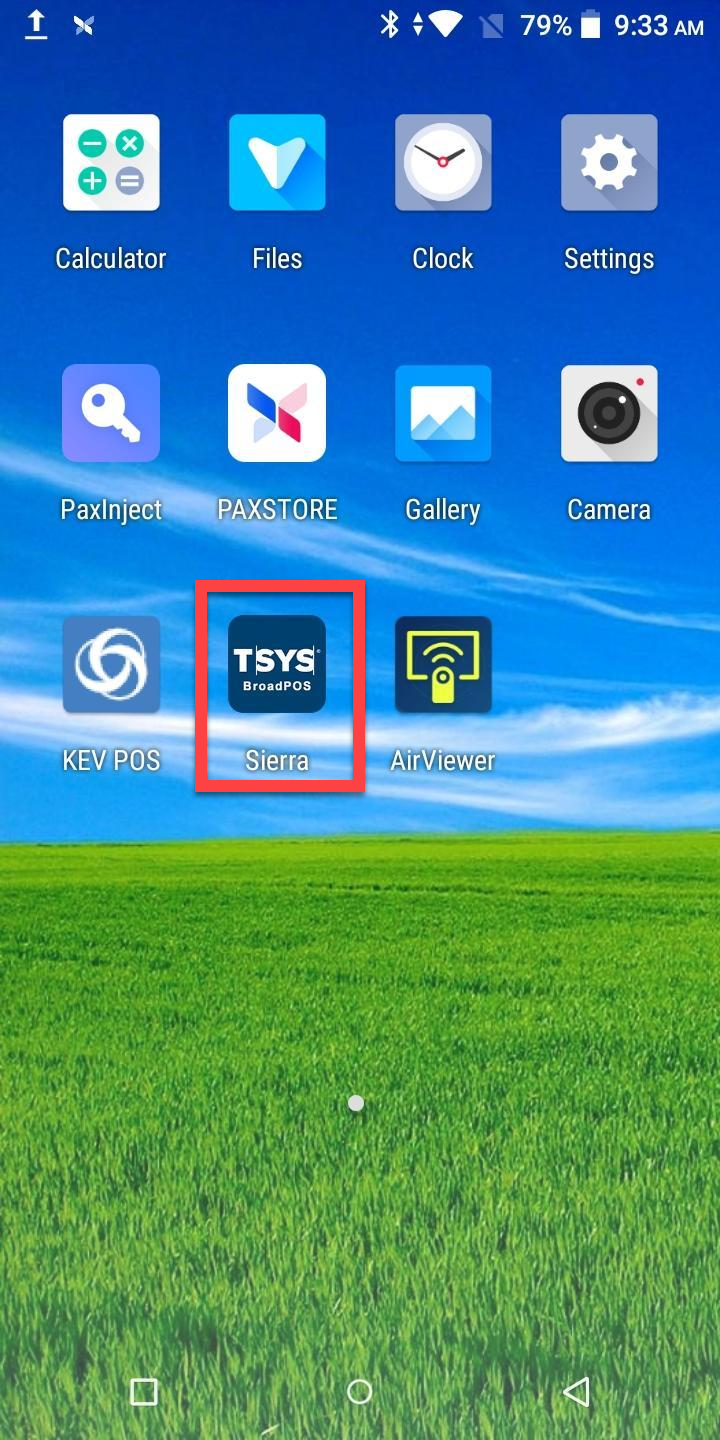
- On the home screen of the device, tap the T-SYS app.
- You see a page with "PAX" in the center. Tap all four corners of the screen in a clockwise order, starting from top left.
- When prompted for a password, enter "111111." If that does not work, enter today’s date in MMDDYYYY format (e.g., 08092024).
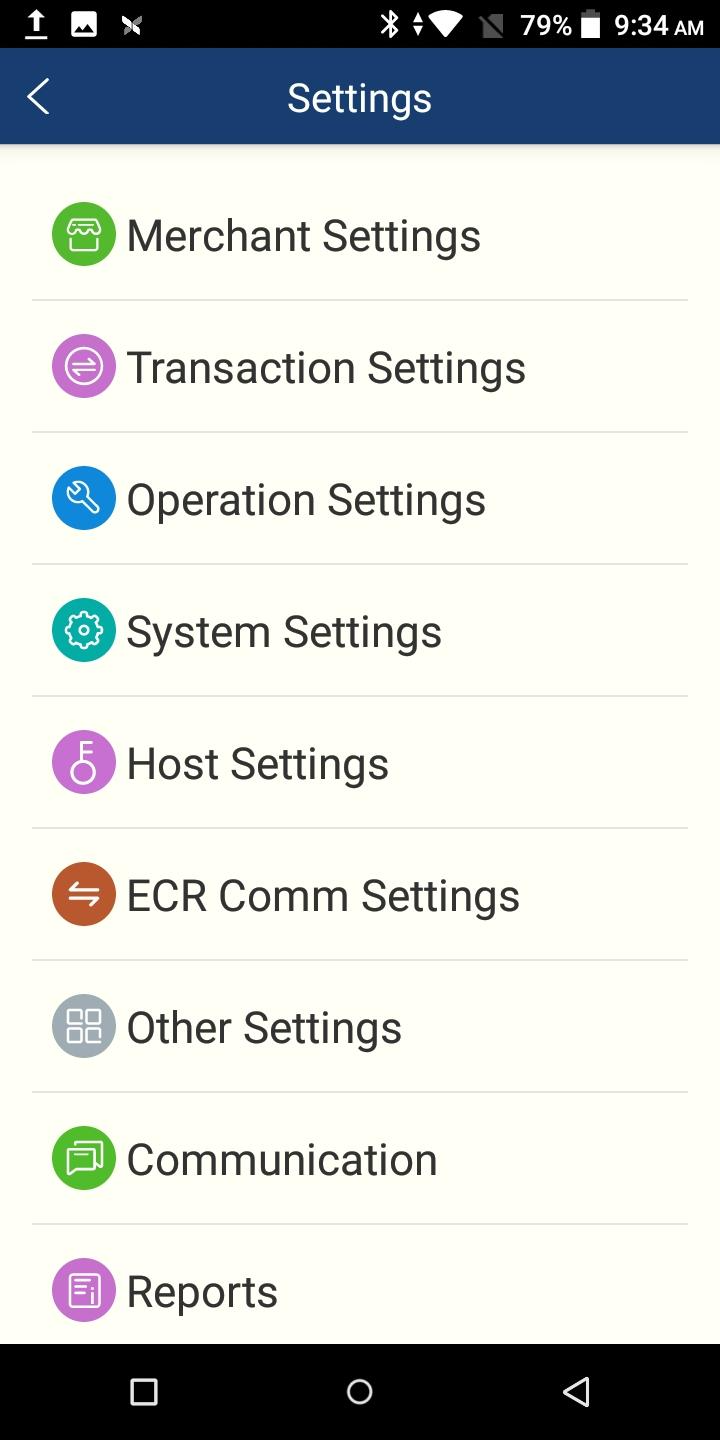
- Once unlocked, tap Host Settings.
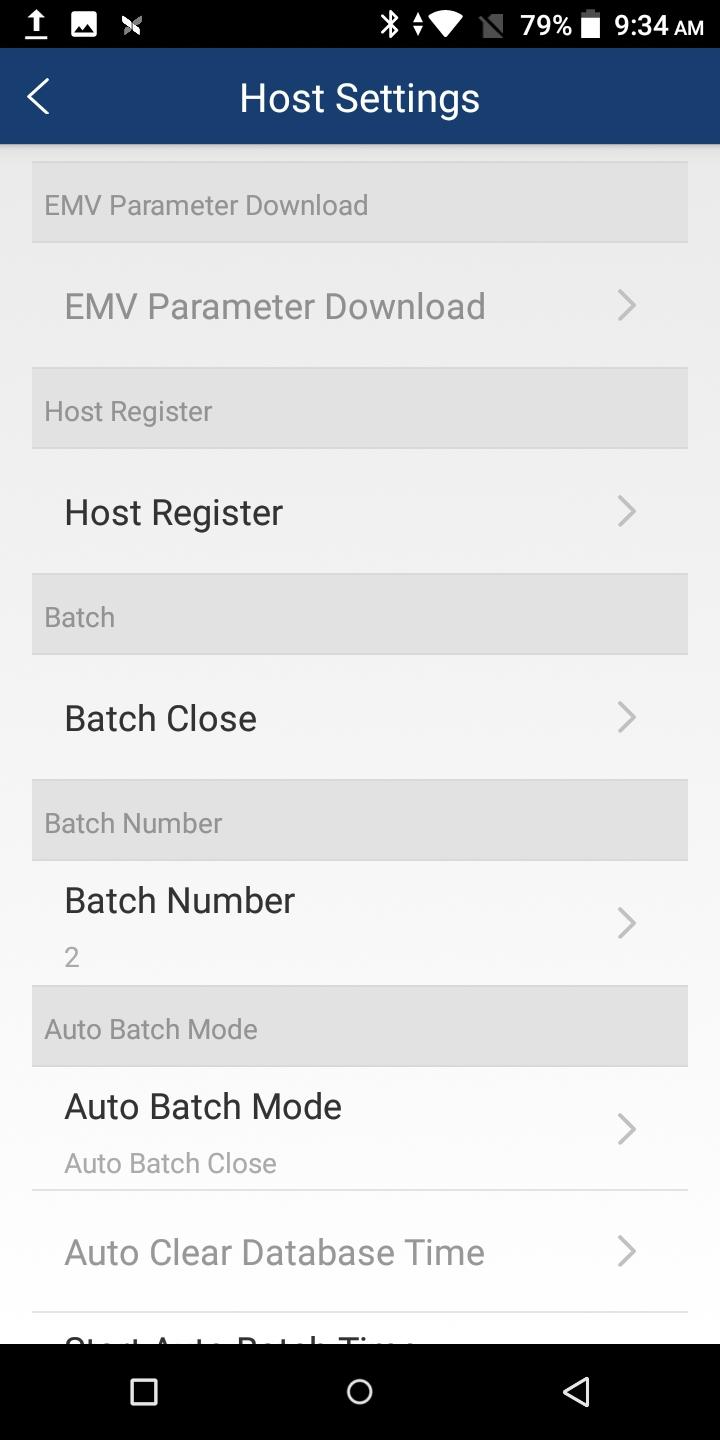
- Scroll to Batch Close and tap it.
- Enter the password "111111."
You see confirmation that the batch has closed. - Select the Home button to return to the Android Screen.

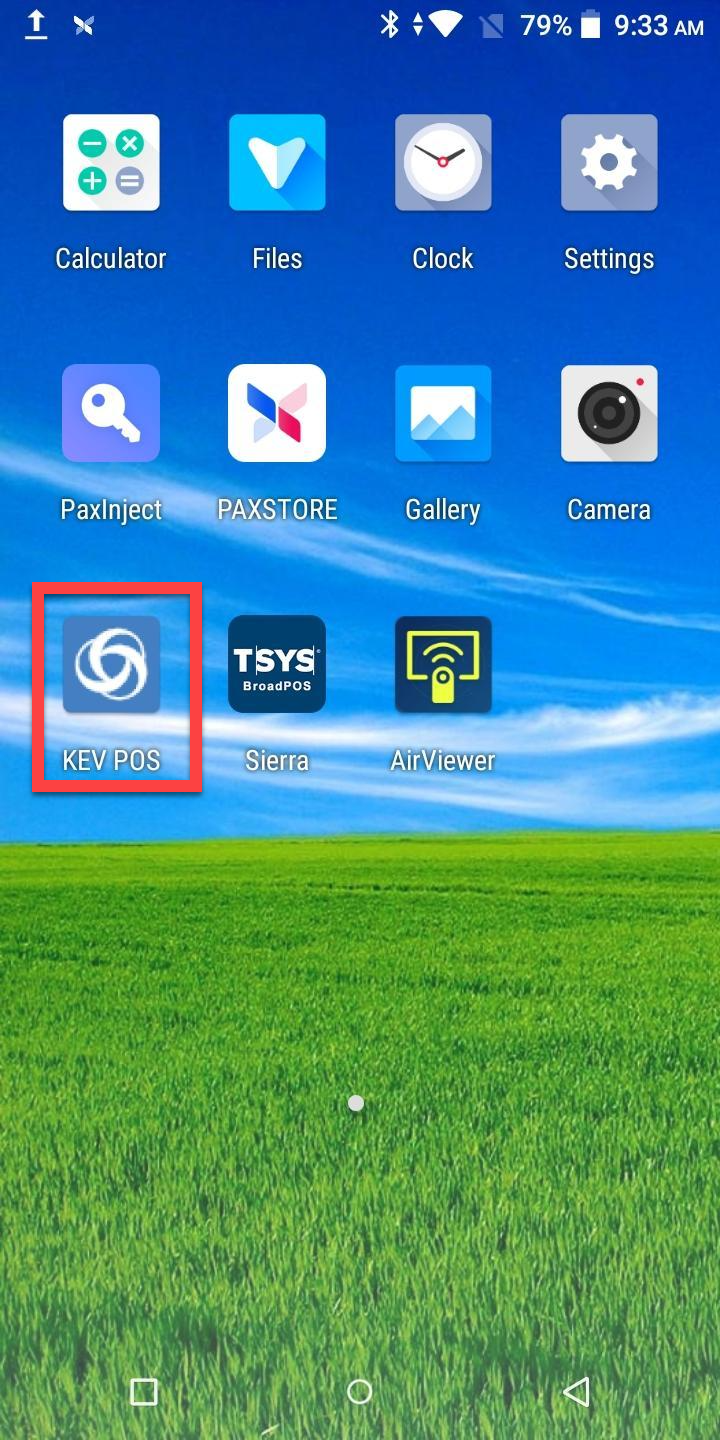
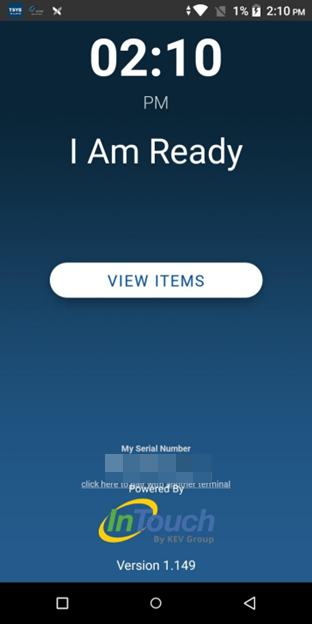
- Select the KEV POS app to return to normal operation.