Introduction
This article explains how to handle NSF (Non-Sufficient Funds) checks in the system. Follow the steps below to process these checks and ensure accurate financial records.
Steps to Handle NSF Checks
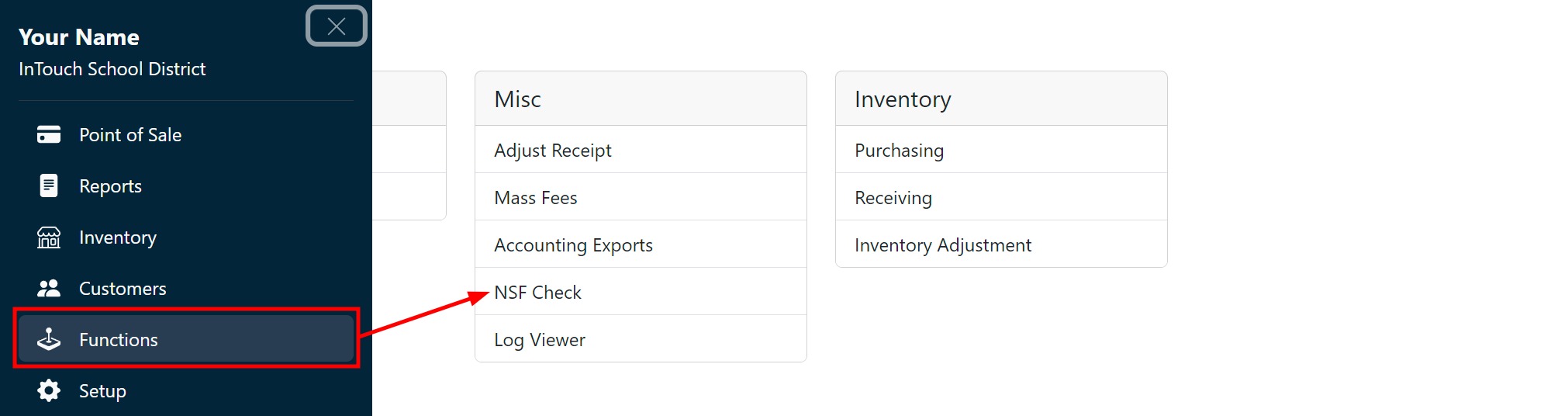
Go to Functions, and then NSF Check.
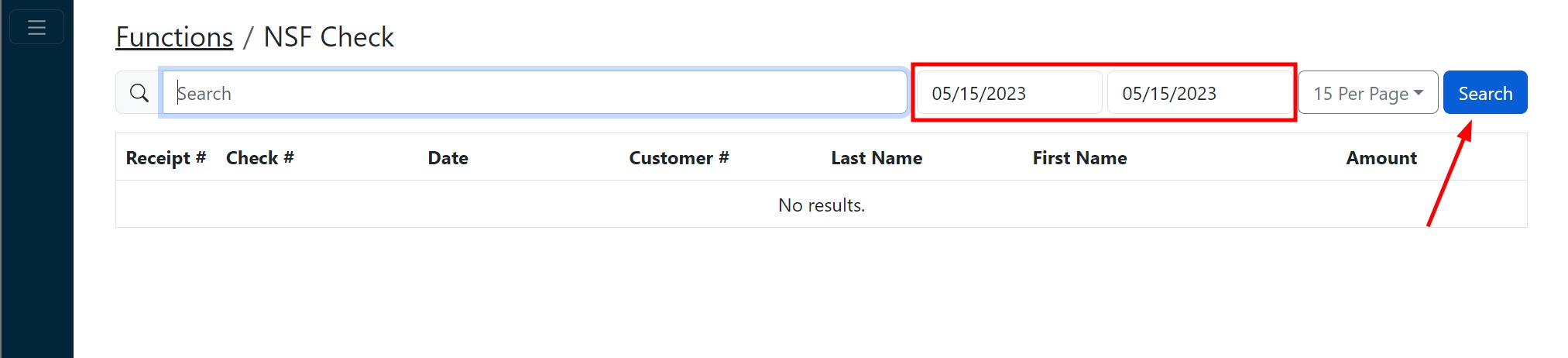
Set the date range you wish to search for the checks, and click Search.
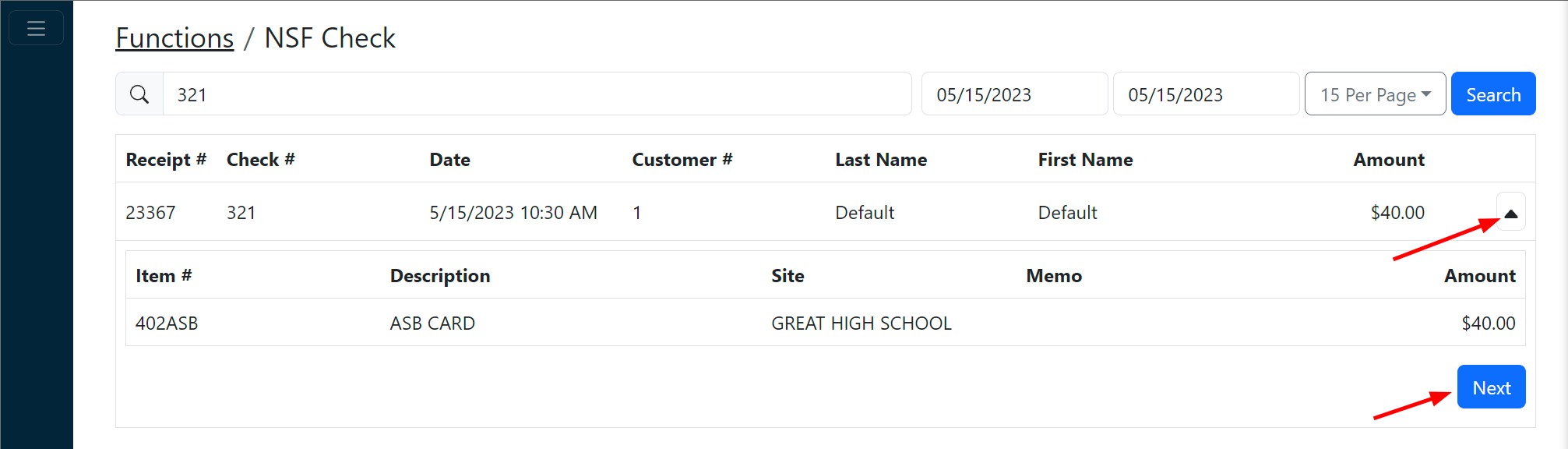
Optionally, use the search bar to narrow the results.
Tip:
Use the search bar to quickly find specific checks within the results.

Locate the NSF check and click the dropdown button to view more details, and click Next to proceed.
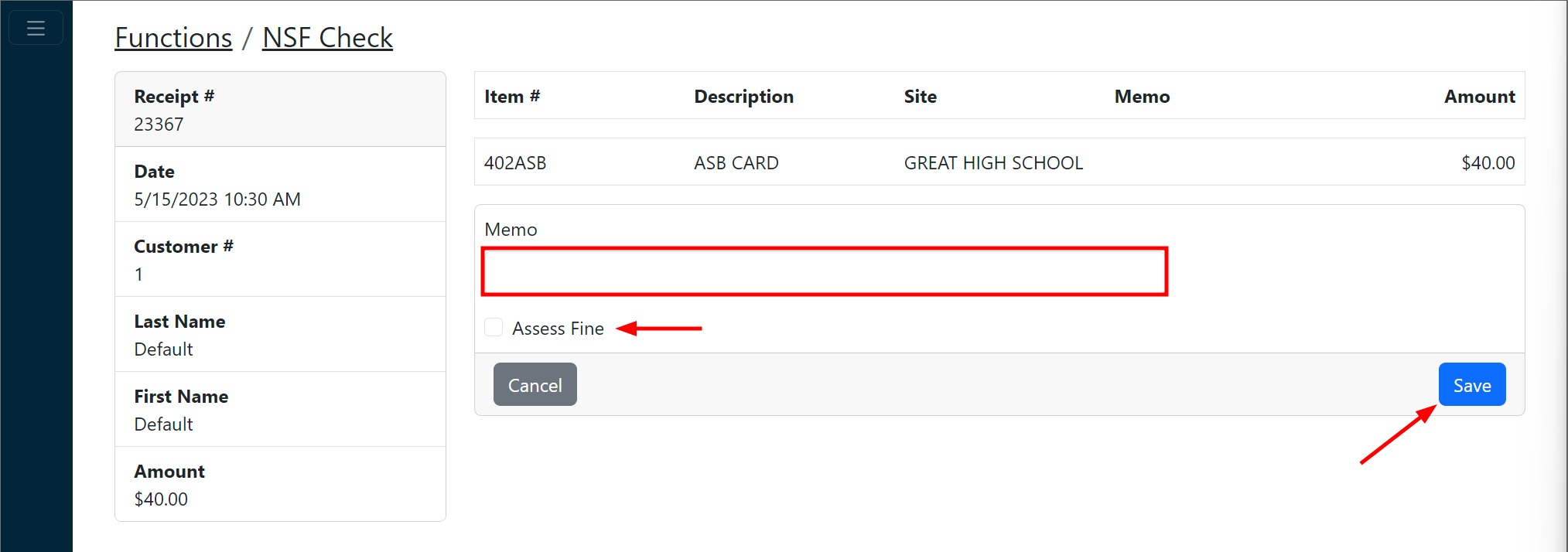
Optionally, enter a memo, indicate if a fine should be assessed, and click Save.
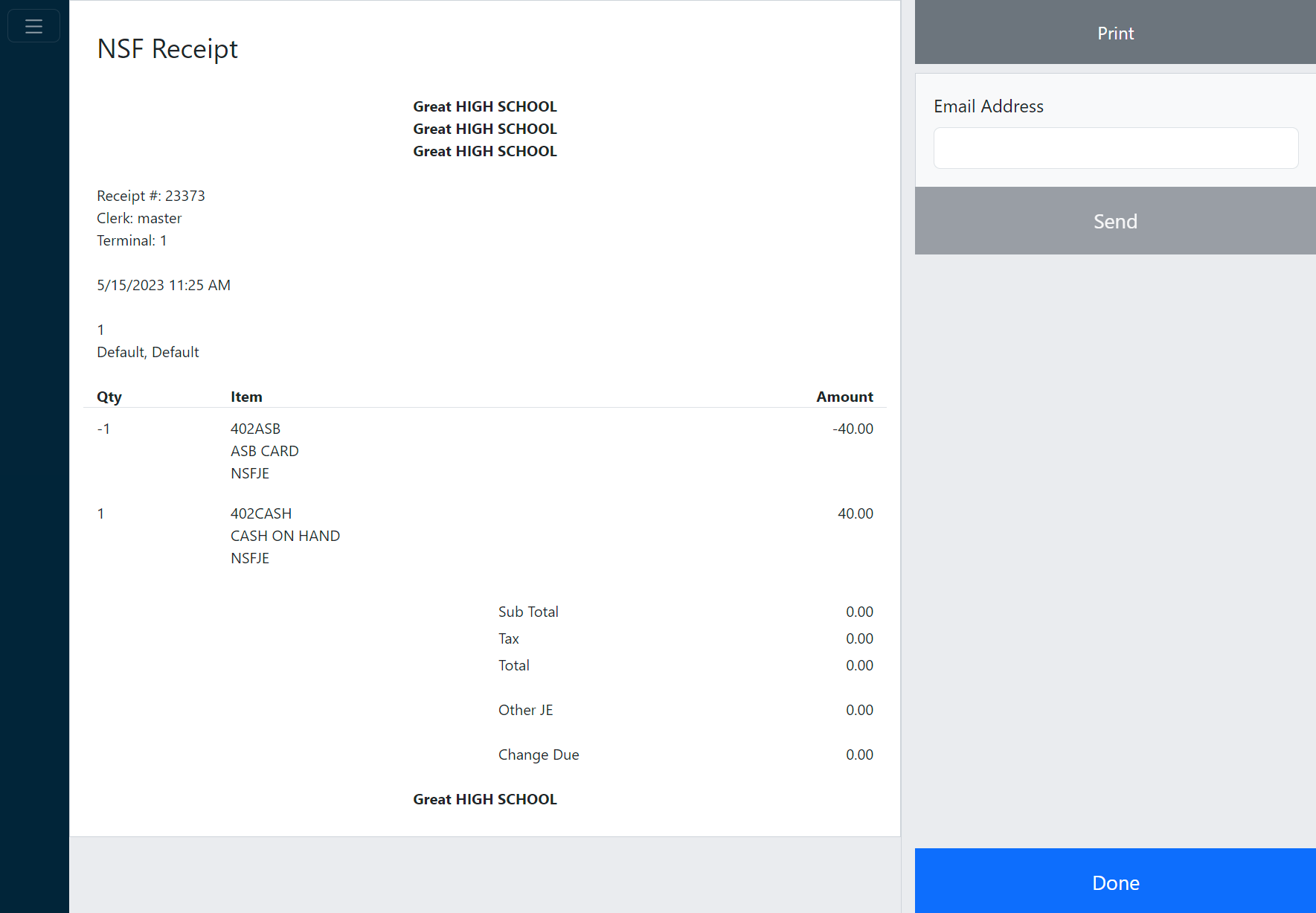
A receipt showing the revenue reversal is displayed. Print and email as necessary and click Done.
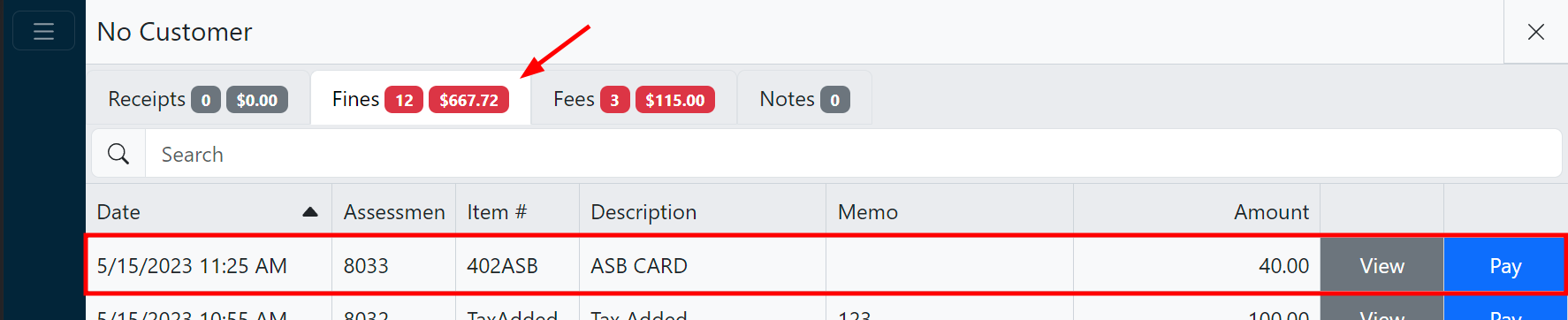
If you chose to assess a fine, you’ll now find the fine on the customer account.