Introduction
To enable users to receive Chargeback and Daily Batching Notification emails in InTouch Pay, district administrators must first update User Roles to grant appropriate permissions for chargeback management. Users must then opt in for notifications within their account. Follow the steps below to configure these settings.
Updating User Roles for Chargeback Access
Administrators must update User Role settings in InTouch Pay to allow users to view chargeback details, submit supporting documentation, and opt in for notification emails.
- Click the Menu button.
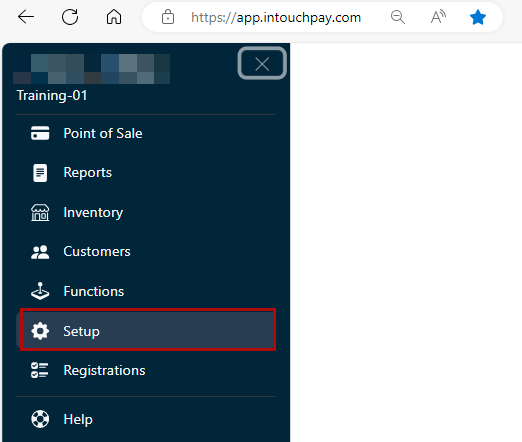
- Click Setup.
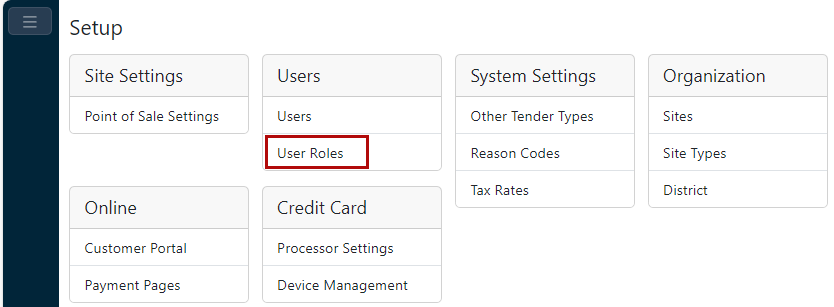
- Click User Roles under the Users heading.
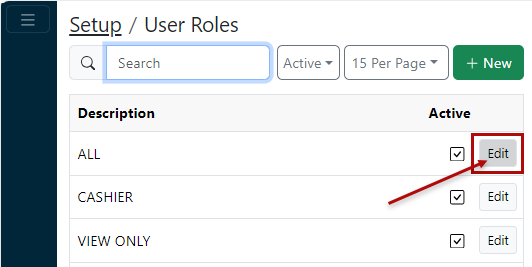
- Click the Edit button for each of the appropriate User Role(s).
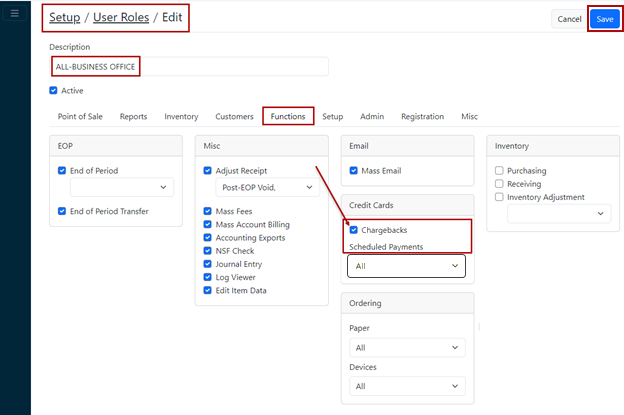
- Click into the Functions tab.
- Check the Chargebacks box under the Credit Cards heading.
- Click the Save button.
Enabling Notification Settings for User Roles
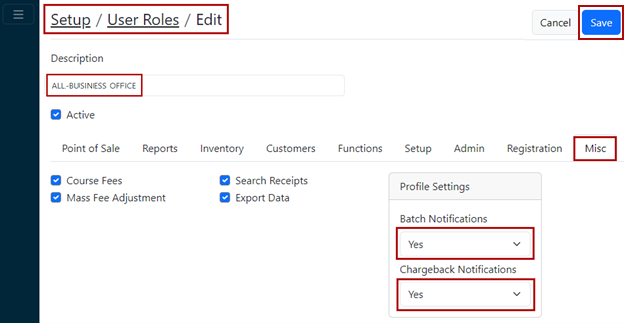
- Click into the Misc tab.
- Set the Batch Notifications dropdown to Yes.
- Set the Chargeback Notifications dropdown to Yes.
- Click the Save button.
Opting in for Chargeback and Daily Batching Notifications
Users must opt in to receive Chargeback and Batch Notifications.
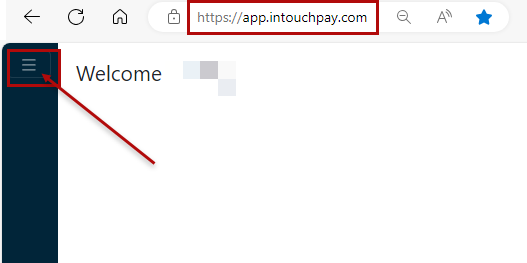
- Log into InTouch Pay.
- Click the Menu button.
- Click your name.
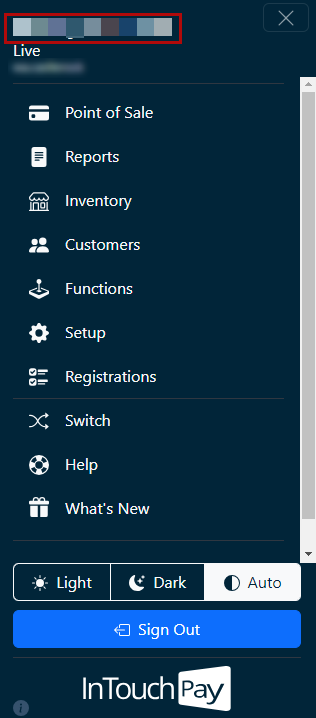
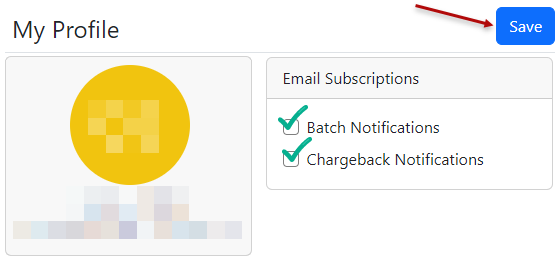
- Check the boxes for both Batch Notifications and Chargeback Notifications.
- Click the Save button.