How to Reset Customer Portal Passwords
Print
Modified on: Fri, 15 Aug, 2025 at 1:09 PM
How to Reset Customer Portal Passwords
- From the Main Menu, select Customers.
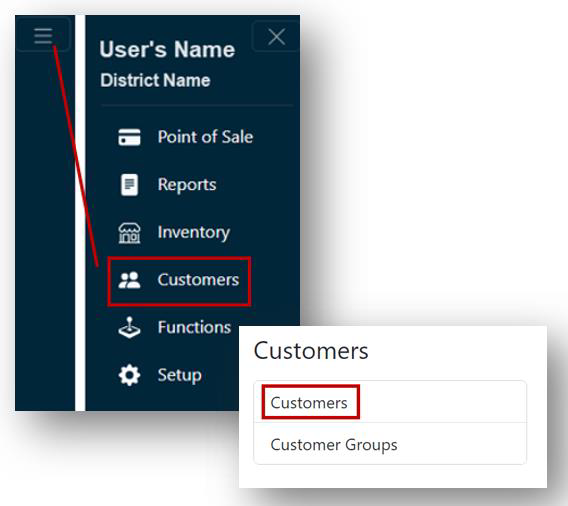
- Search for the student and click edit on the right of the line item.
- Under the Details tab, locate the Online box.
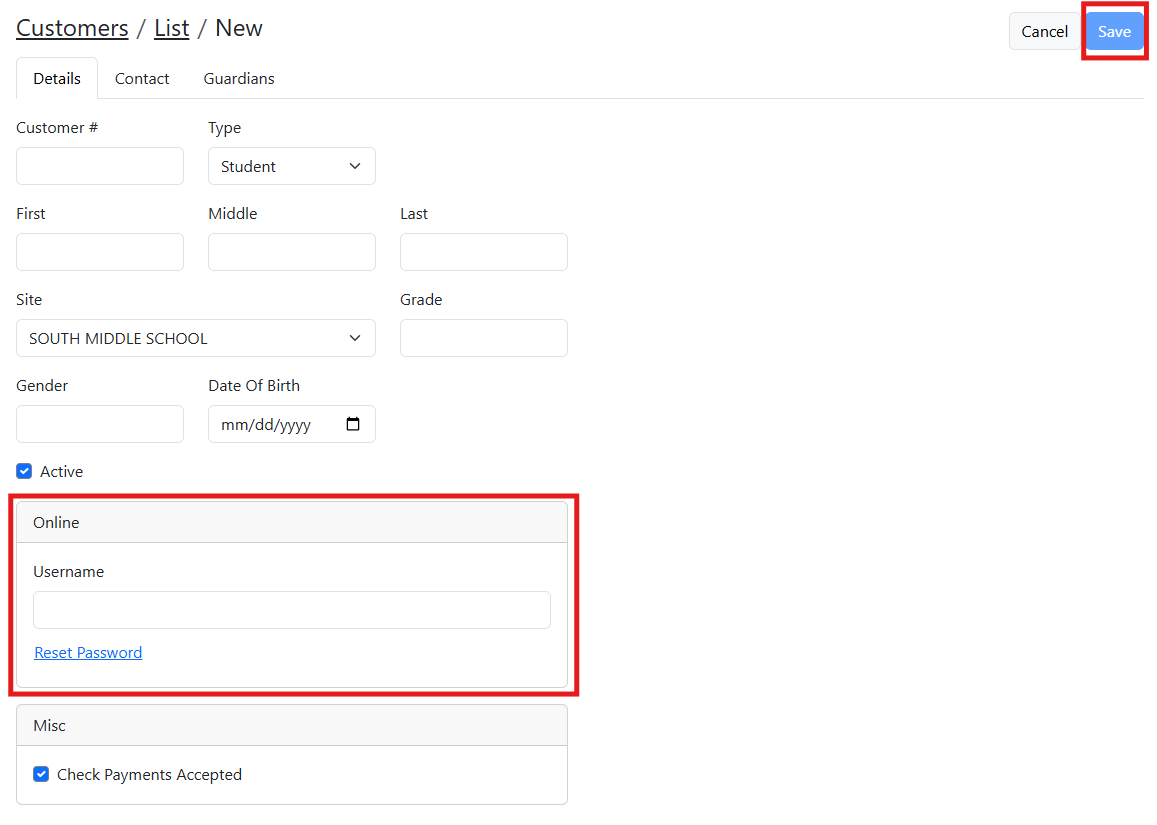
- Click Reset Password.
Note: A new field appears with an auto-generated temporary password. 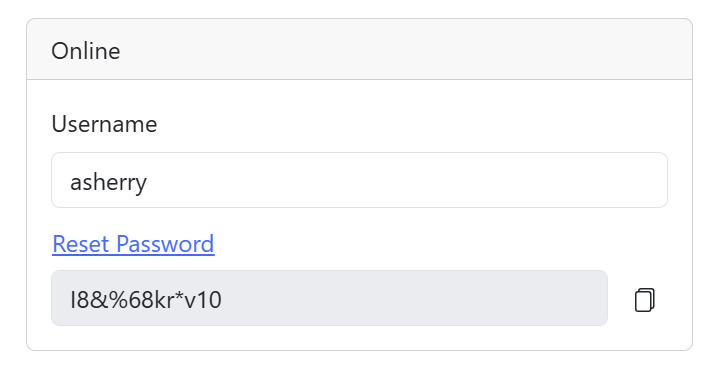
- Click save.
- Share the temporary password with the parent/customer. Instruct them to log into the Customer Portal and change it immediately to a password of their choice
