Follow the steps below to ensure your student store is ready for the upcoming school year:
- TABLE OF CONTENTS
Step 1: Perform a Complete Inventory Count
There are two components of physical inventory: quantity on hand and cost of inventory.
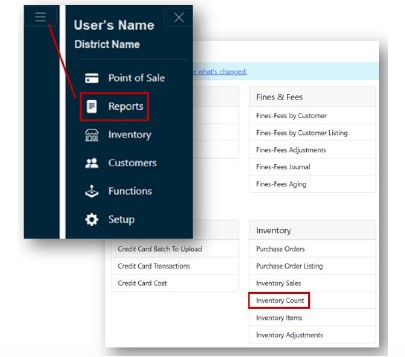
- From the Main Menu, select Reports
- Choose Inventory Count Report
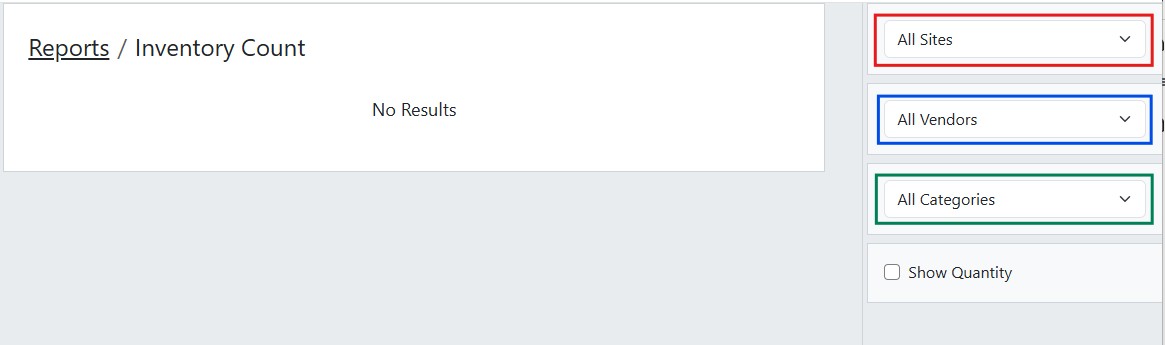
- Use the default filters:
All Vendors
All Categories
Do not show Quantity
Print the report and physically count all items on hand
Step 2: Clear Existing Inventory
Before proceeding, create a Reason Code named "Beginning of Year Inventory"
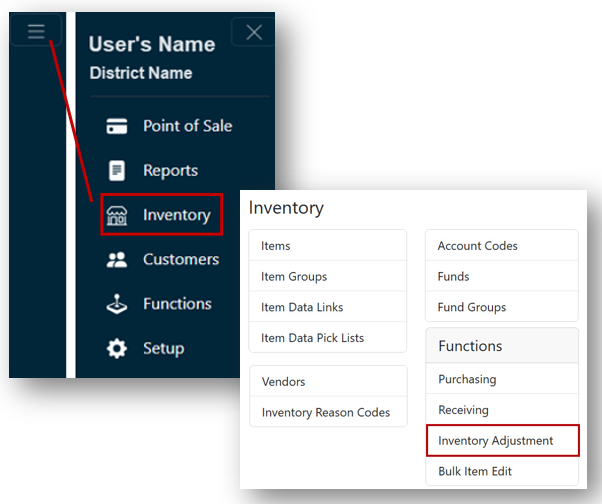
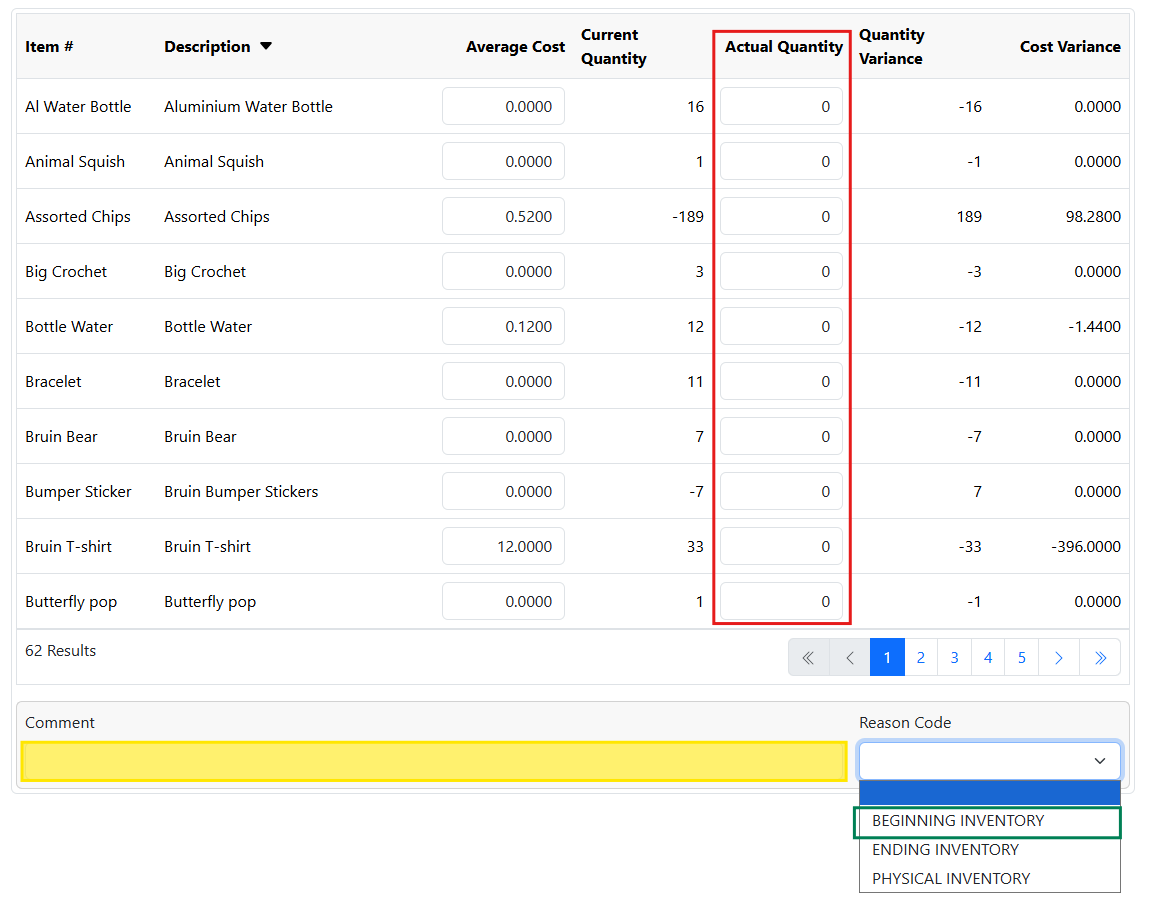
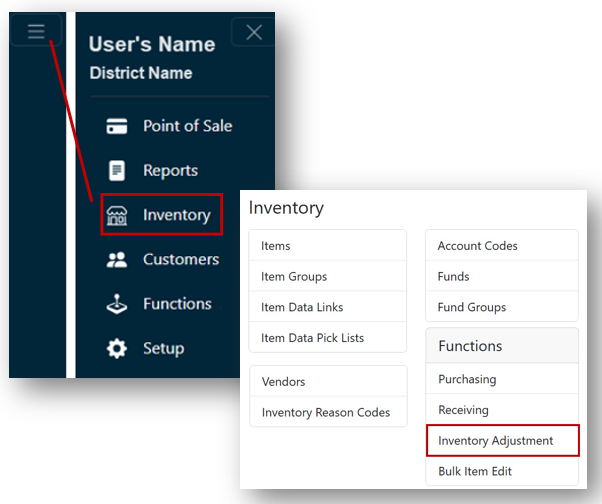
- From the Main Menu, select Inventory
- Select Inventory Adjustment
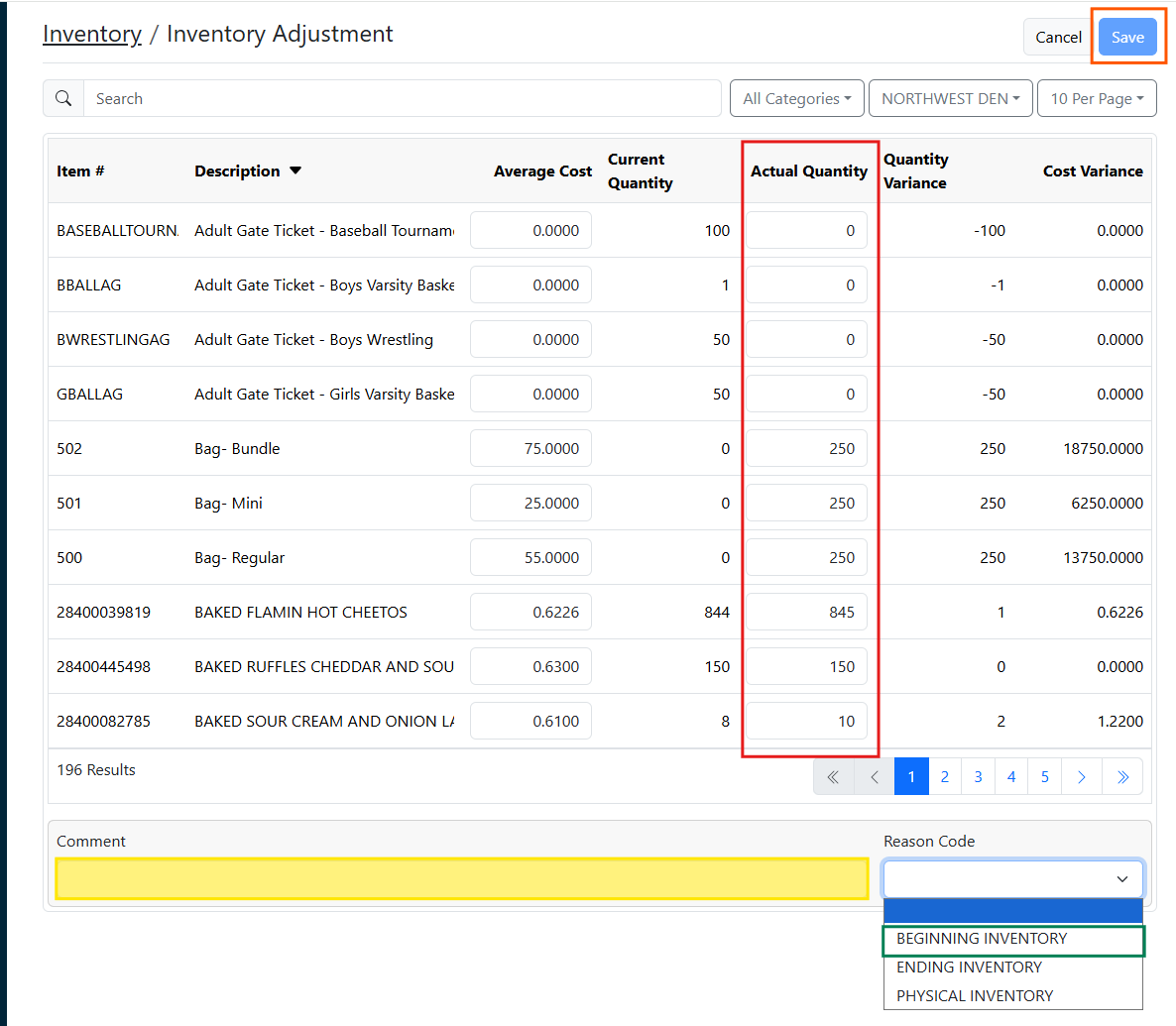
- For all items, enter 0 in the Actual Quantity field
- Enter a comment indicating the reset (e.g., "Resetting inventory for new school year")
- Select the Reason Code: Beginning Inventory
- Click Save
Step 3: Verify Vendor Details
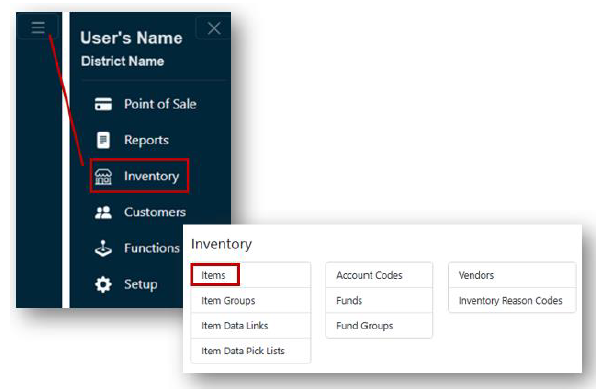
- Go to Inventory, then select Items
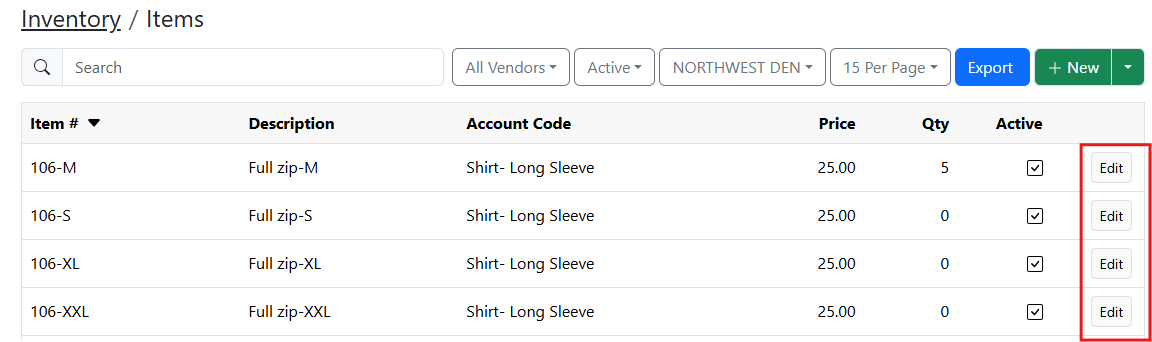
- Click the Edit button for each item
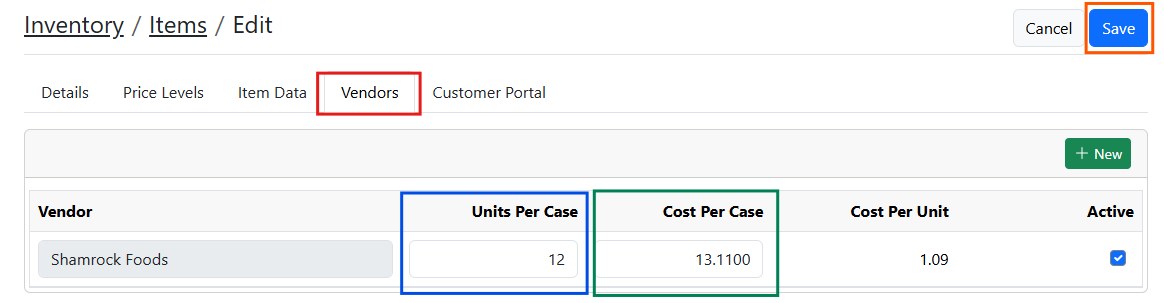
- Select the Vendor tab
- Review and update the following fields based on vendor order information:
- Units per Case
Cost per Case
Click Save to overwrite the existing details
Step 4: Enter Beginning Inventory
Use your Inventory Count Report as a reference.
- From Inventory, select Inventory Adjustment
- For each item:
Enter the current quantity in the Actual Quantity field
Enter 0 for any item not in stock
Add a comment (e.g., "Starting inventory for 20XX school year")
Select the Reason Code: Beginning Inventory
Click Save