
Introduction
This guide explains the sale process from the Point of Sale, including selecting items using buttons or scanning, and tendering payments via cash, check, account, or credit card.
TABLE OF CONTENTS
- Understanding Point of Sale Buttons
- Selling an Item from the Point of Sale
- Completing a Sale with Cash
- Completing a Sale with a Credit Card
- Printing a Receipt
Understanding Point of Sale Buttons
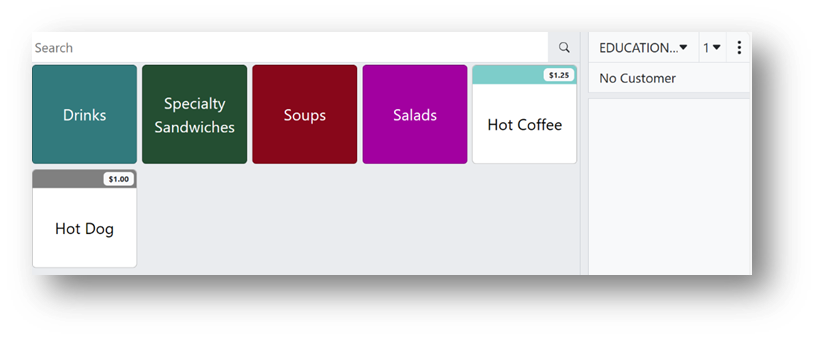
There are two types of buttons in the example below:
- Sell Item buttons – Hot Coffee and Hot Dog
- Go To Layer buttons – Drinks, Specialty Sandwiches, Soups, and Salads
Selling an Item from the Point of Sale
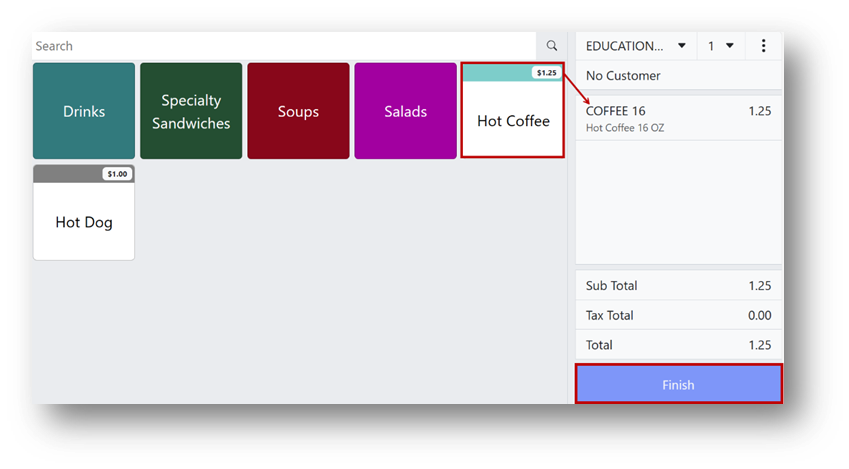
- Click the button for the item being sold (e.g., Hot Coffee).
Note: The selected item appears in the transaction preview window on the right, showing its price and total cost at the bottom.
- If the customer is ready to complete the transaction, click Finish at the bottom of the transaction preview window.
Completing a Sale with Cash
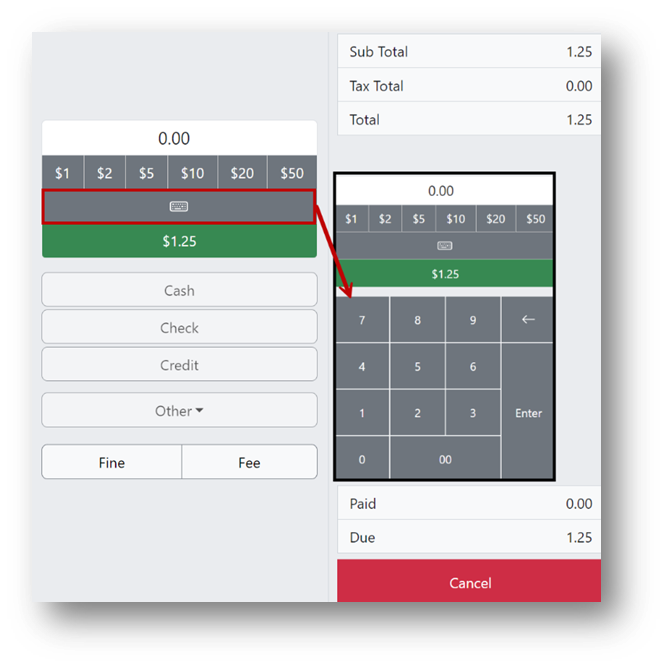
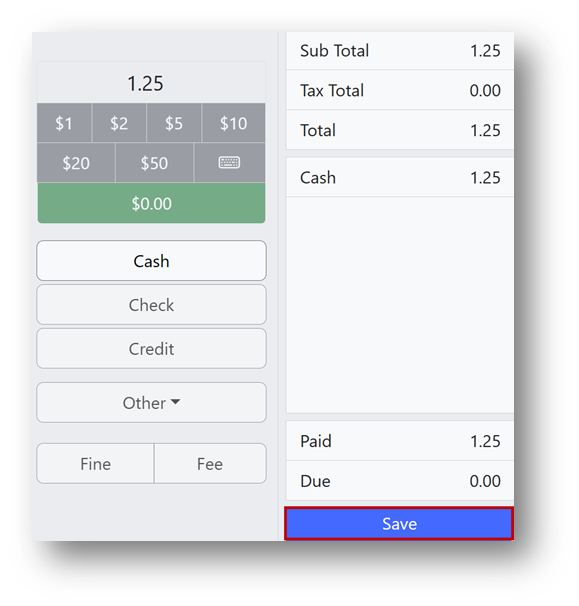
- Enter the cash amount using one of the following methods:
- Select a Quick Cash button ($1, $2, $5, $10, $20, $50).
- Use the on-screen keyboard, enter the exact amount, and click Enter.
- If skipping the amount entry, click Cash and manually calculate the change.
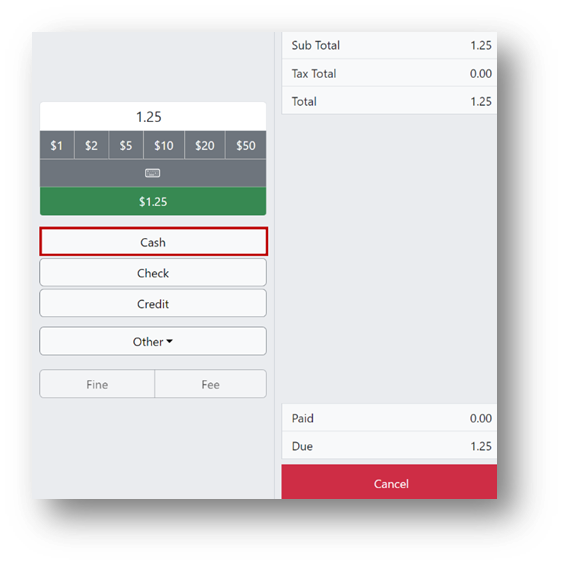
Note: After entering the cash amount, click Cash to change the red Cancel button into a blue Save button.
- Click Save.
Completing a Sale with a Credit Card
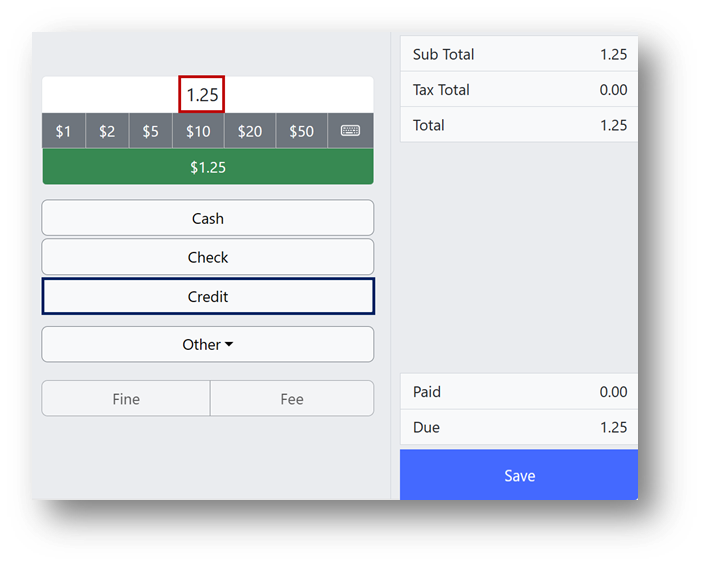
- Enter the amount (must match the total sale amount).
- Click Credit (marked in blue).
- Follow device prompts for card approval.
- Once approved, the Amount Due field shows $0.00.
- Click Save.
Printing a Receipt
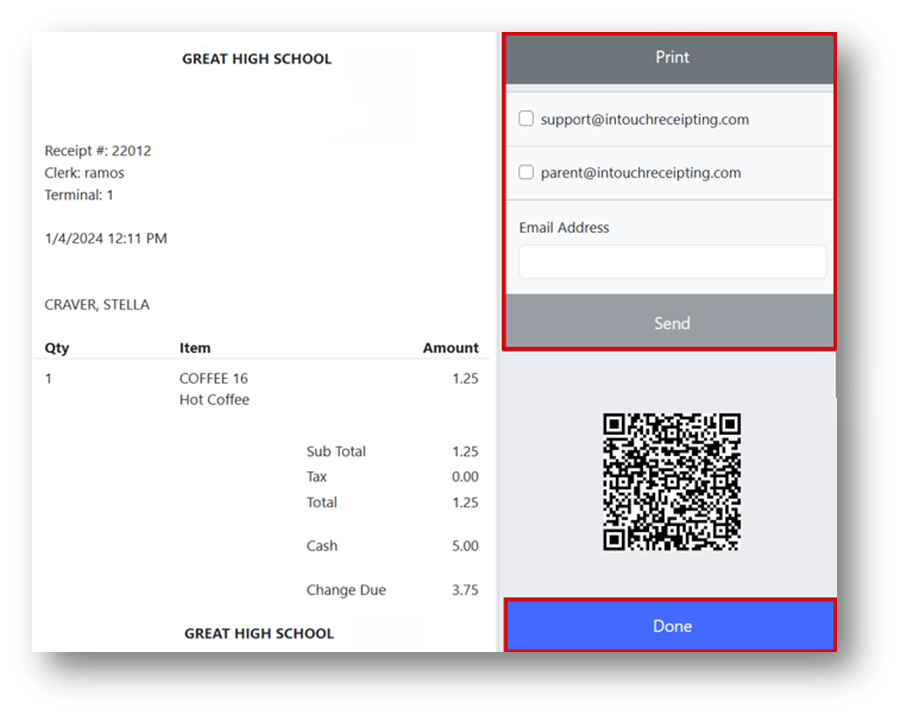
- When the transaction receipt appears, select one of the following options:
- Click Print to print the receipt and open the cash drawer.
- Enter an email address and click Send to email the receipt.
- The customer can scan the QR code to receive a digital receipt.
- Click Done when finished.