
Introduction
This article explains how to add terminals to a site in the InTouch system. Follow the steps below to complete the process.
Steps
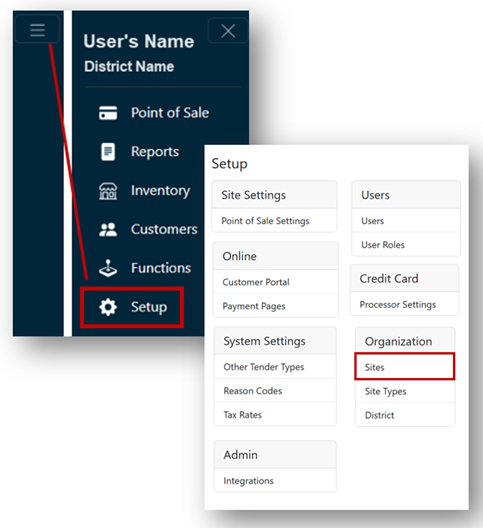
- From the Main Menu, select Setup, then click Sites under the Organization header.
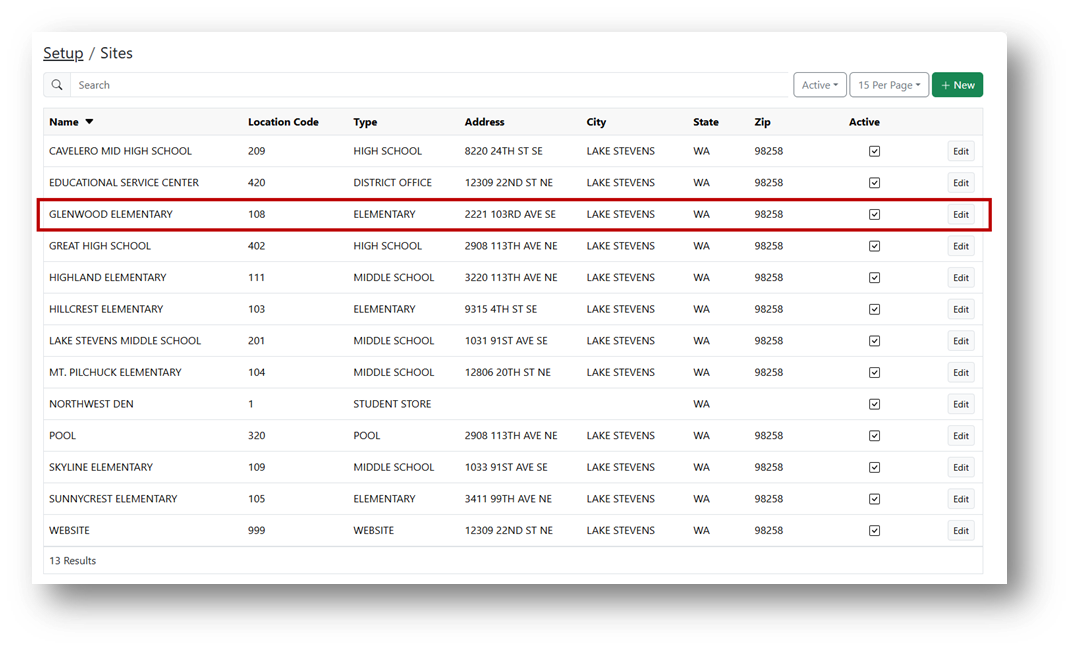
- Select the site you wish to add terminals to and click Edit.
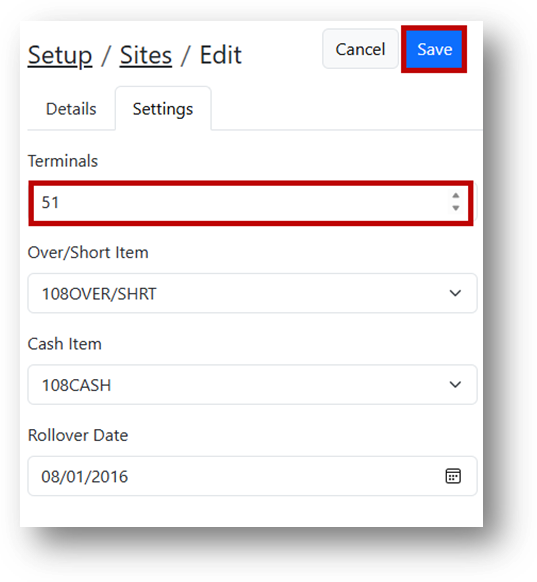
- Use the arrows to add or subtract terminals, or type in how many terminals you would like the site to have.
- Click Save.
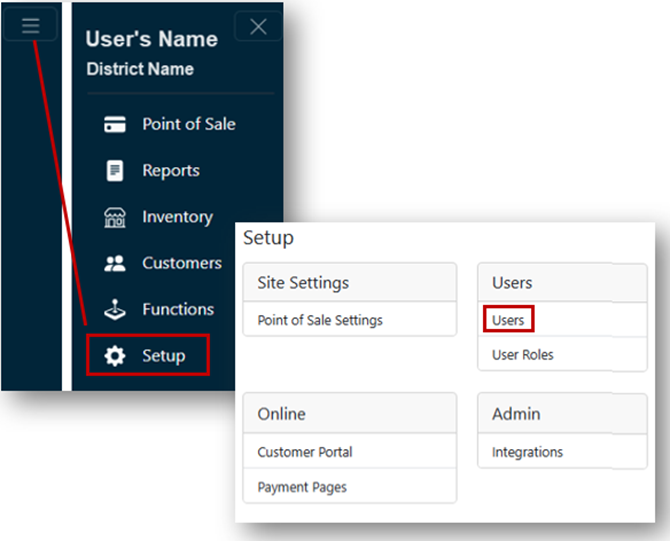
- Return to the Setup menu and click Users under the Users header.
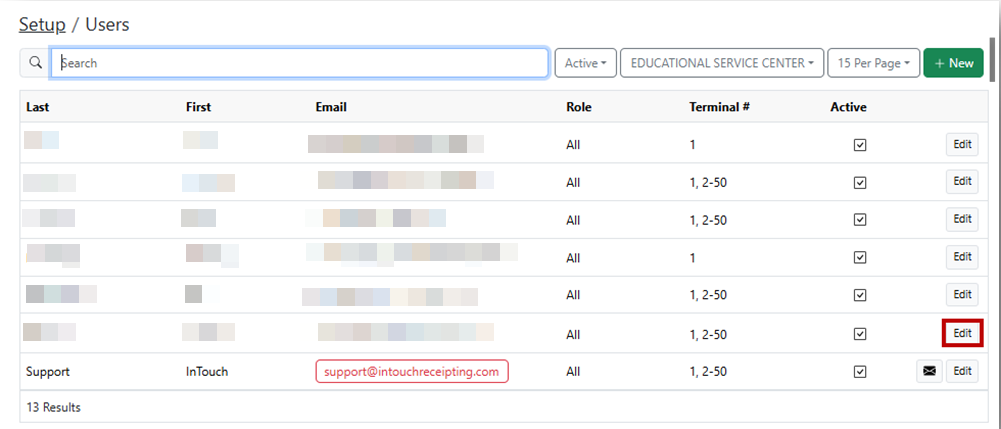
- Locate yourself on the user list and click Edit.
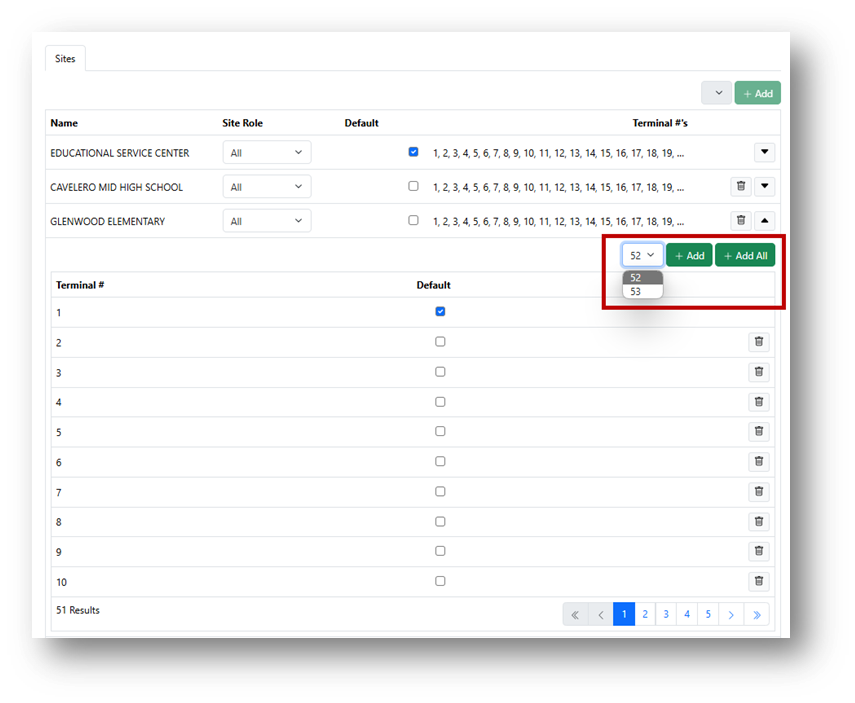
- Find the site you added terminals to and give yourself access to those terminals by selecting them from the dropdown or clicking + Add All.
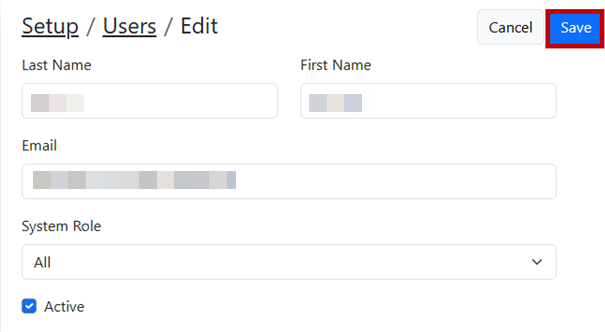
- Click Save.
Note: Refresh your browser after this step.
Configuring Point of Sale Settings
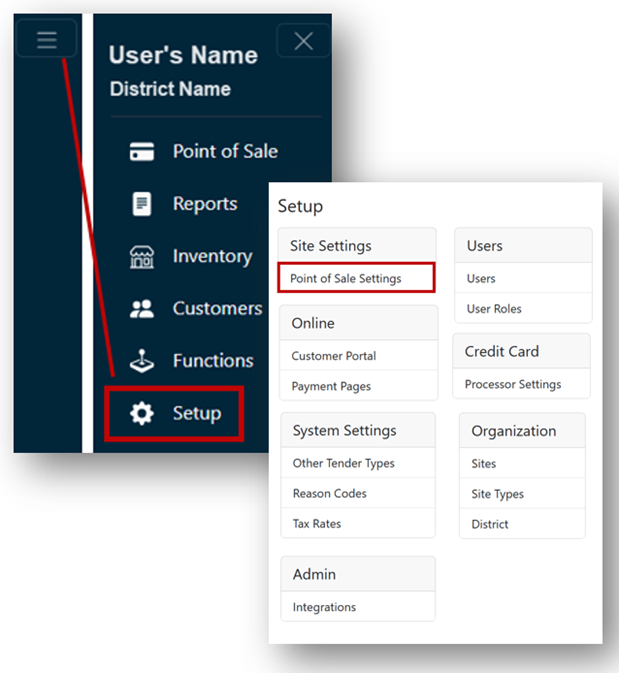
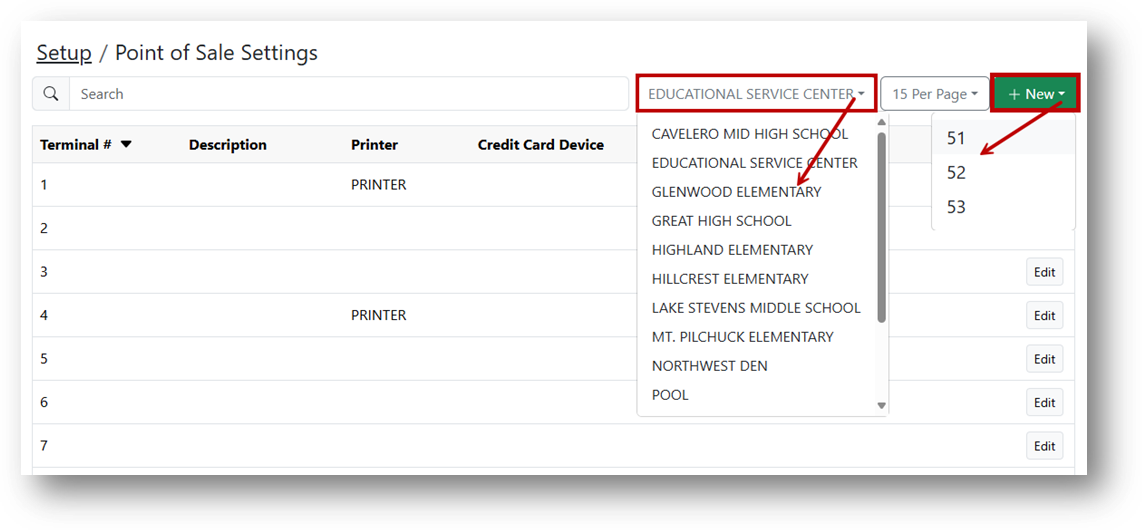
- Return to the Setup menu and click Point of Sale Settings under the Site Settings header.
- Select the site with the new terminals from the dropdown.
- Click + New to select the terminal you wish to begin creating Point of Sale settings for.
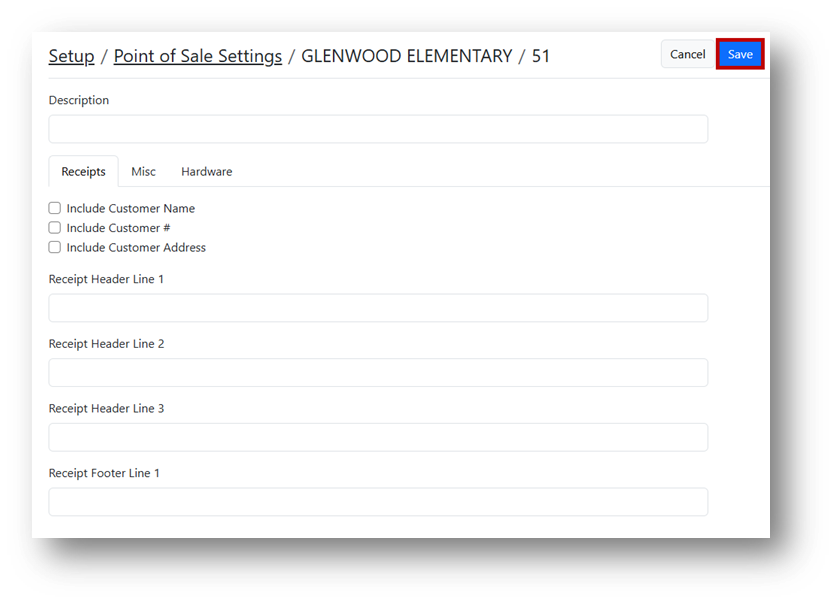
- Enter all necessary information, then click Save.
Note: Repeat steps 11-14 for any additional terminals.