
Introduction
This article explains how to edit user access by setting roles, site access, and terminal permissions in the system. Follow these steps to manage user access efficiently.
Steps to Edit User Access
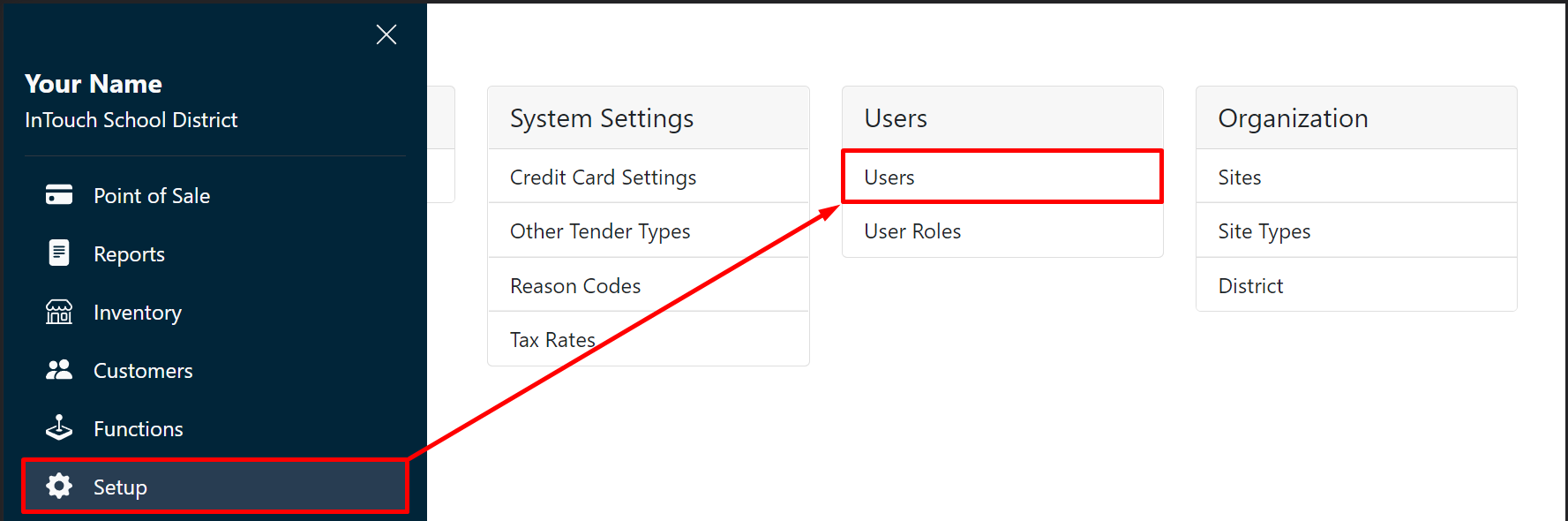
Go to Setup, and then Users.
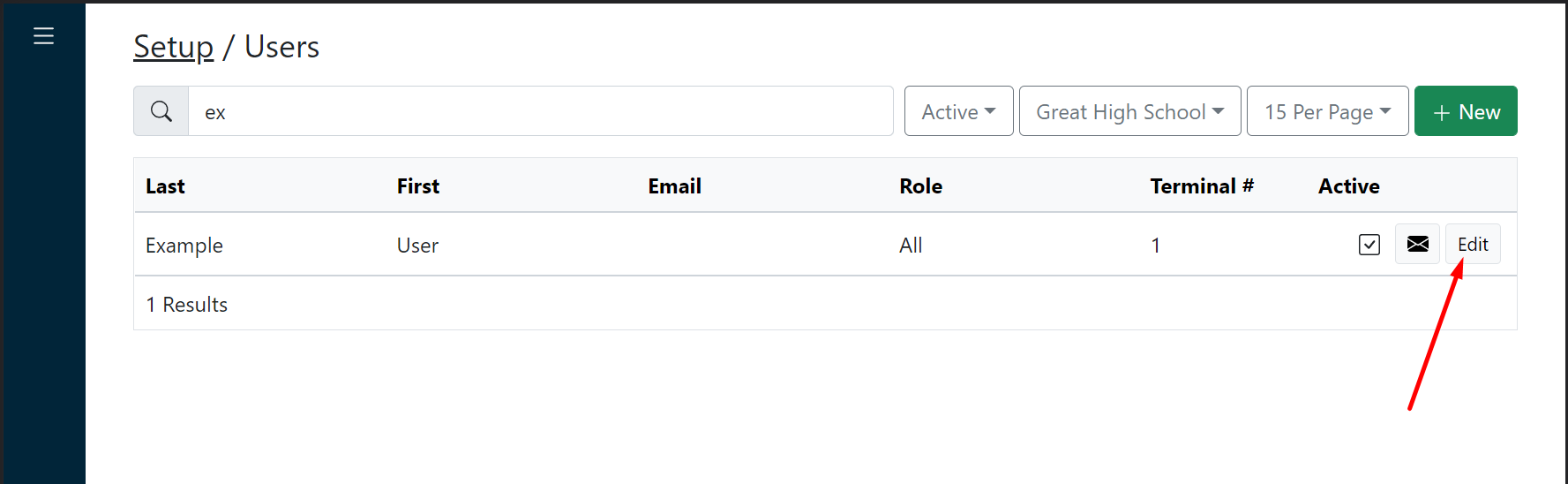
Locate the user you want to edit and click Edit.
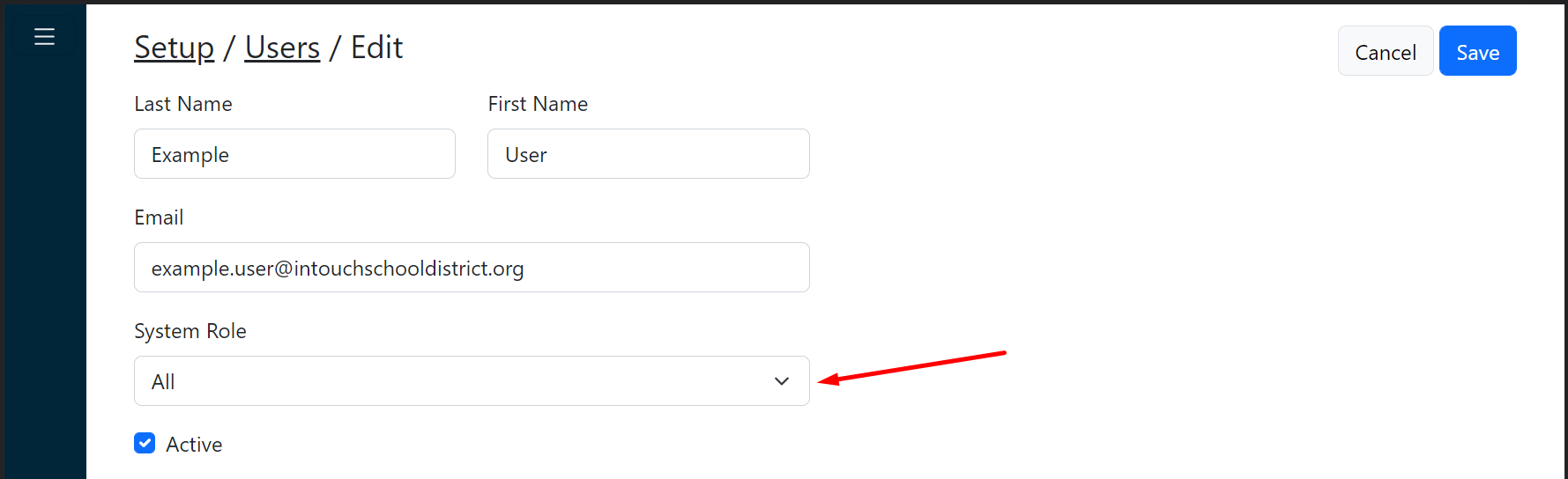
Set the appropriate System Role.
Tip:
System role specifies which system-wide, not site-specific, features are available to the user (sites, funds, etc.).
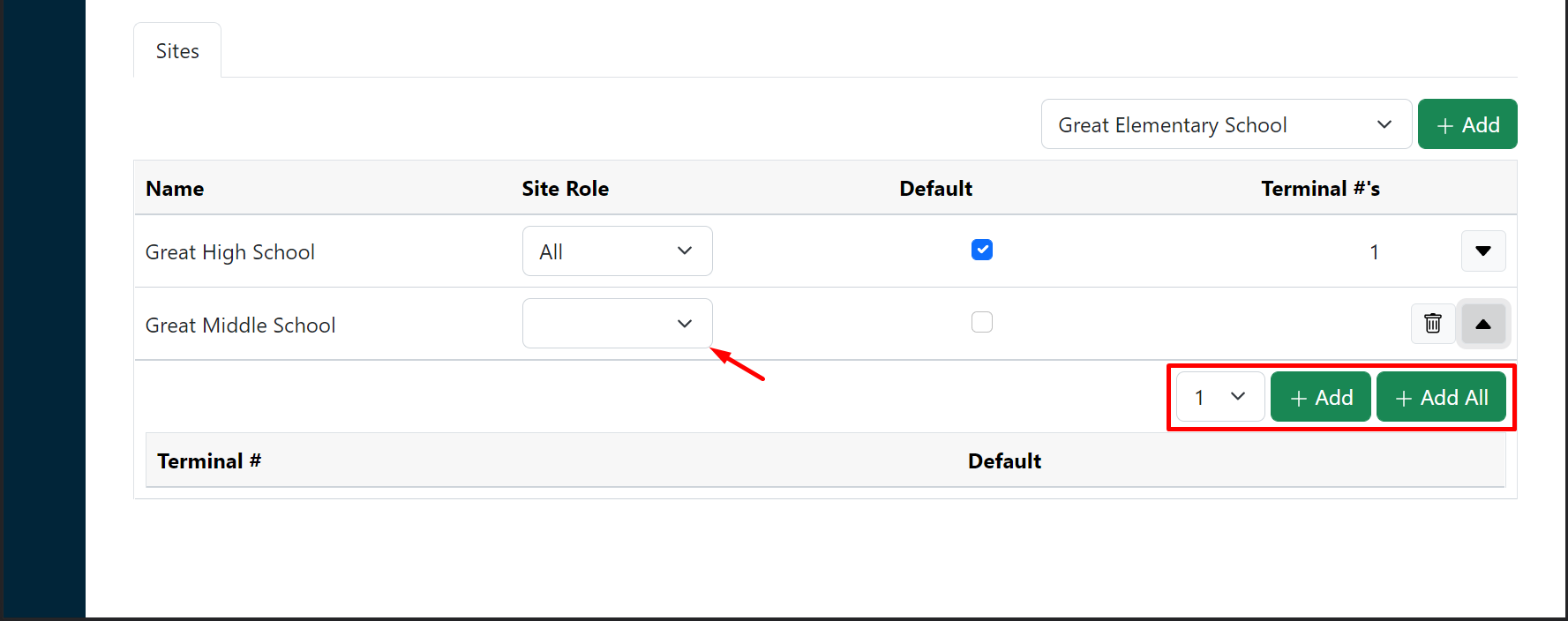
Set the appropriate Site and Terminal access.
Tip:
Users can have one or more sites, with one or more terminals at each site. For each site, select a role and add all appropriate terminals.
Click Save.