Introduction
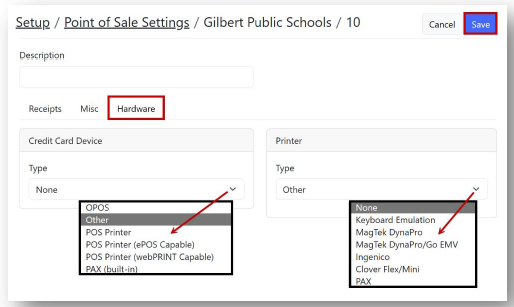
This article provides a step-by-step guide for assigning a credit card device in the Point-of-Sale settings. Follow these instructions to ensure your system is configured correctly.
TABLE OF CONTENTS
Adding a Credit Card Device in InTouch Pay
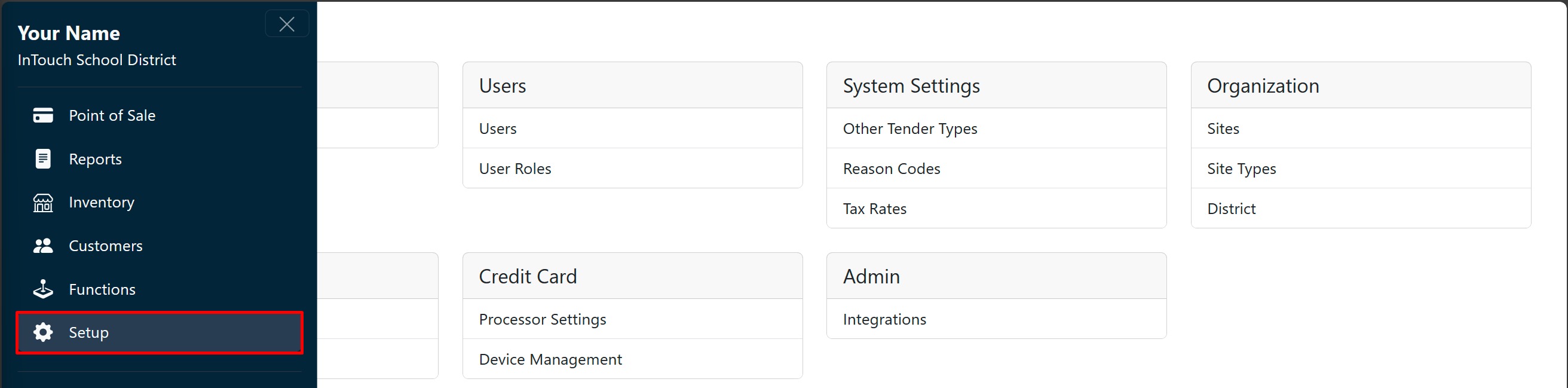
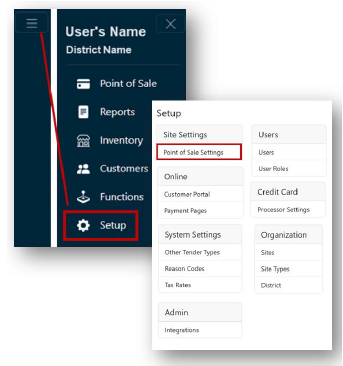
Go to Setup, and then Point-of-Sale Settings.
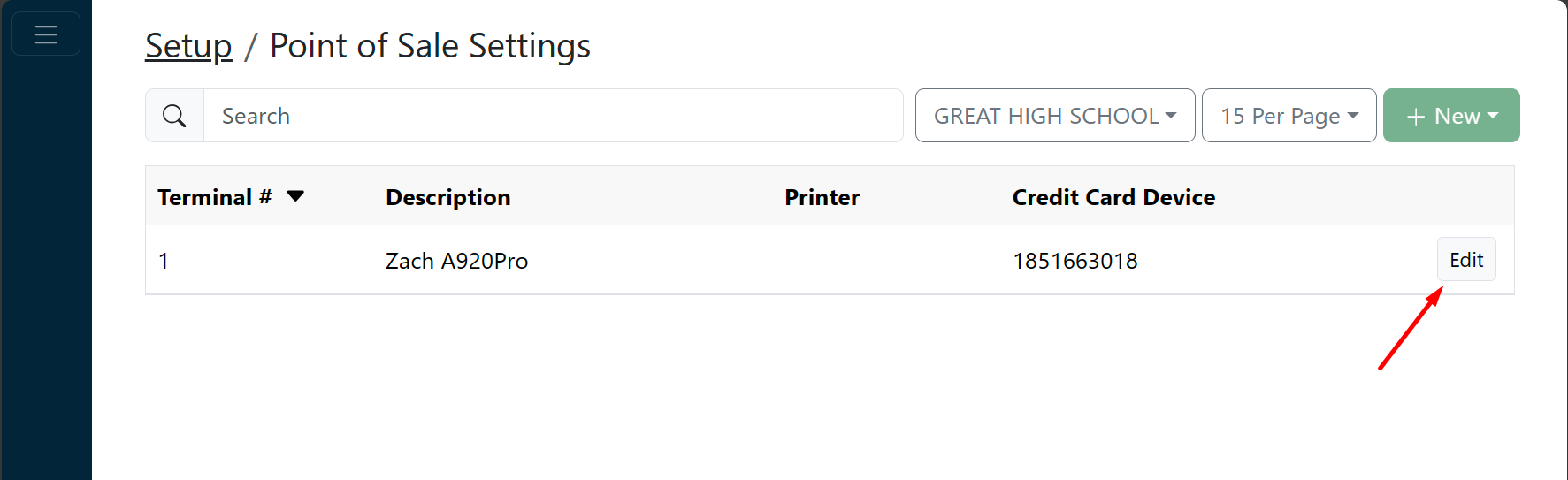
Locate the appropriate site and terminal #, and click Edit.
On the hardware tab, select the appropriate Credit Card Device Type from the dropdown list.
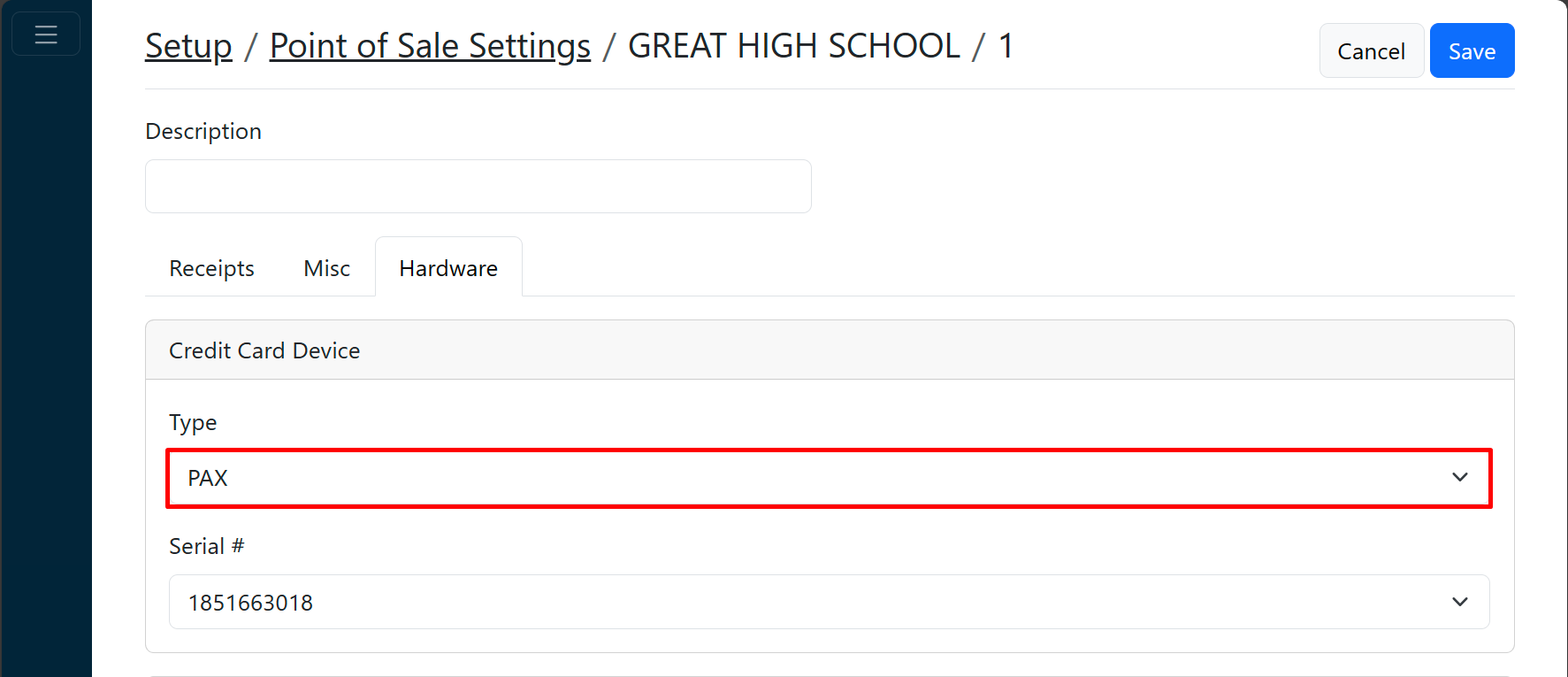
On the hardware tab, select the appropriate Serial # from the dropdown list.
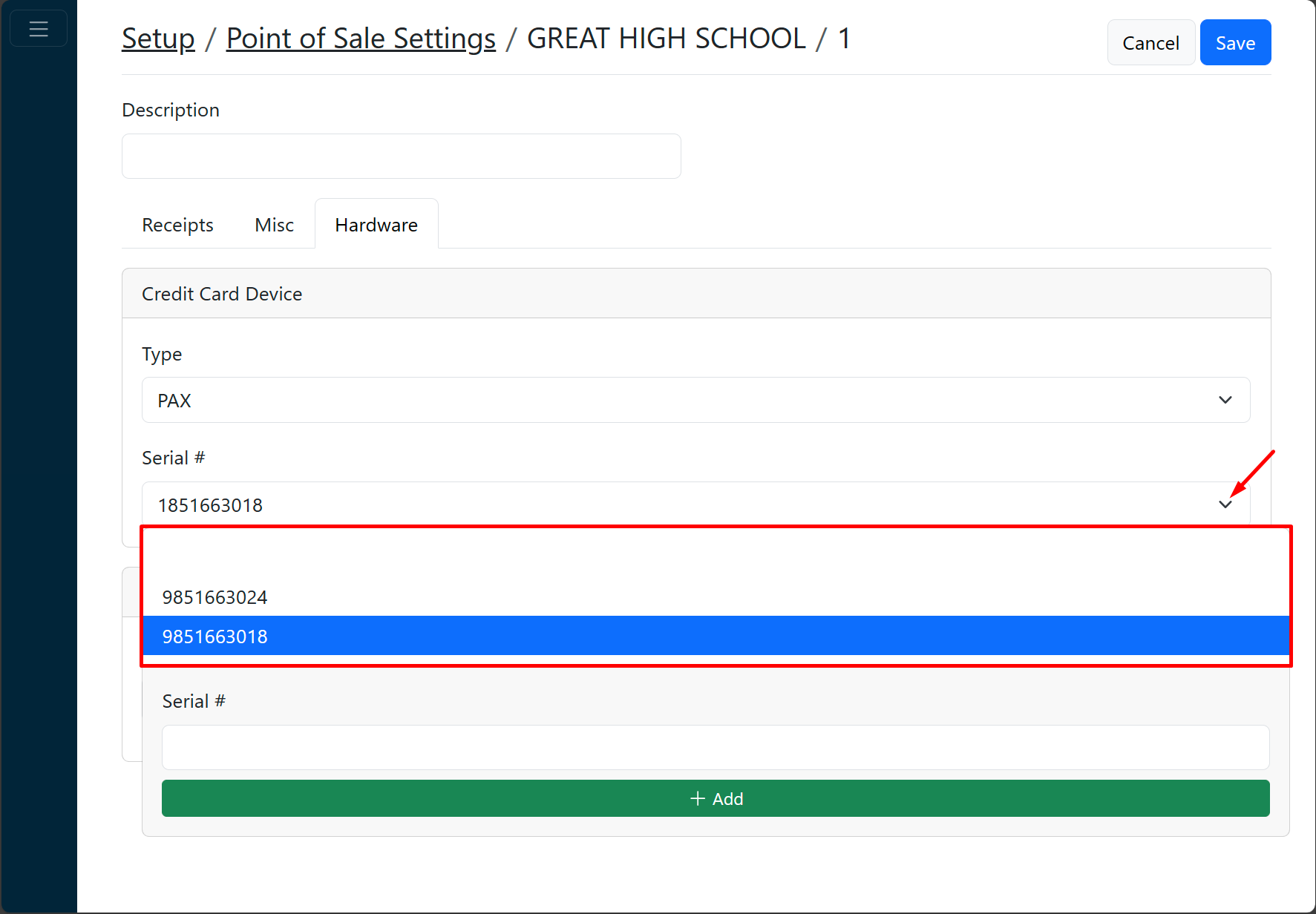
Click Save.

Assigning a Credit Card Device to a Terminal
Note: In order to assign a device to a terminal, it must be added to InTouch Pay first.
- From the Main Menu, select Setup.
- Click Point of Sale Settings under the Site Settings header.
 Note: If you have access to multiple sites, select the Site for the Point of Sale setting from the dropdown.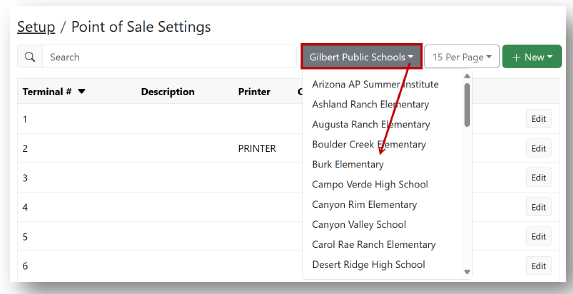
- Click Edit for the terminal you would like to edit/add a device for.
- Click the Hardwaretab.
- Select the Credit Card Device type from the dropdown.
- Select the Printer Device type from the dropdown.
- Click Save.