Introduction
This guide explains how to sell an item using the Point of Sale (POS) system. Follow the steps below to complete sales transactions, including adding items to the cart and processing payments.
Steps to Sell an Item
Go to Point of Sale.
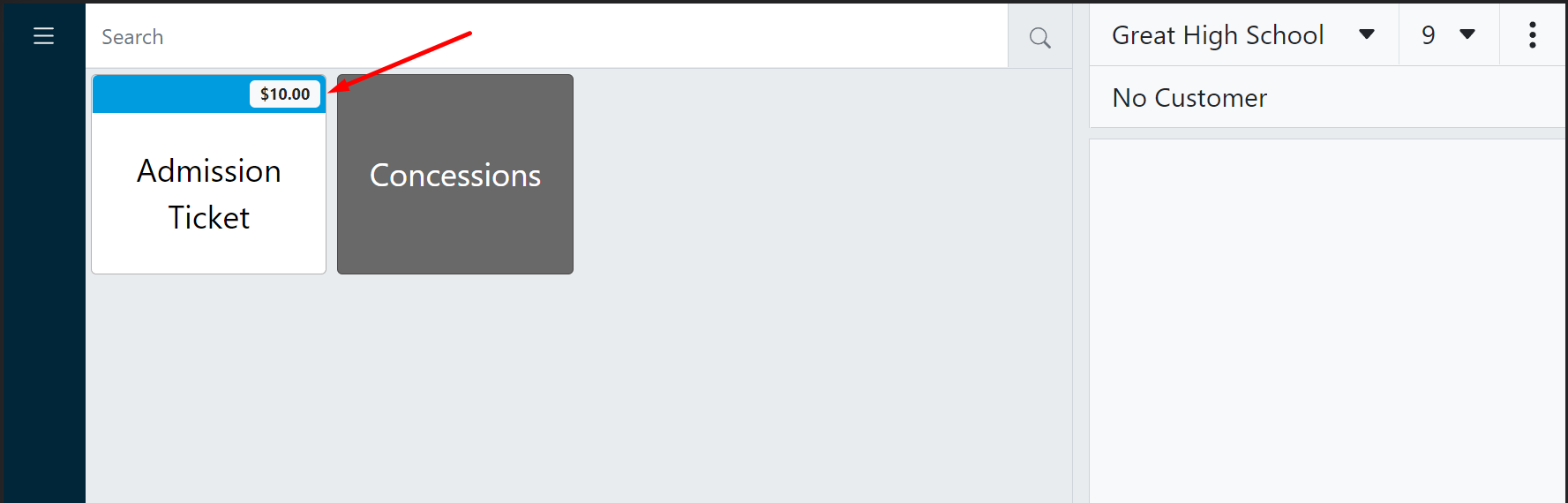
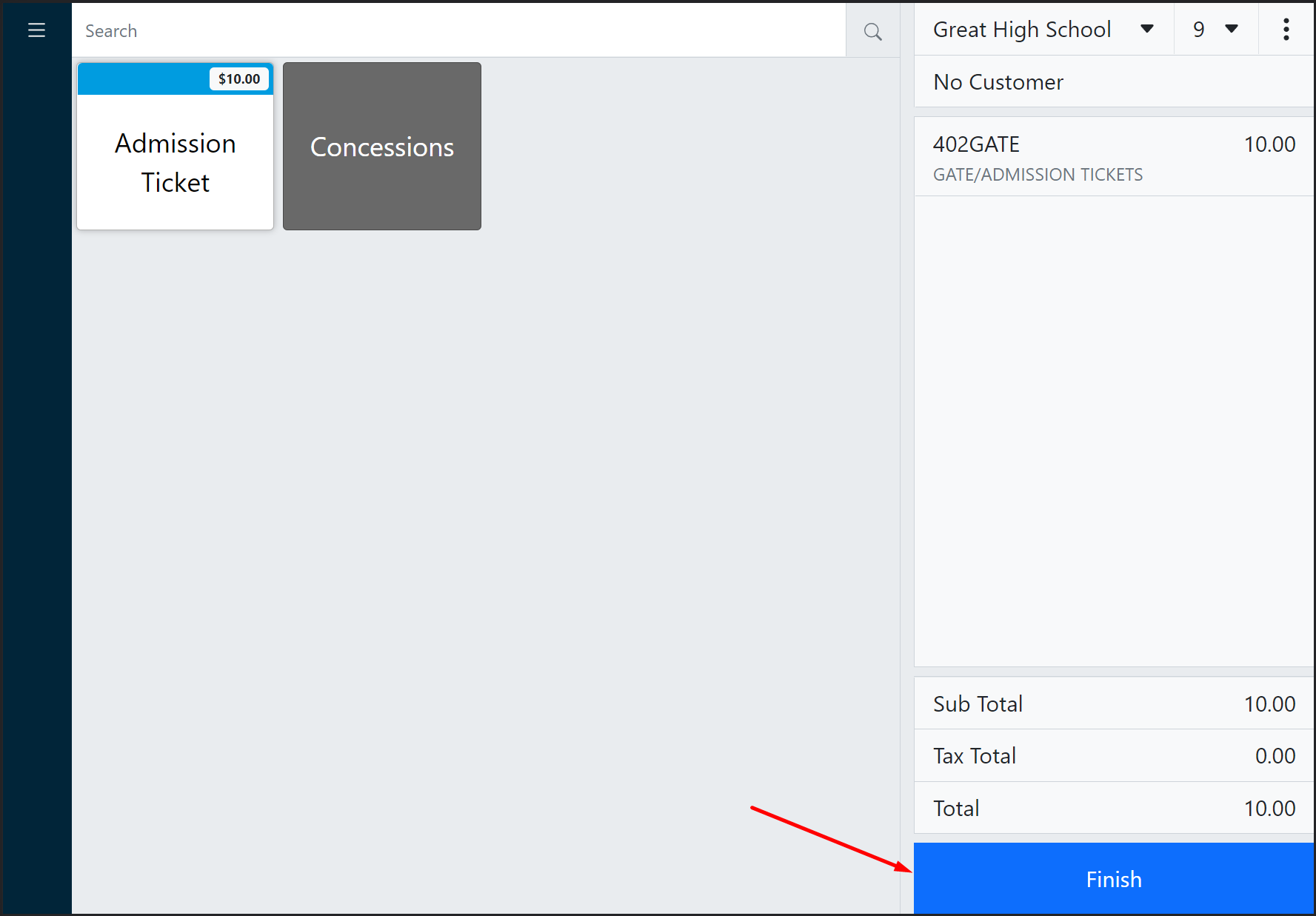
To sell an item, click the appropriate item button.
Tip:
Item buttons have the price listed on a colored bar. Clicking an item button adds the item to the cart.
Layer buttons are fully colored. Clicking a layer button reveals more buttons on a different layer.
The item will now appear in the cart.
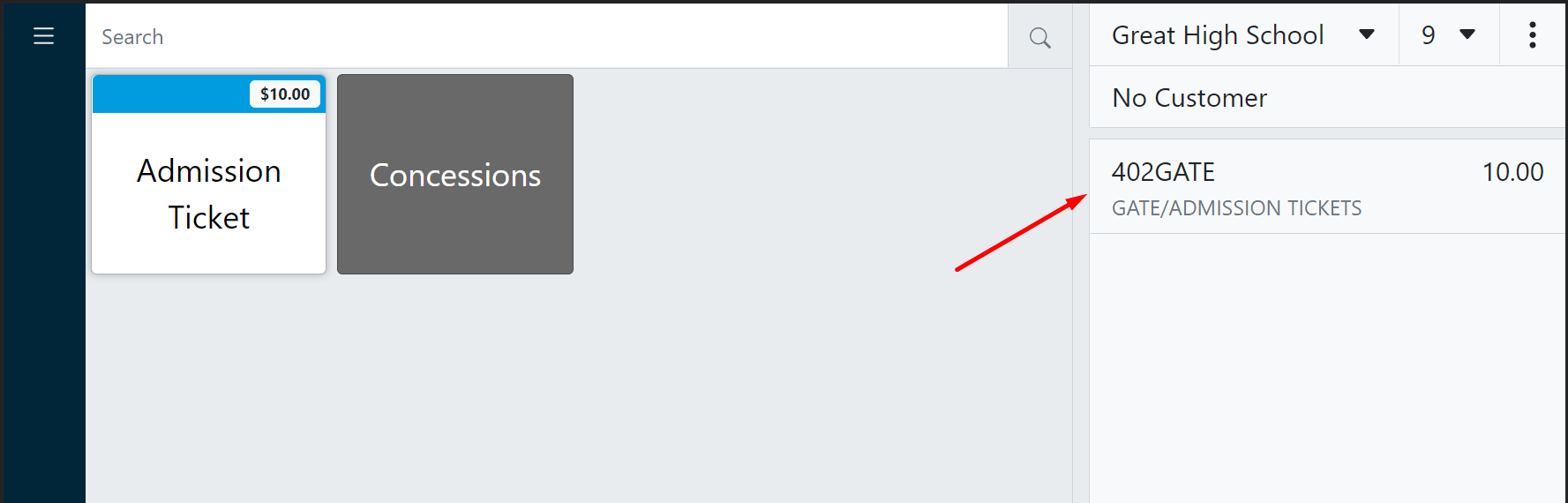
Optionally, locate and click item buttons for any additional items the customer would like to purchase.
The total amount due is located at the bottom of the cart.
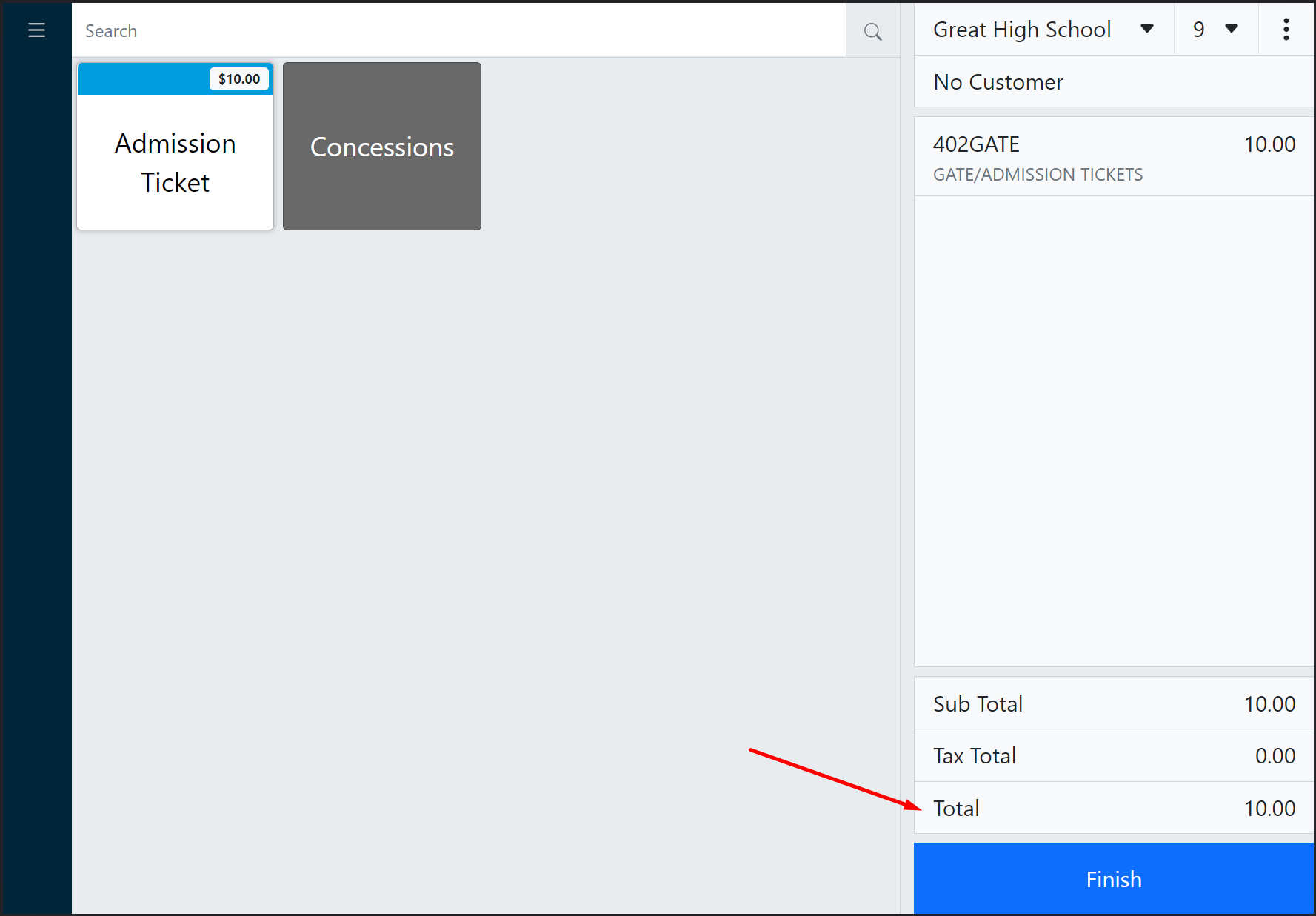
Click Finish to reveal the payment panel.
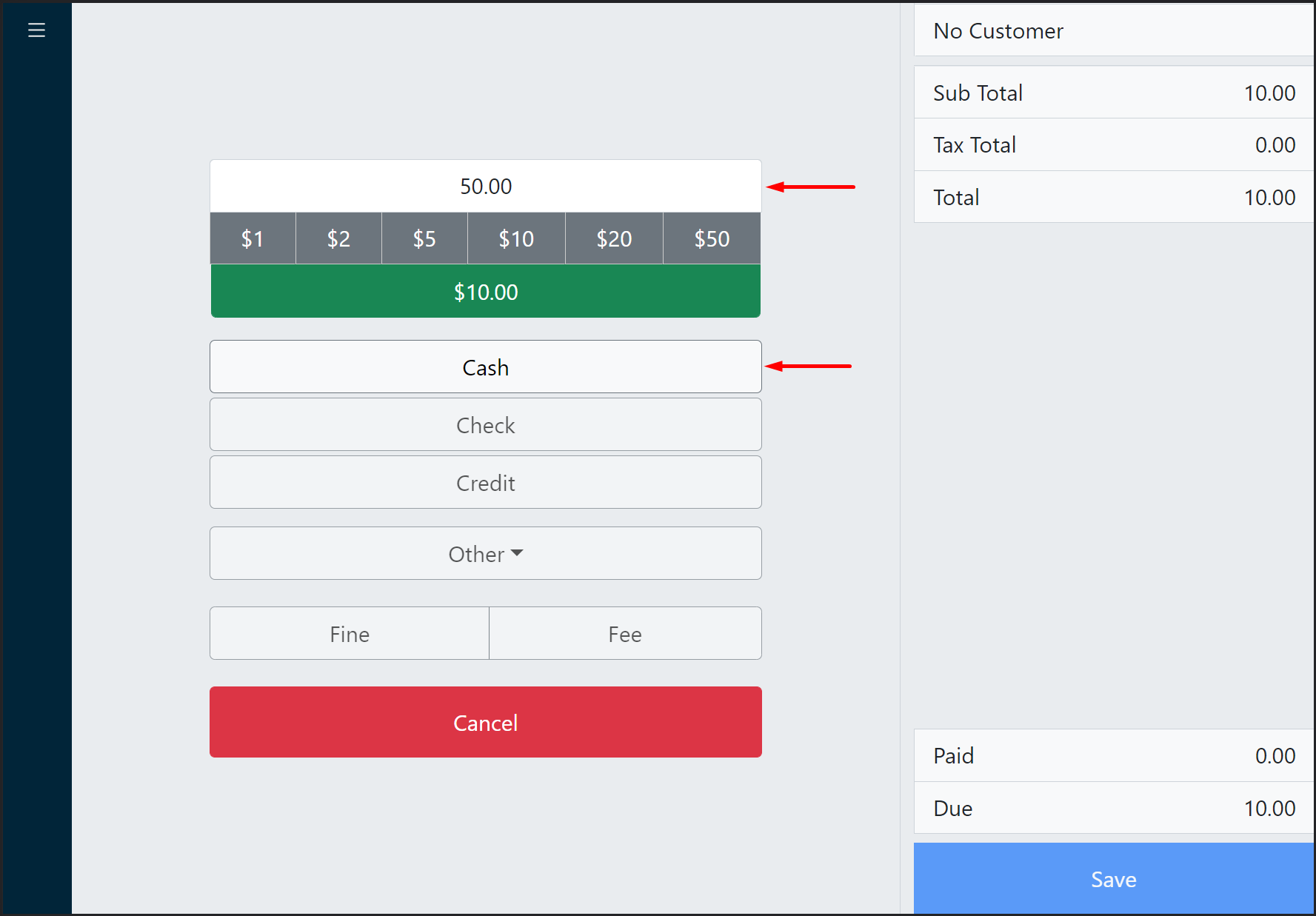
- Enter the payment amount and click the appropriate tender.
Tip:
Quickly enter the amount of common cash bill denominations by pressing the appropriate gray button. Press the green button to enter the balance due amount automatically.
Example
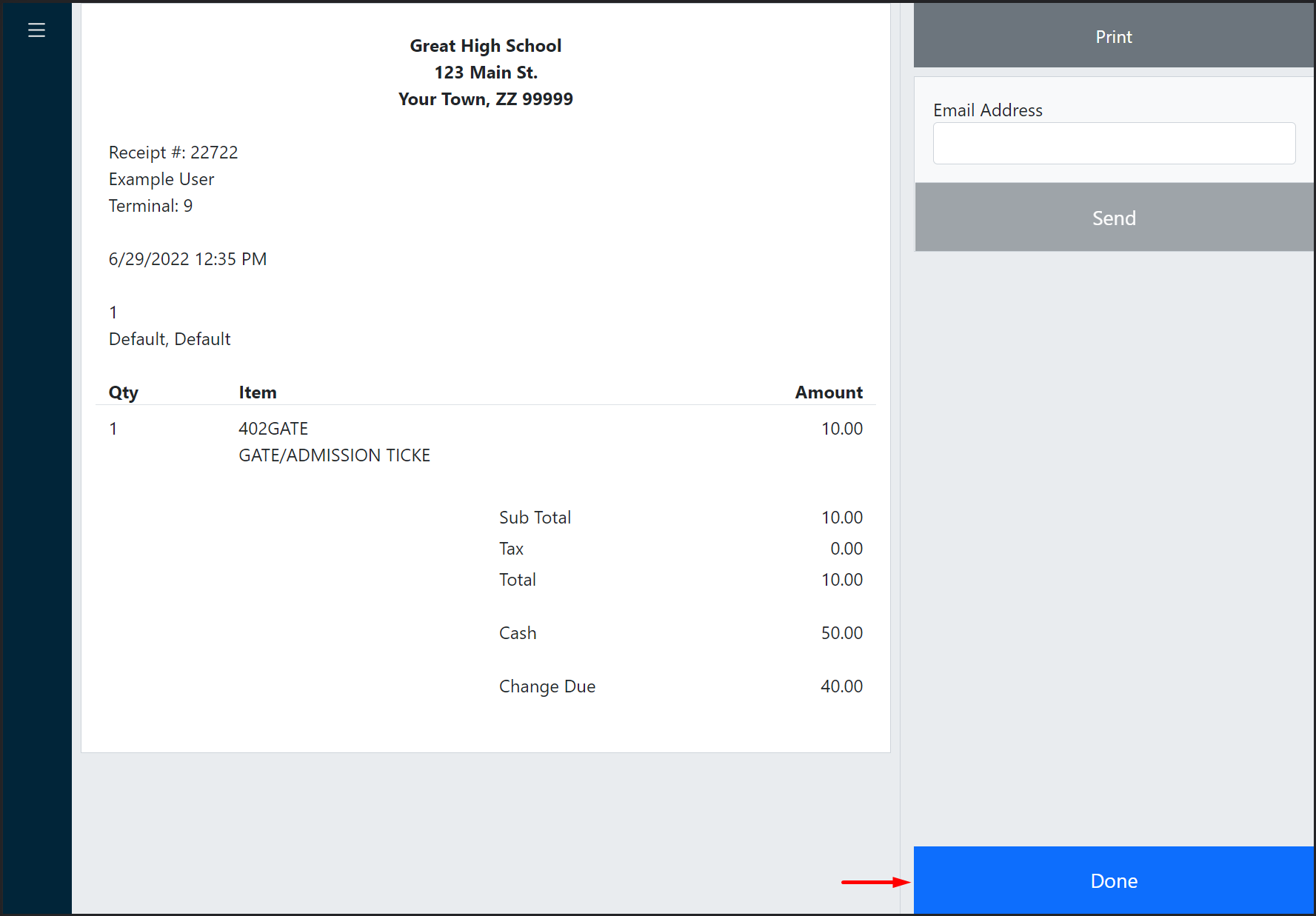
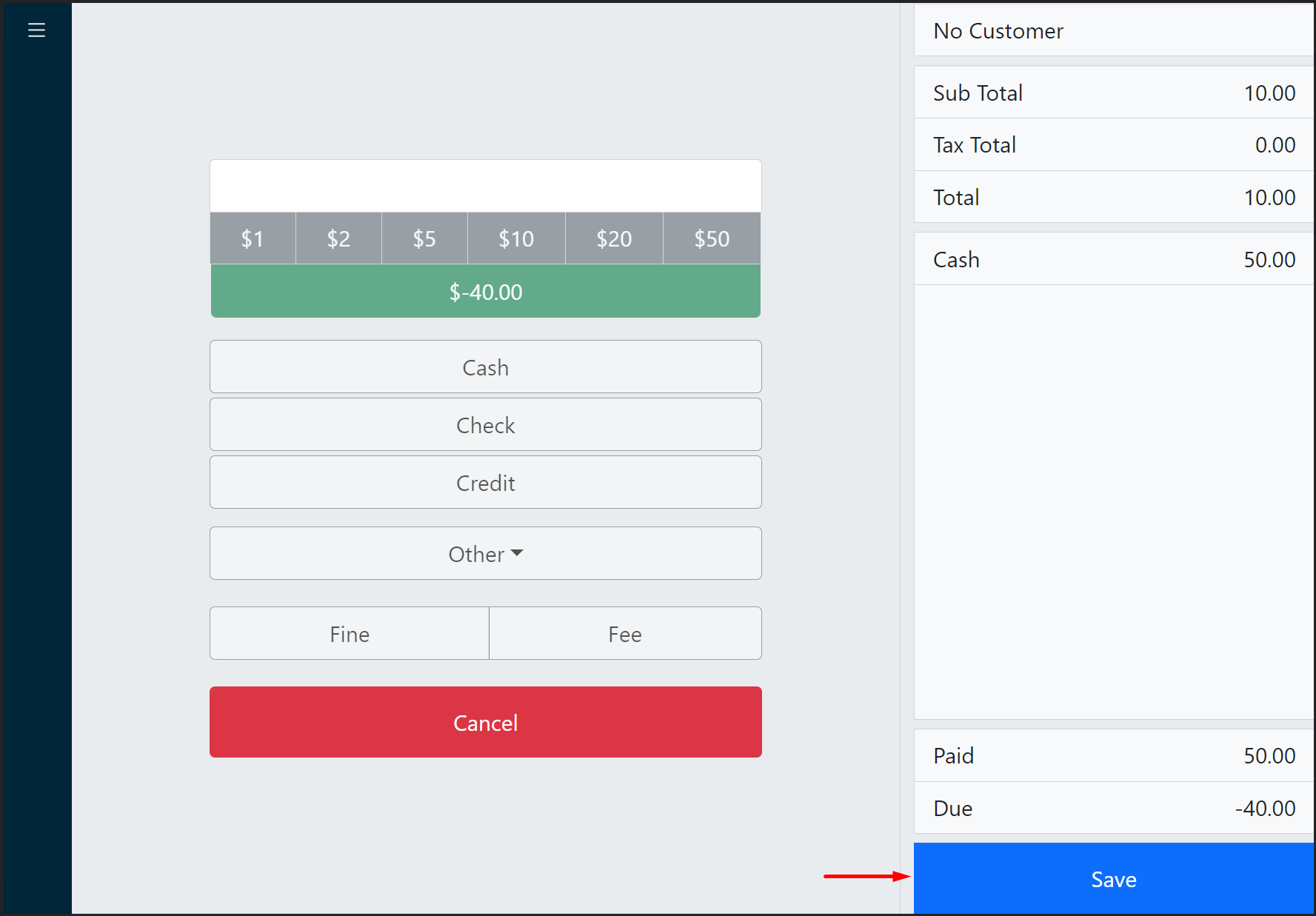
In this example, $50 in cash was given and is now listed along with the amount of change due.
- Click Save.
- Finally, click Done on the receipt screen.