Introduction
This article provides instructions for looking up customers or items in the Point of Sale (POS) system. Follow these steps to quickly locate records using various filters and search criteria.
How to Look Up a Customer or Item
- Go to Point of Sale.
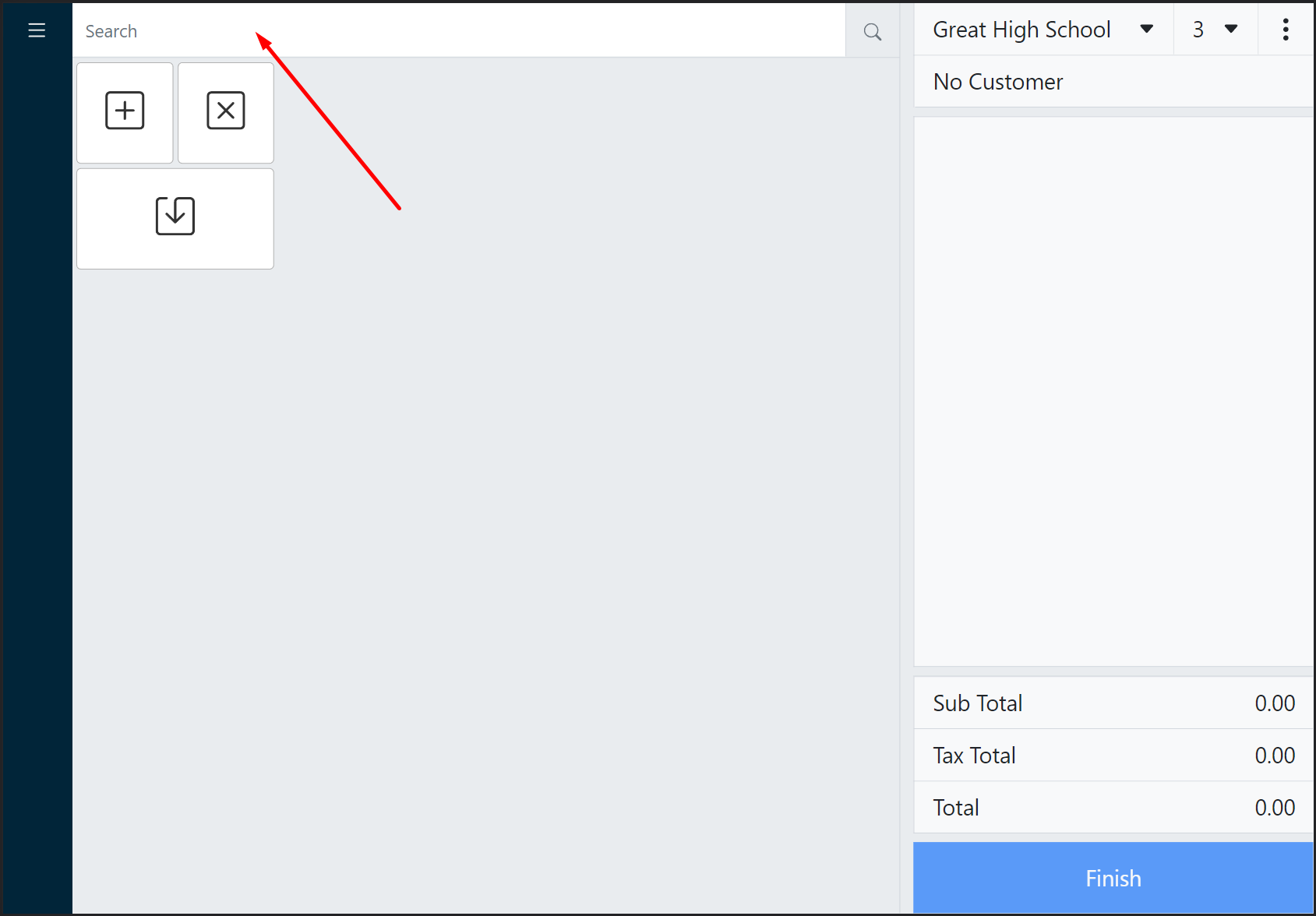
- Click the Search bar to activate the search menu.
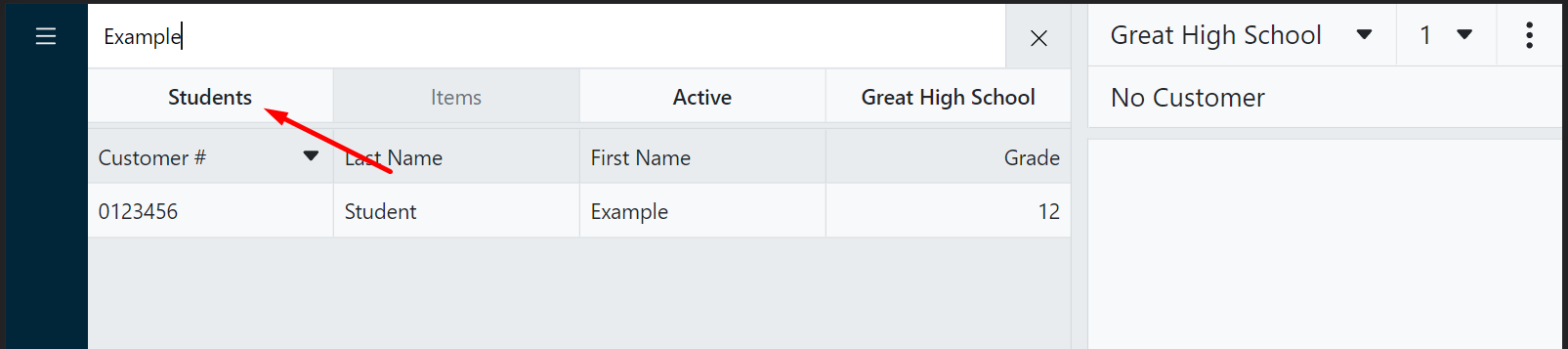
- Type any search criteria (e.g., customer #, last name, first name, grade).
Tip:
Use up to 3 criteria, separated by commas.

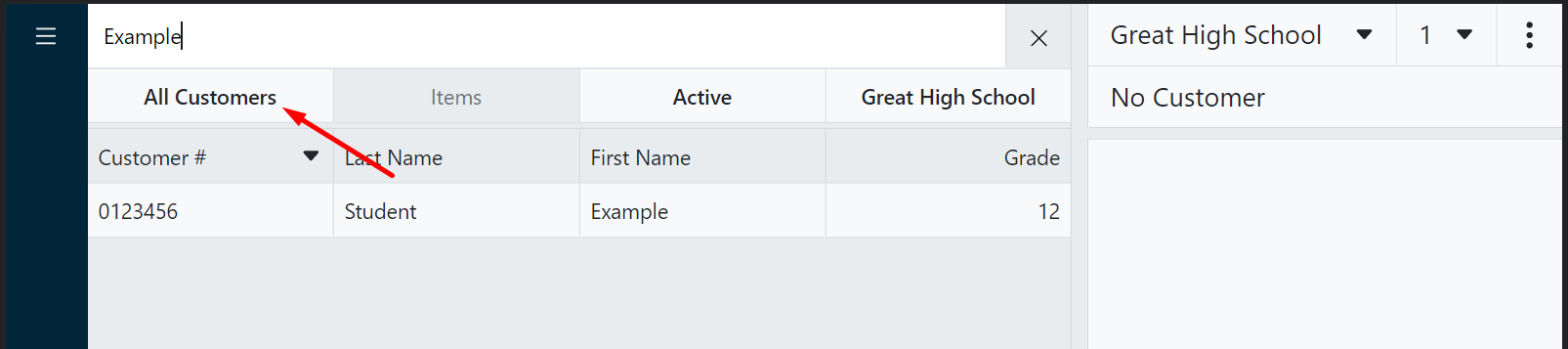
- As needed, click the customer filter to switch between Students, Non-students, and All customers.
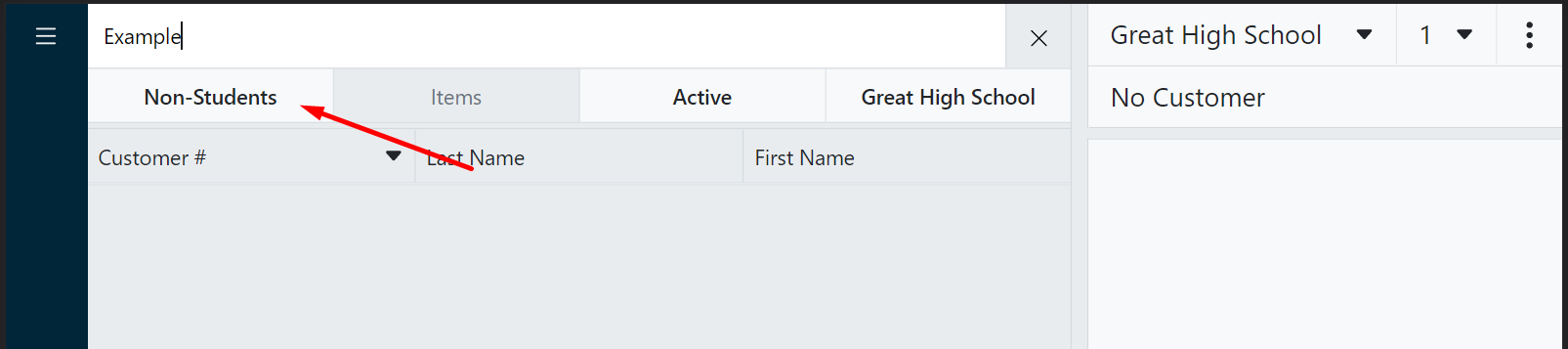
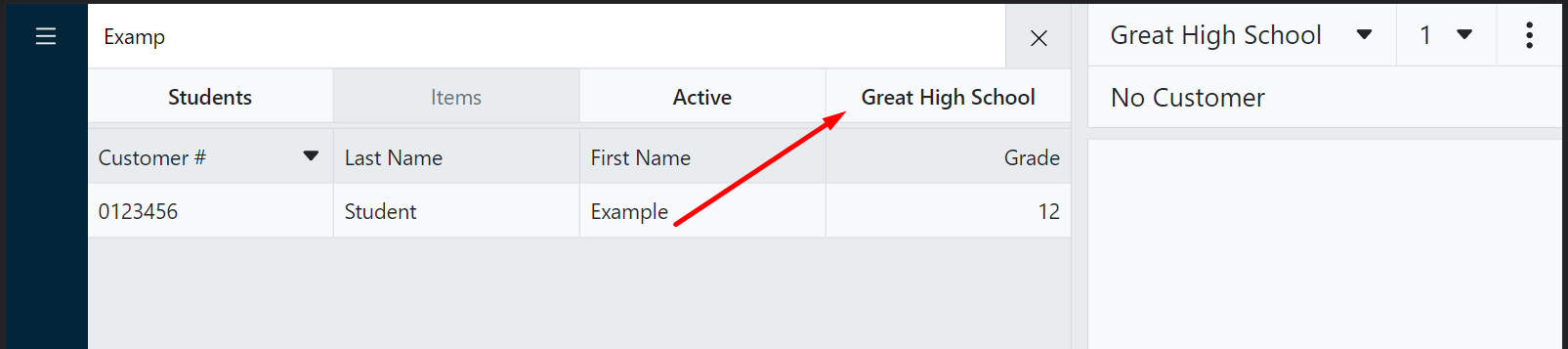
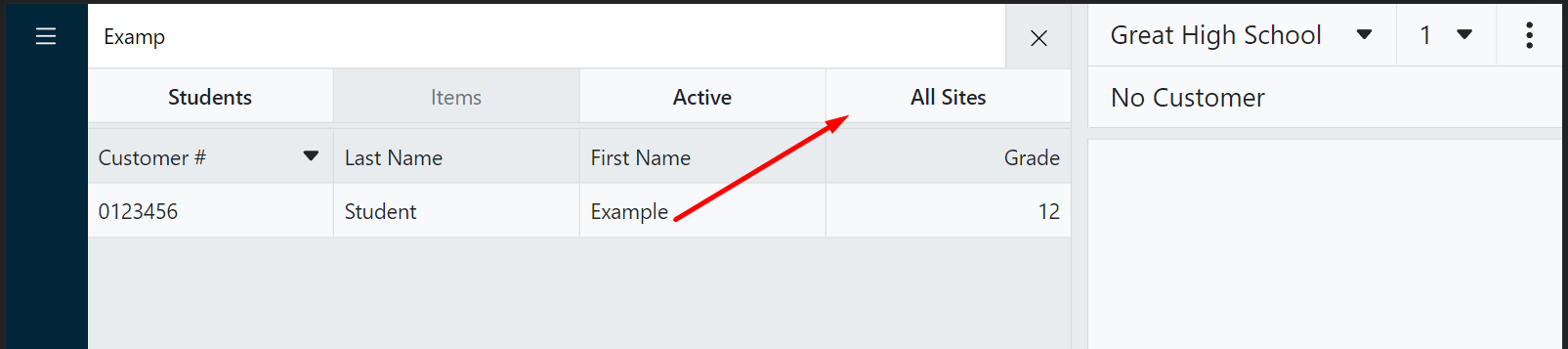
- If the customer you are searching for is not assigned to your site, you may need to click the site filter to switch between available sites.
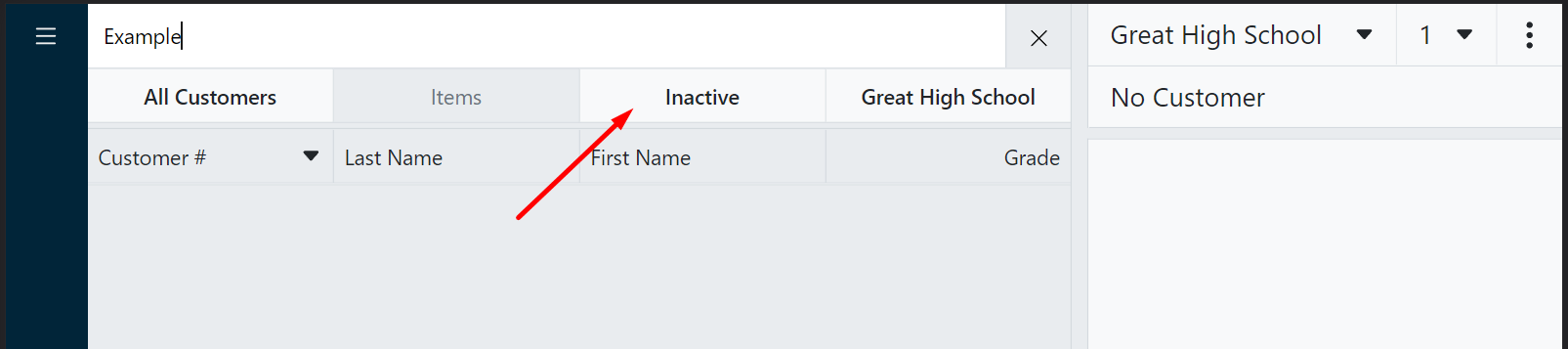
- If the customer you are searching for is inactive, click the status filter.
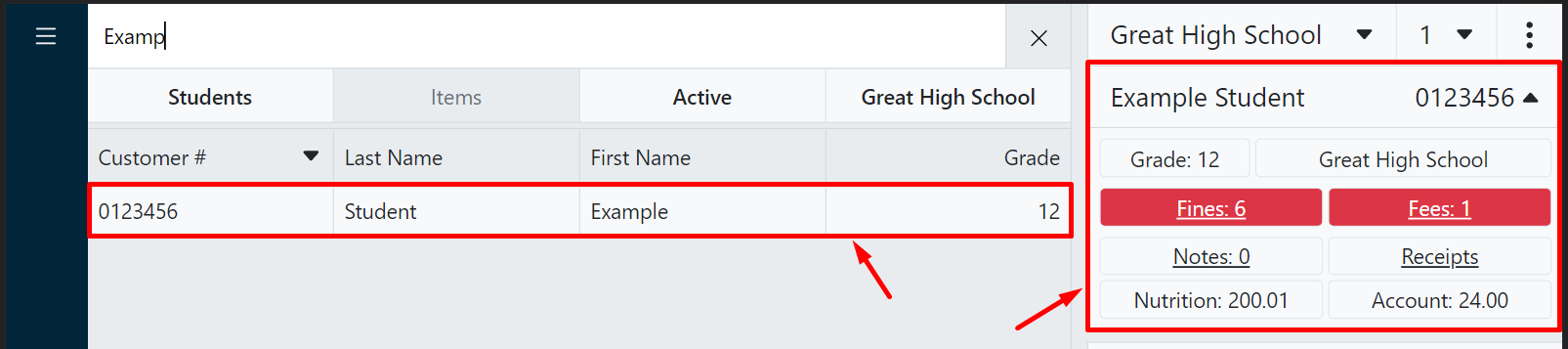
- Select the appropriate customer, which will reveal additional customer information.
Note:
If only one customer meets your search criteria, it will automatically be selected.